










What are the criteria for this guide?
How we built this list
We looked at the 2,925 sales calls Scoro had between January and November 2026 and noted which project tools teams use, are leaving, or compare with us. Those calls are with businesses already looking at software like ours, so they tell us a lot about teams that bill for their time and much less about freelancers and software teams. Those sections lean more on vendor sites, G2 and how AI assistants answer the question. We share counts and patterns only, never company names or what anyone said.
TL;DR: What project management software should you choose?
You want one place to run your projects. On our sales calls, the usual setup is a project tool, a spreadsheet and an accounting app, with someone copying numbers between all three.
You can stay in spreadsheets, add apps around a project tool, or move to one platform that handles the business side too. The decision guide below helps you choose.
We cover seven use cases, from freelancers to large organizations, with one pick each and a few alternatives. It’s written for whoever chooses and pays for the tool, so price, rollout and what each tool stops doing as you grow count for more than features.
Which use case are you? Go down the “Best for” column below and stop at the first row that fits. Billing clients for your team’s time comes first, whatever your size, then shipping software, then price. Otherwise, go by headcount.
At a glance
| Tool | Best for | Free plan | Resource and workload planning | Financial depth |
|---|---|---|---|---|
| Scoro | Client-service businesses | Trial only (14 days) | Native (Resource app) | 3 (4 with add-ons) |
| Jira | Software teams | Yes (10 users) | Paid plans | 1 |
| ClickUp | Free and low-budget | Yes (no member cap) | Paid plans | 1 |
| Bonsai | Solo workers and freelancers | Trial only (7 days) | Paid plans | 3 |
| Basecamp | Small teams | Yes (1 project, 3 users) | No | 1 |
| monday.com | Growing teams | Yes (2 seats) | Paid plans | 1 |
| Smartsheet | Large organizations | Trial only (30 days) | Add-on | 0 |
Resource and workload planning: Native means it’s built in. Paid plans means it’s built in, but not on the free plan. Add-on means you buy it separately.
Financial depth: 0 means no finance features. 1 adds time tracking and budgets, 2 adds invoicing from tracked time, 3 adds profitability and forecasting, and 4 adds revenue recognition, multiple entities and multiple currencies.
Prices checked November 2026.
1. Best for client-service businesses: Scoro
- Built for: Marketing, creative and PR agencies, consultancies, IT services, and architecture and engineering businesses
- Pricing model: Per user per month, based on the apps you choose (two apps and five users minimum)
- G2 rating: 4.5 (509 reviews) as of November 2026
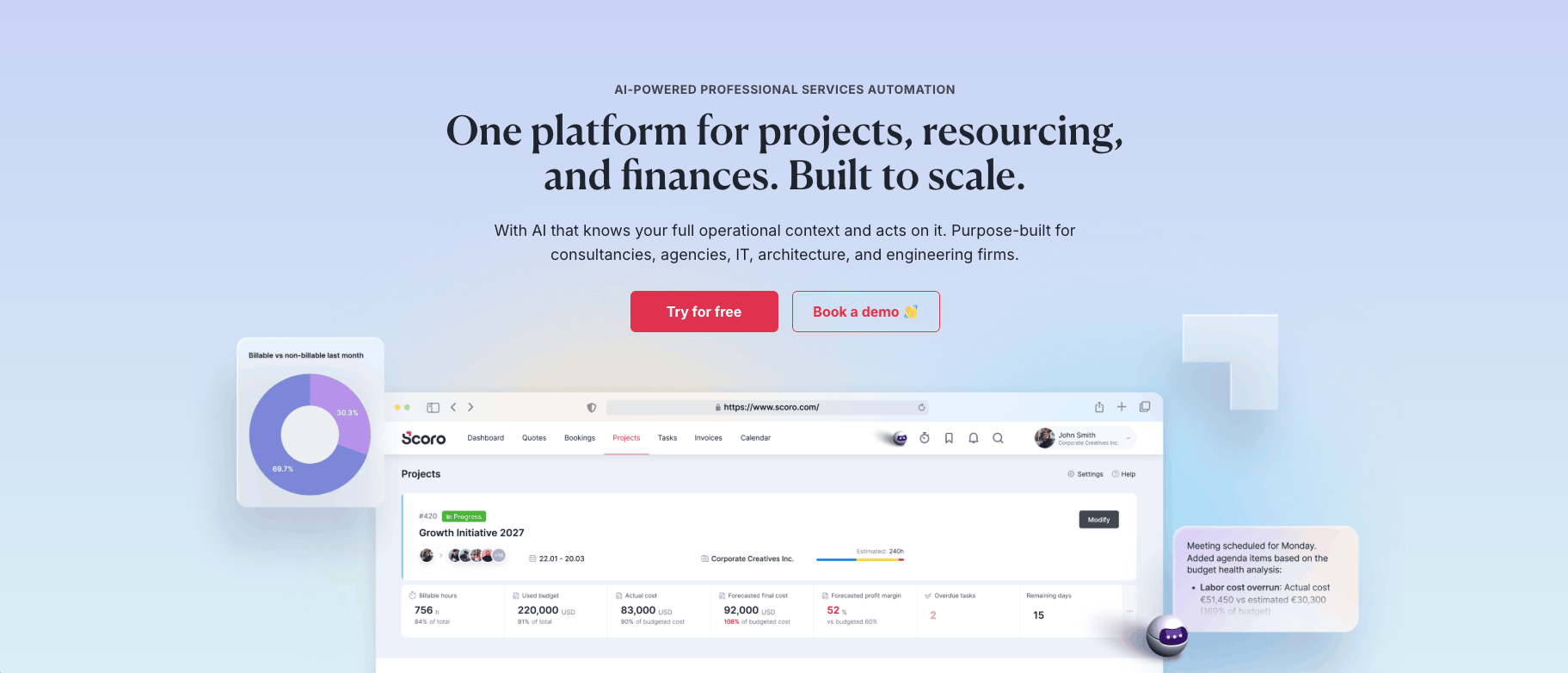
Scoro is our product, so we’re biased, and this section plays by the same rules as the other six. Scoro is a professional services automation (PSA) platform with eight core apps for projects, resourcing, time, quotes and invoicing. If your setup today is a project tool, a time tracker and an accounting app, Scoro sits where all three meet.
You buy it by app, starting with two, and nothing else here is sold that way. Pair its Track and Invoice apps, for example, and logged hours turn into invoices without a separate time tracker. For teams that bill, we think the handoffs between tools cause more trouble than the project tool itself.
What holds smaller teams back is the floor. You need at least five users, and there’s no free plan, only a 14-day trial. Reviewers on G2 also mention a learning curve.
Recent product updates:
- October 2026: bookings-based revenue in project revenue and the revenue report
- September 2026: Scoro Time, a mobile app for logging time on iOS and Android, including offline
Top Tip
Keep Scoro as your system of record and let your team work from the AI tool they already use. Scoro’s MCP server comes with every plan, so Claude or ChatGPT can pull reports from Scoro and write tasks, time and projects back into it.
Who should use Scoro?
Client-service businesses of five or more people that bill for their time and whose tools don’t talk to each other.
Not for: people working alone, or teams that only need shared task lists. Basecamp or ClickUp will suit you better, and cost less.
Pros and cons
| Pros | Cons |
|---|---|
| Pick the apps you need, starting with two | Five-user minimum and no free plan |
| Logged time turns into invoices | Takes time to learn at first, G2 reviewers say |
| Resource planning in the same system | Multiple currencies and entities need add-ons |
| Profit by project and client | Single sign-on only on the Enterprise platform |
Other tools to consider
- Productive (per user per month, 14-day trial). Worth a look if you want agency-style project management with budgets and resource planning from its first plan. It can also invoice logged time.
- Teamwork.com (free plan, then per user per month). The better place to start if you want to begin free. Its free plan covers up to five users, and invoicing from logged time comes in on the Accelerate plan.
2. Best for software teams: Jira
- Built for: Teams that plan and track work, from small teams to enterprises
- Pricing model: Free for up to 10 users, then per user per month
- G2 rating: 4.3 (8,093 reviews) as of November 2026
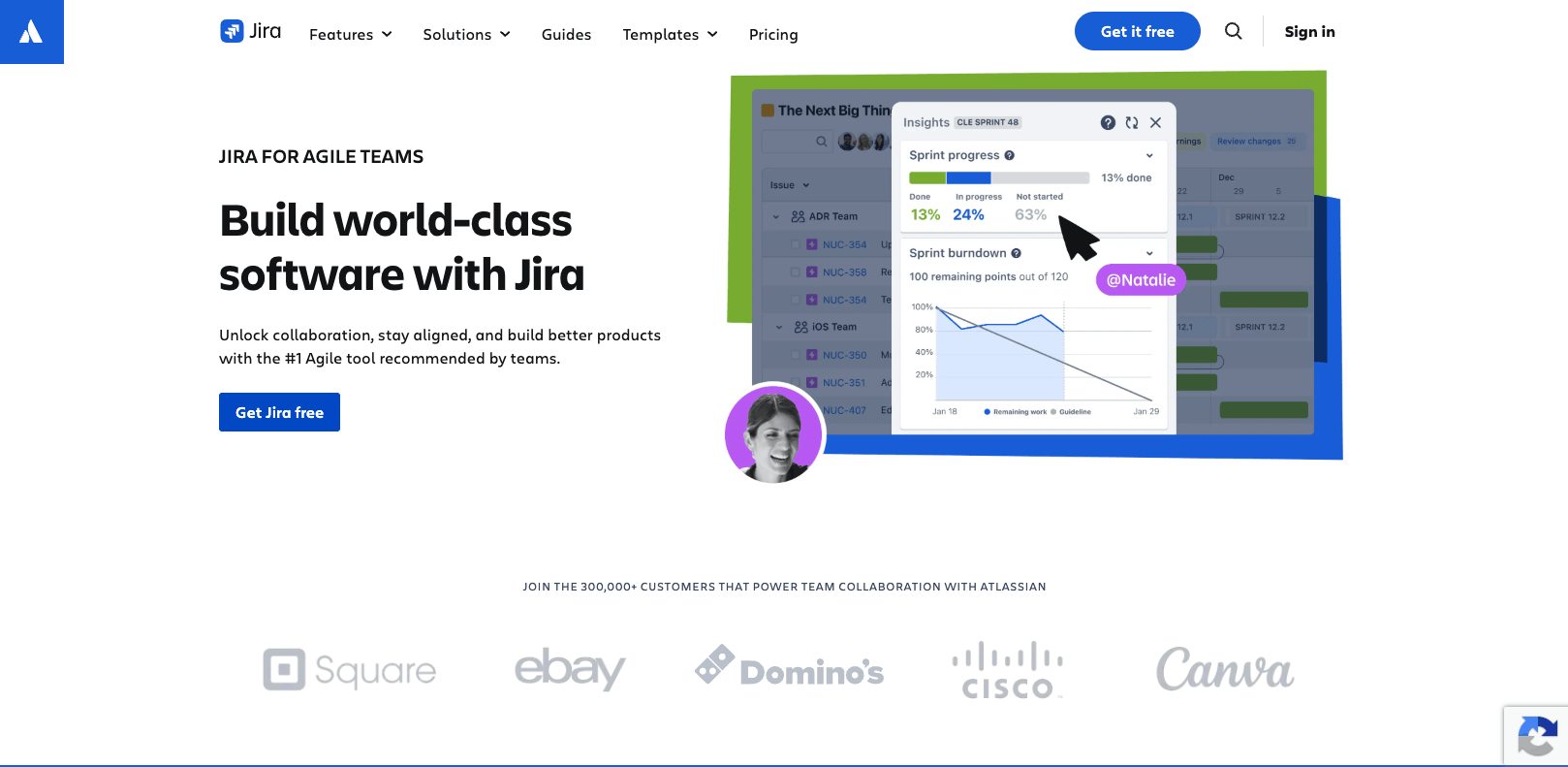
Jira is Atlassian’s project and issue tracker. Where Trello gives you a board, Jira gives software teams Scrum and Kanban boards, a backlog and the workflow rules engineering teams build around them.
A team of up to 10 can run all of that free, with no time limit. We’d call it the default for teams whose engineers already use Atlassian tools, because it plugs into what they have. Reviewers on G2 single out its integrations.
It gets heavier as it grows. Reviewers report slow loading on big projects, crowded screens and time-consuming setup, and there’s nothing here for client billing.
Recent product updates:
- September 2026: completing a sprint now shows which board columns hold done and open work, so you can move items before you close it
Who should use Jira?
Software teams that plan their work in sprints.
Not for: teams outside engineering who only want shared tasks. It’s more tool than they need.
Top Tip
Developers can stay in Jira while the business runs in Scoro. With Scoro’s Jira integration, time logged in Jira flows into Scoro for budgets, invoicing and reports. It’s a paid integration, currently in beta with a waiting list.
Pros and cons
| Pros | Cons |
|---|---|
| Scrum and Kanban boards with a backlog | Slow on large projects, reviewers say |
| Free for up to 10 users | Crowded screens, reviewers say |
| Roadmaps across teams on Premium | Nothing for client billing |
| Wide range of integrations |
Other tools to consider
- Linear (free plan, then per user per month). Free for unlimited members, with a cap of two teams and 250 issues, and cycles on every plan. A good fit for small product teams that care about speed.
- GitHub Projects (included with GitHub). Tables, boards and roadmaps built on your issues and pull requests. The natural choice if your code already lives on GitHub.
3. Best for free and low-budget: ClickUp
- Built for: Teams that want tasks, docs, goals and chat in one workspace
- Pricing model: Free, then per user per month
- G2 rating: 4.6 (15,903 reviews) as of November 2026
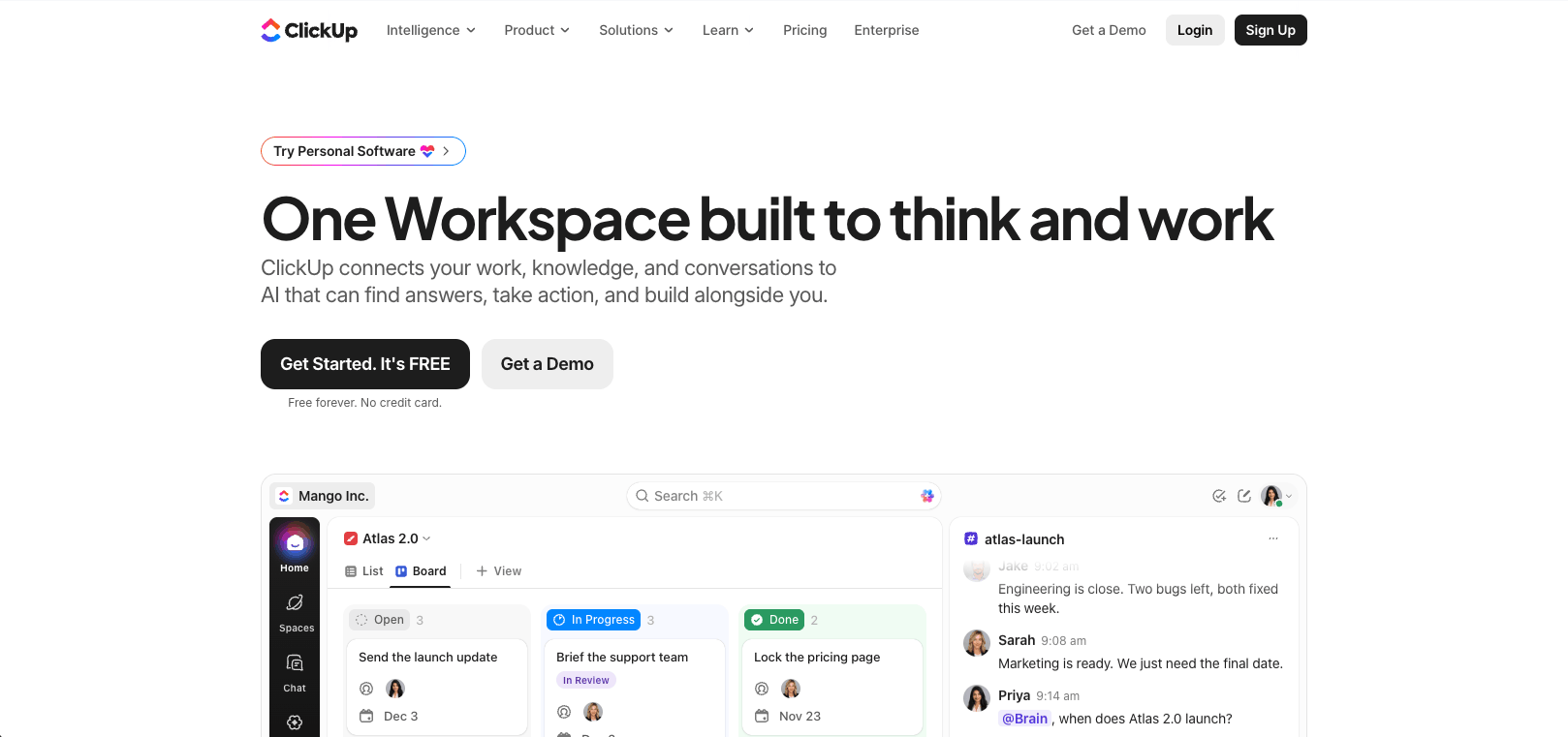
ClickUp puts tasks, docs and dashboards in one workspace. Think of it as Trello’s boards, with automations and a lot more built in.
Its free plan has no member cap and includes automations, 100 actions a month. If you need to get a whole team on one tool without a budget, this gets you furthest before you pay.
Where it runs out on the free plan is the views that make it a project tool. Time tracking and Workload are limited until you upgrade. Reviewers on G2 also mention a slow workspace and more features than they need.
Recent product updates:
- November 2026: set effort by day, week or month in Workload view (Business Plus and Enterprise)
- October 2026: personal time off now flows into Workload and Scheduling
Who should use ClickUp?
Teams that need a free tool for everyone now and may pay later.
Not for: teams that need time tracking or workload views without paying for them.
Pros and cons
| Pros | Cons |
|---|---|
| No member cap on the free plan | Time tracking and Workload are limited on Free |
| Automations on the free plan | A slow workspace, reviewers say |
| Docs and tasks in one place | So many features it takes time to learn, reviewers say |
| Workload and timesheets on paid plans |
Other tools to consider
- Trello (free plan, then per user per month). Free for up to 10 collaborators and 10 boards. Views across several boards need the Premium plan.
- Zoho Projects (free plan, then per user per month). Free for up to five users and three projects, with timesheets on paid plans and invoicing through Zoho Invoice or Zoho Books. A good fit if you already use Zoho apps.
4. Best for solo workers and freelancers: Bonsai
- Built for: Freelancers and small teams
- Pricing model: Per user per month, no free plan
- G2 rating: 4.3 (101 reviews) as of November 2026
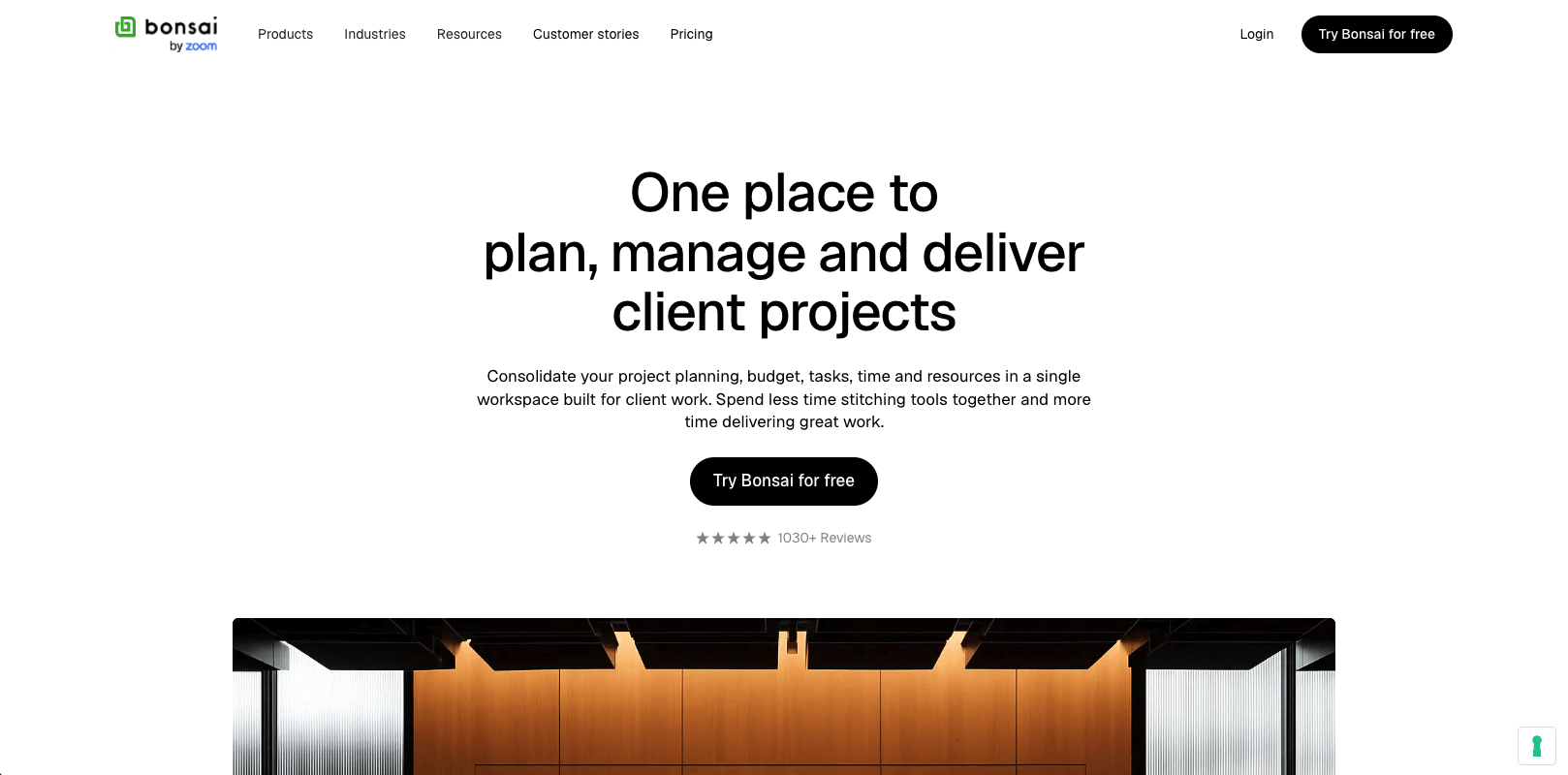
Bonsai handles the admin around client work for people who work for themselves. Instead of a task app plus a separate invoicing app, you get projects and tasks next to proposals, contracts and invoices. It’s now part of Zoom.
On its second plan, Essentials, one person gets all of that, plus online payments and time tracking. We think it earns its price once client paperwork starts eating into time you could bill.
The catch is the starting cost. There’s no free plan, only a seven-day trial, and invoicing isn’t on the cheapest plan. Reviewers on G2 mention missing features.
Recent product updates:
- November 2026: Bonsai AI drafts proposals and contracts from a short description or your notes
Who should use Bonsai?
Freelancers and solo consultants who bill clients.
Not for: people who only need to organize their own tasks. A free tool will do that.
Pros and cons
| Pros | Cons |
|---|---|
| Proposals, contracts and invoices in one place | No free plan |
| Time tracking from the first plan | Invoicing needs the Essentials plan or above |
| Online payments | |
| Profit reports on the Premium plan |
Other tools to consider
- Notion (free for individuals, then per member per month). Docs and databases with subtasks and dependencies. Good for planning your own work, with no time tracking or invoicing.
5. Best for small teams: Basecamp
- Built for: Small and medium-sized businesses managing projects, client work and company-wide communication
- Pricing model: Flat monthly price per plan, no per-user fees
- G2 rating: 4.1 (5,490 reviews) as of November 2026
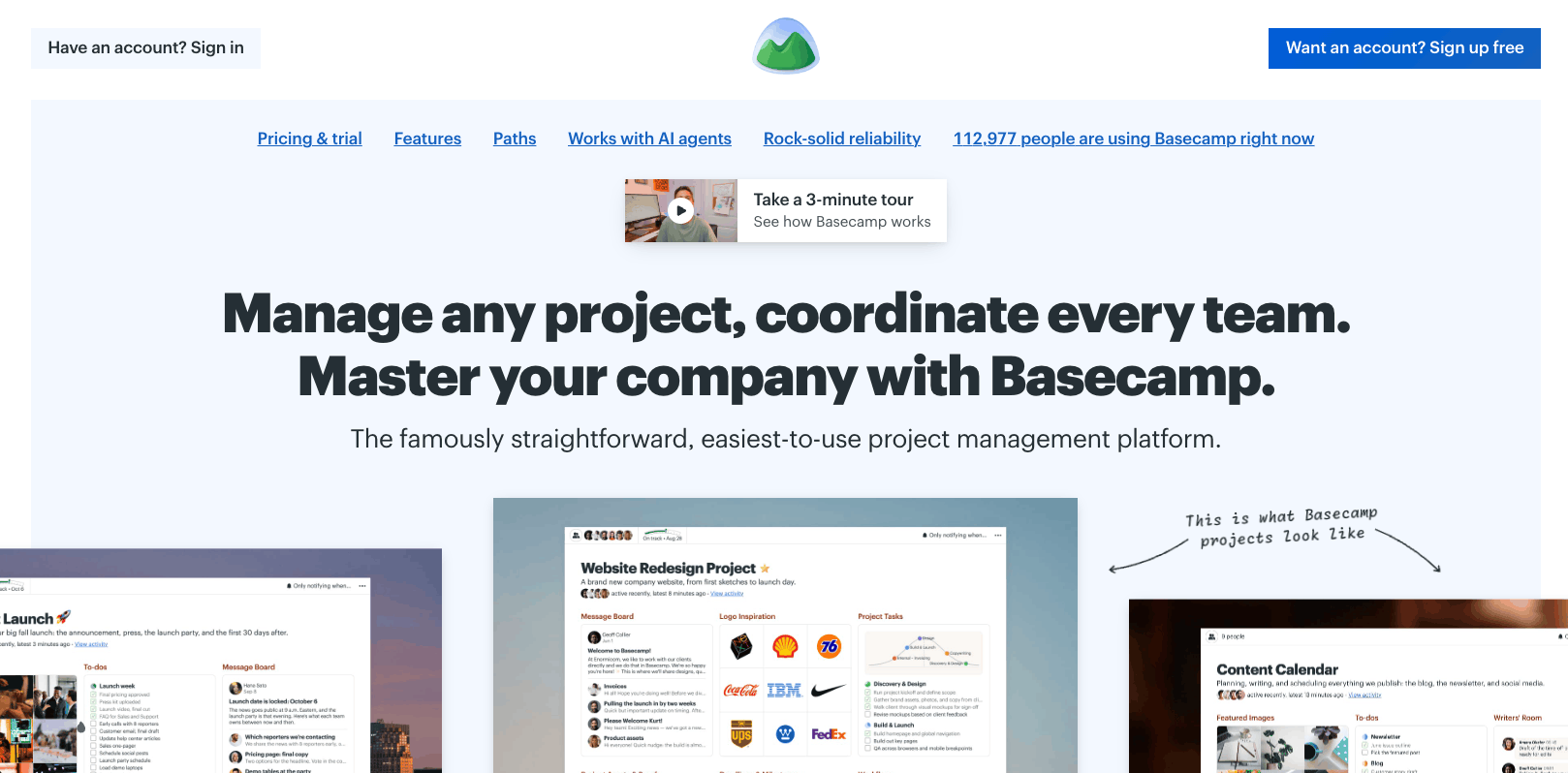
Basecamp gives every project its own message board, to-dos, card table, chat, schedule and docs. Asana organizes work as task lists. Basecamp organizes it around the conversation.
You pay a flat monthly price per plan with no per-user fees, from 10 users on Pro to unlimited on Pro Unlimited. No other tool here is priced that way. Price is the objection we hear most from small teams on our calls, so we like that a new hire doesn’t add a seat fee.
It’s light on planning tools. There’s no workload or resource view, and the cheaper plans cap how many projects can be active at once. Reviewers on G2 say it’s missing features.
Who should use Basecamp?
Small teams that want projects and team chat in one place at a fixed price.
Not for: teams that need workload views or billing from tracked time.
Pros and cons
| Pros | Cons |
|---|---|
| Flat price, no per-user fees | No workload or resource planning |
| One calendar and timeline across all projects | Limits on active projects below the top plan |
| Chat, docs and to-dos in every project | Missing features, reviewers say |
| Free plan and a 30-day trial |
Other tools to consider
- Asana (free for two users, then per user per month). Timeline and Gantt views from the Starter plan, portfolios and resource management on Advanced. A good fit for small teams that want more structure and expect to grow, though reviewers on G2 flag the per-seat cost.
6. Best for growing teams: monday.com
- Built for: Teams across departments, from marketing and operations to IT and HR
- Pricing model: Free for two seats, then per seat, with paid plans from three seats
- G2 rating: 4.7 (17,976 reviews) as of November 2026
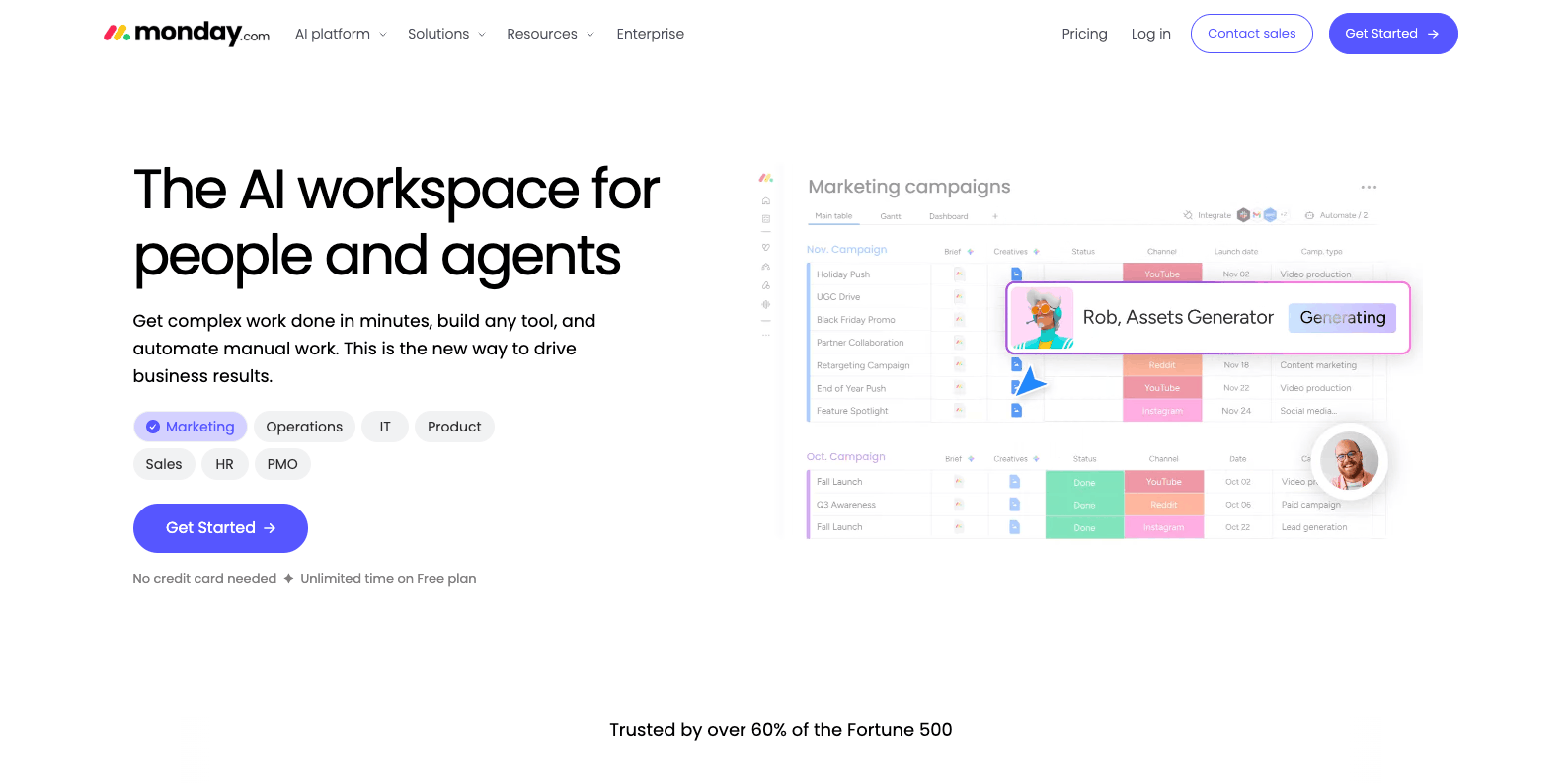
monday.com is board-based work management that teams set up themselves. If you’ve used a board tool like Trello, it’ll feel familiar, with far more ways to shape columns and workflows to your team.
It has the highest G2 rating of our seven picks, and reviewers most often praise how easy it is to use day to day. On the Pro plan, the Workload widget on a dashboard pulls from several boards, so a manager can see who’s overloaded across teams. It’s the project tool we hear about most on our sales calls, often from teams that have built their whole way of working in it. We think that flexibility is why it lasts as teams grow.
The parts a growing team leans on sit on higher plans. Workload and time tracking need Pro, and resource management needs Enterprise. Seats come in bundles from three, and reviewers on G2 mention the cost.
Recent product updates:
- November 2026: Autopilot Hub, one place to see and control every automation in the account
Who should use monday.com?
Teams of about 10 to 50 people working across departments.
Not for: teams that need full resource management without an Enterprise contract.
Pros and cons
| Pros | Cons |
|---|---|
| Highest G2 rating of our picks | Workload and time tracking only from Pro |
| Workload across boards on Pro | Resource management only on Enterprise |
| Automations from the Standard plan | Seats sold in bundles from three |
| Free plan for two |
Other tools to consider
- Wrike (free plan, then per user per month). Free for unlimited users, with workload charts and time tracking on the Business plan. A good fit for growing teams that need approvals and timelines that link projects.
7. Best for large organizations: Smartsheet
- Built for: Enterprises, including project management offices (PMOs), IT, operations and client delivery teams
- Pricing model: Per member per month, no free plan
- G2 rating: 4.4 (23,295 reviews) as of November 2026
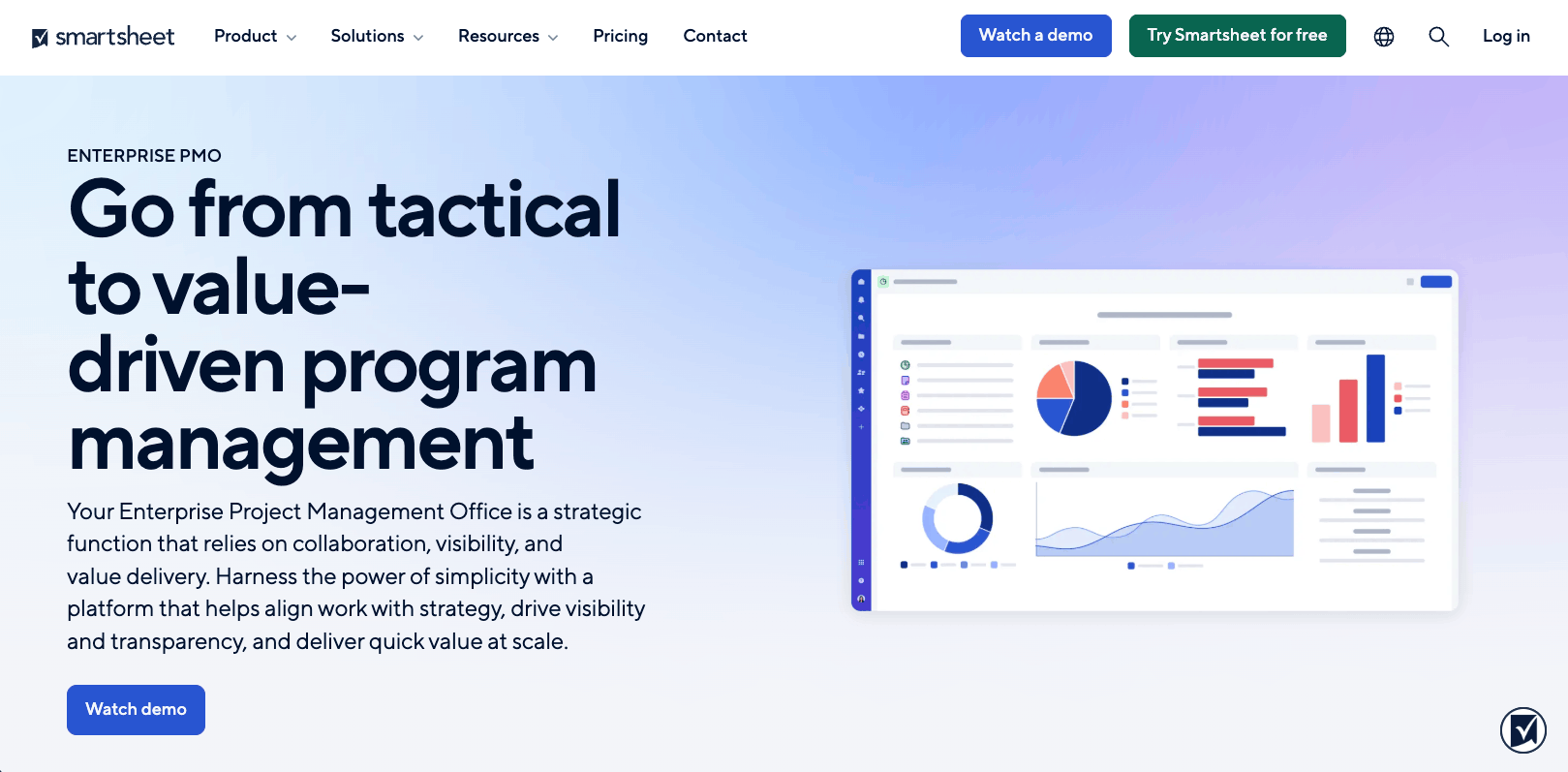
Smartsheet is work management built on a spreadsheet grid. For teams that run on Excel, it looks like what they already use.
It’s the only tool here built that way, with formulas that work across sheets on every plan, and portfolios and SAML single sign-on on Enterprise. On our calls, Excel comes up more than any project tool, so we think this is the shortest path from spreadsheets for a big organization.
Its enterprise features come at a price. Portfolios and single sign-on need Enterprise, resource management is a paid add-on, and there’s no free plan. Reviewers on G2 say it’s less intuitive than they’d like.
Recent product updates:
- November 2026: create portfolios with AI
Who should use Smartsheet?
Large organizations whose teams run on Excel and need portfolio reporting and admin control.
Not for: small teams on a budget. It’s overkill, and you’ll pay for structure you won’t use.
Pros and cons
| Pros | Cons |
|---|---|
| A spreadsheet grid people already know | No free plan |
| Formulas across sheets on every plan | Resource management is an add-on |
| Portfolios and SAML single sign-on on Enterprise | Not intuitive, reviewers say |
| Unlimited automations from the Business plan |
Other tools to consider
- Microsoft Planner and Project (Planner included in Microsoft 365; paid plans per user per month). Planner Plan 1 and Planner and Project Plan 3 add timelines, people views and portfolios. The obvious choice for organizations that have standardized on Microsoft 365.
Spreadsheets, a project tool plus add-ons, or everything in one place?
Every team on this list is choosing between three ways of working, whether they say so or not.
Stay in spreadsheets
This works when one or two people do the planning and there are only a few projects. It costs nothing to start, everyone already knows the tool, and there’s nothing to roll out. For a small team, that’s often the right call.
What it costs later is time. Every update is manual, and once you have more than a few linked sheets, a change in one can break something several sheets away without anyone noticing. If you want to keep the grid but add structure, Smartsheet is the closest fit.
A project tool plus apps for time and invoicing
This is the most common setup we see on our calls. A team runs projects in a tool like monday.com or Asana, tracks time in a separate app such as Harvest, and invoices from accounting software. AI assistants suggest the same route when asked for project software with time tracking and invoicing.
It works when you’re happy with your project tool and billing is a side job. The upside is choice. Each app can be the one your team likes best, and you can swap one out without moving everything else.
Some teams go further and build time tracking and resourcing into the project tool itself, with custom boards and fields. That can hold for a long time, but someone has to keep it updated by hand. The cost of this path is several subscriptions and someone copying hours and budgets between them. ClickUp, Basecamp, monday.com and Jira all fit here, paired with an invoicing app.
Everything in one place
This works when you bill for your time and need budgets, resourcing and invoicing to share the same data. It’s the biggest change of the three. Projects, time and billing move at once, so the team learns one new system and the old tools are retired together.
On our calls with larger businesses, getting the team on board and timing come up as objections more than price does. If you don’t bill clients for your time, it’s more than you need. Scoro, Productive and Teamwork.com fit here.
Our rule of thumb
If nobody on your team bills for their time, pick the simplest project tool people will use. If they do, count the hours you spend moving numbers between tools before you decide.
Which should you choose?
- Billing clients for your time and tired of copying hours into invoices? Scoro.
- Planning releases in sprints? Jira.
- No budget, and the whole team needs to be in? ClickUp.
- Freelancing and chasing proposals and invoices? Bonsai.
- A small team tired of paying per seat? Basecamp.
- Several departments, and you need to see who’s stretched? monday.com.
- A big organization where everyone lives in spreadsheets? Smartsheet.
FAQ
What’s the difference between project management software and PSA software?
Project management software plans and tracks the work. Professional services automation (PSA) software also runs the business side of that work, including time tracking, budgets, resourcing and invoicing. If you bill clients for your team’s time, a PSA tool keeps those numbers next to the projects instead of in separate apps.
Which is the best free project management tool?
It depends on how many people need access. ClickUp and Wrike have no user cap on their free plans, and Linear’s free plan has no member cap but limits you to 250 issues. Trello’s covers up to 10 collaborators, Jira’s up to 10 users for software teams, and Asana and monday.com are free for two. Check what each free plan leaves out, since time tracking and workload views are often paid.
Does Microsoft 365 include project management software?
Yes. Microsoft Planner is included in Microsoft 365 for basic task plans. For timelines, people views and portfolios, Microsoft sells Planner Plan 1 and Planner and Project Plan 3, which includes the Project desktop app.
Can project management software replace spreadsheets?
For tasks, timelines and status updates, yes. Most project tools handle those better than a spreadsheet. For budgets, profit and billing, you need a tool with financial features, or you’ll keep a spreadsheet next to it.
Do I need a separate tool for time tracking and invoicing?
Not if your project tool does both. Scoro, Bonsai, Teamwork.com and Productive can turn tracked time into invoices. Most general project tools on this list track time on paid plans but don’t send invoices, so teams pair them with an invoicing or accounting app.
How much does project management software cost per user?
Most tools here have a free plan or a free trial, then charge per user per month. Basecamp is the exception, with one flat monthly price. Prices change often, so check each vendor’s pricing page.