













This month, we’re focusing on financial precision and team collaboration. Track revenue the way your contracts actually work with our new project revenue models, sync expenses and credit bills straight to Sage Intacct, and finally react to comments with emojis. 🎉
See what’s new in Scoro!
Project revenue models
Up until now, Scoro has applied fixed-fee logic to any project with an active budget when tracking revenue – meaning it always assumed you’d earn exactly the budgeted amount. That’s a great fit for flat-fee contracts, but less so for Time & Material (T&M) projects, where revenue should follow the work actually delivered.
With this release, we’re decoupling budget from revenue and introducing project revenue models. Now, you decide how Scoro tracks, calculates, forecasts, and recognizes your project’s revenue.
When you choose a revenue model for the project, you tell Scoro two things:
- The role of the budget – is it a revenue anchor, a ceiling, or an indicative reference
- How to track, forecast, and recognize revenue based on the commercial agreement with your client
You can select the revenue model in the Budget settings tab when creating a project, with three options to choose from: Fixed fee, Time & Material capped, or Time & Material uncapped.
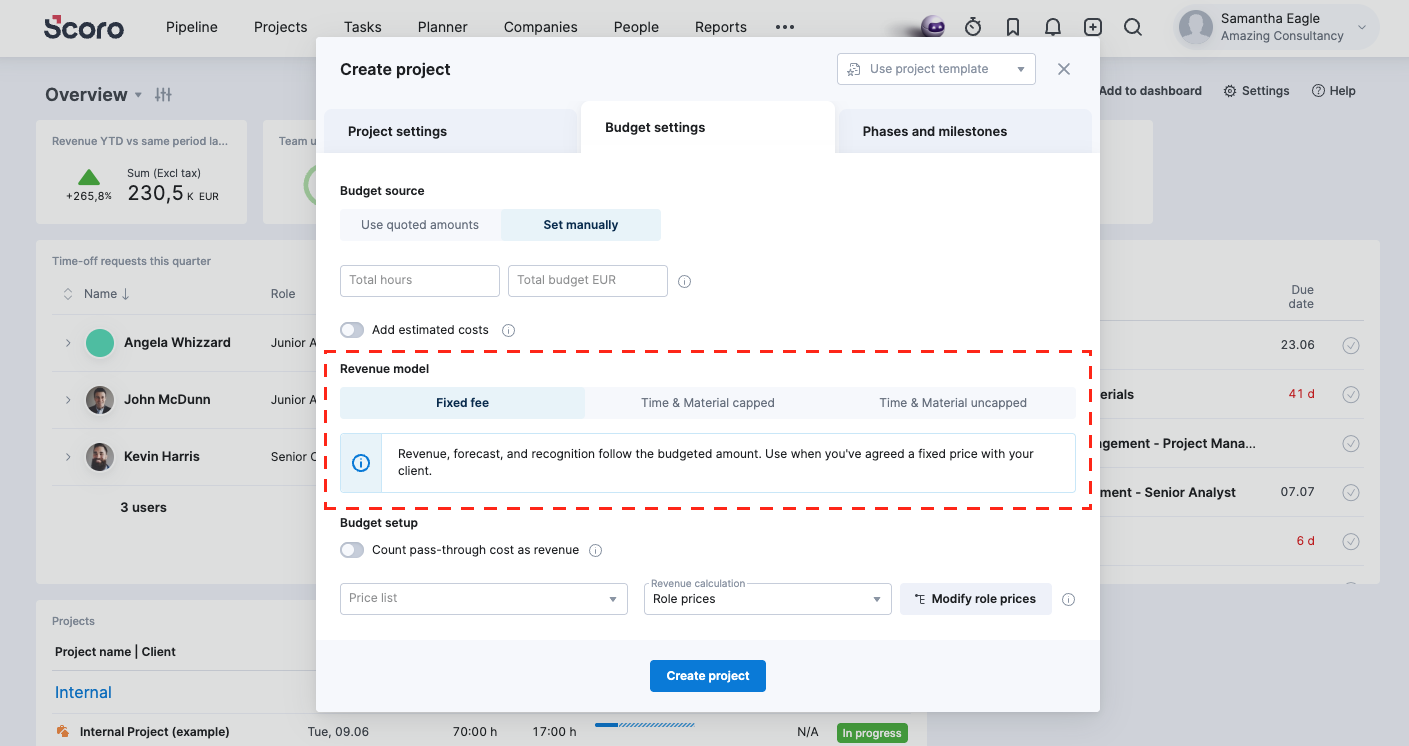
| Fixed fee | Time & Material capped | Time & Material uncapped | |
|---|---|---|---|
| Best for | Locked, flat-fee contracts | Hourly or cost-based billing with a “not-to-exceed” ceiling | Fully billable work with no ceiling |
| Role of the budget | Defines revenue | Caps revenue | Serves as an indicative reference |
| Revenue calculation | Revenue equals the budgeted or quoted amount, regardless of hours logged. Hours that exceed the budget eat into your profit margin and turn financial metrics red, but revenue stays put. | Revenue is capped at the budget, making any work beyond the budget ceiling unbillable. | Revenue accumulates dynamically from all logged and planned work and external costs, with no upper limit. |
| Example | Anna’s agency agrees to a flat 20,000 USD website redesign. Anna chooses fixed fee as the revenue model. Whether the team finishes below budget or runs over, recognized revenue stays at 20,000 USD, and that’s what she invoices. | Ben’s agency bills 150 USD/hour on IT consulting, capped at 15,000 USD and 100 hours. Ben chooses T&M capped as the revenue model. If they spend 80 hours, the client is invoiced 12,000 USD. If they spend 120 hours, revenue caps at 15,000 USD. Over-serviced hours come out of the agency’s pocket. | Clara’s team provides graphic design support with an indicative 5,000 USD/month budget, but all work is billable. Clara chooses T&M uncapped as the revenue model. In a busy month, the team delivers 6,500 USD worth of design work, and that’s the full amount recognized and invoiced. |
Updated project metrics
Because revenue models change how revenue should be calculated, we’ve also updated how certain project metrics behave to ensure your forecasts now reflect your actual commercial agreement instead of forcing you to do the math.
The previous Forecasted budget at completion metric has been split into two:
- Forecasted earned revenue at completion – the raw value of all completed, planned, and scheduled work, ignoring budget limits. Shows what your team’s effort is worth on paper.
- Forecasted revenue at completion – respects your client agreement: equals the budget for Fixed fee, caps at the budget for T&M capped, and follows all work for T&M uncapped.
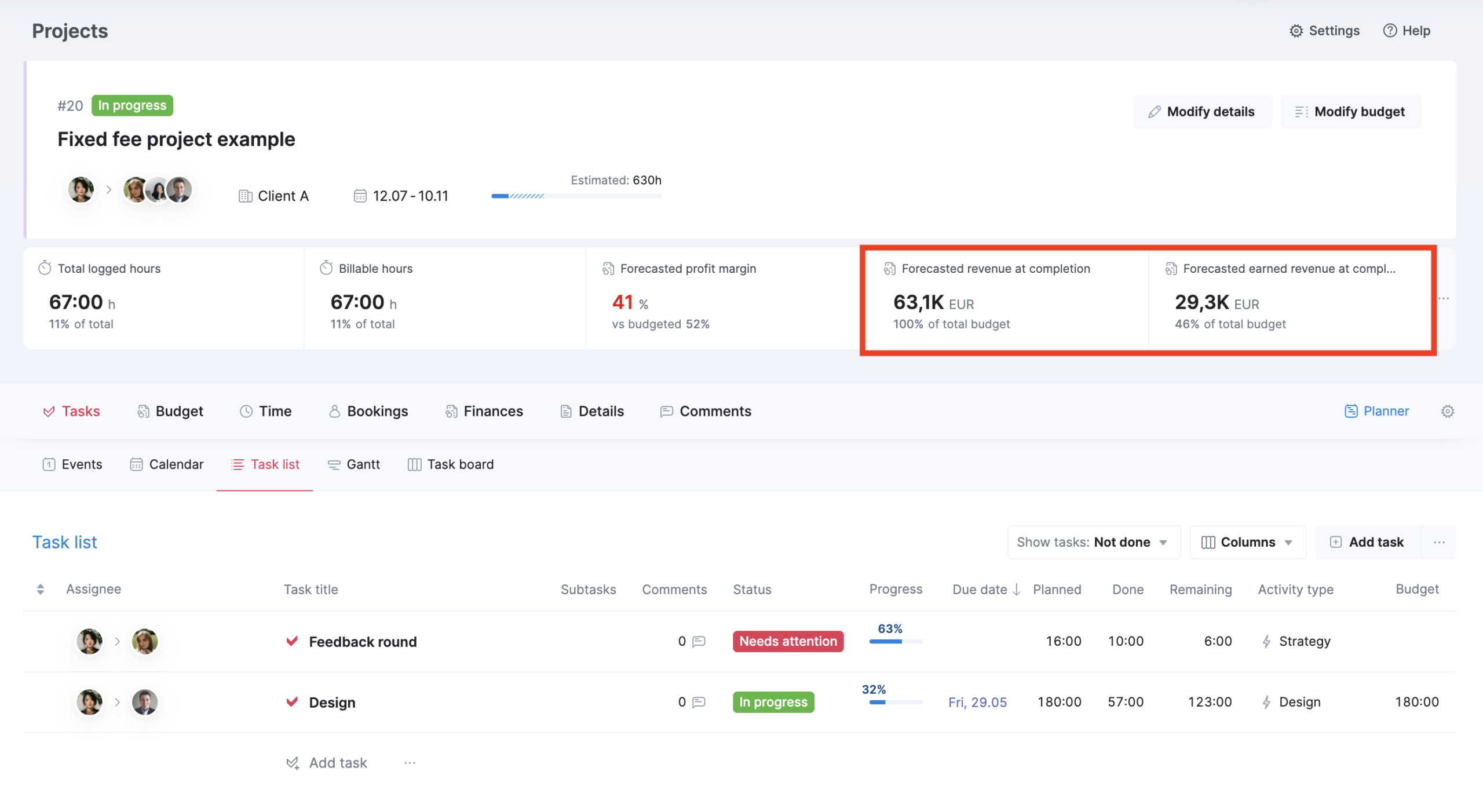
Plus, we’ve improved the calculation logic for Forecasted profit margin metric. It’s now based on forecasted cost and forecasted revenue at completion to keep your margin data consistent across your workspace.
Metric cards and charts now adapt their tooltips and names based on whether your active model enforces caps, and we’ve added clearer explanations to project metrics throughout.
Explore our new Project metrics guide to understand the calculations behind each available project metric in Scoro.
A few other things to know:
- Templates: default to fixed fee, but you can switch the model when setting up the project.
- Permissions: Revenue model and other budget settings can be modified by project managers and other users with the Modify projects of other users or Modify projects of other users if a member rights in their permission set. Viewing monetary values or margin details requires the View project income and cost permission.
- Existing projects: When your site updates to version 26.6, your active projects will automatically adopt a model based on whether they have a budget set or not:
- With a budget -> Fixed fee revenue model
- Without a budget -> Time & Material uncapped
Learn more: Check out our help articles on revenue models, the project metrics guide, creating one-off projects, and creating retainer projects.
Replacing roles with users for multiple tasks at once
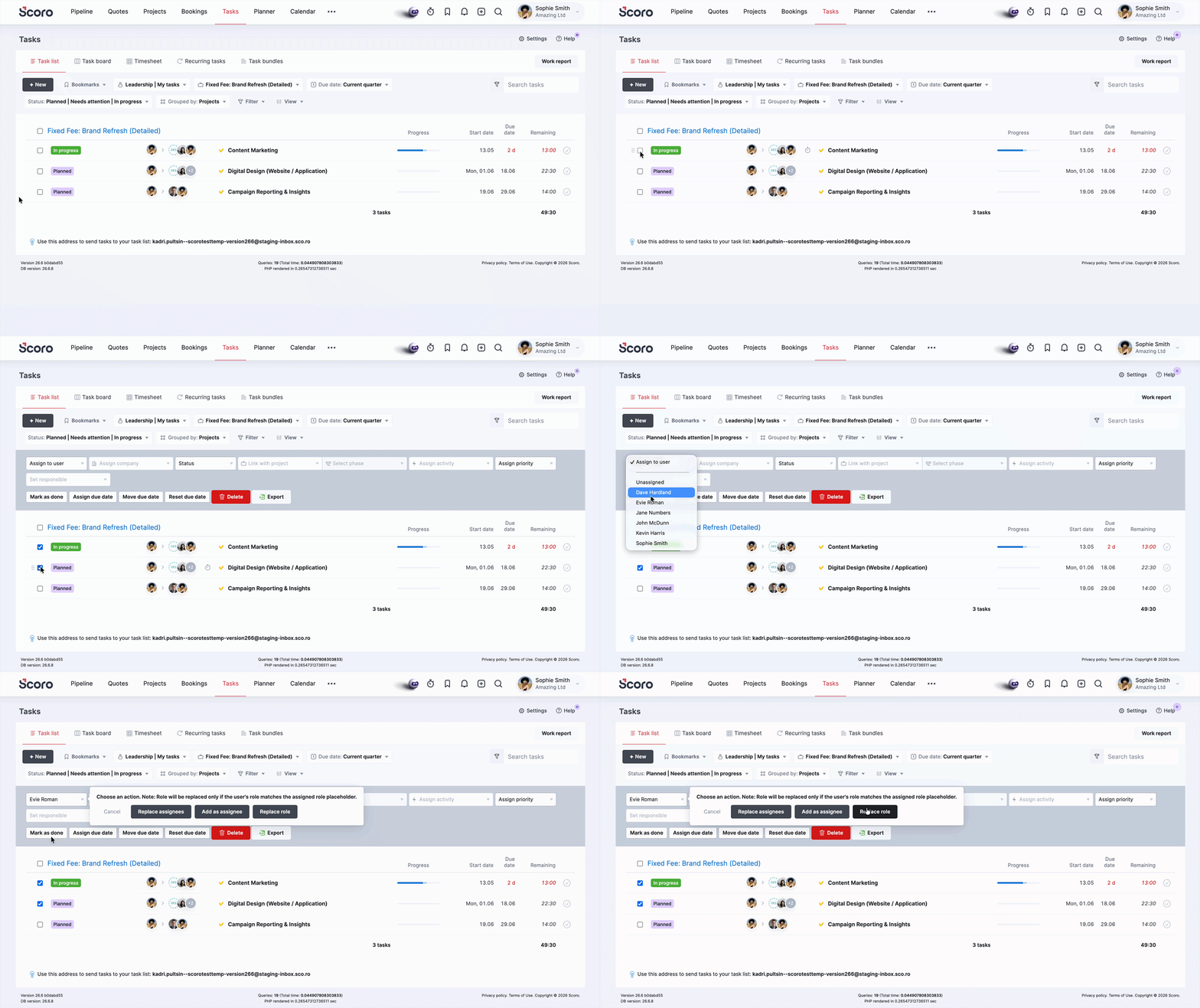
In our March version update, we introduced the ability to assign roles to tasks to indicate the specific expertise required to complete the work. Now, you can also replace the assigned role with an actual team member for multiple tasks at once directly from the task list to save time.
- Head to your task list, filter out the tasks you want to reassign, then select these tasks.
- Click the user dropdown in the bulk actions bar
- Select a team member and choose the Replace role option.
Once confirmed, Scoro automatically replaces the matching assigned roles with the selected user or adds them as additional assignees if no role match is found. Other assignees remain on the task.
Learn more about using roles for task-level resource planning.
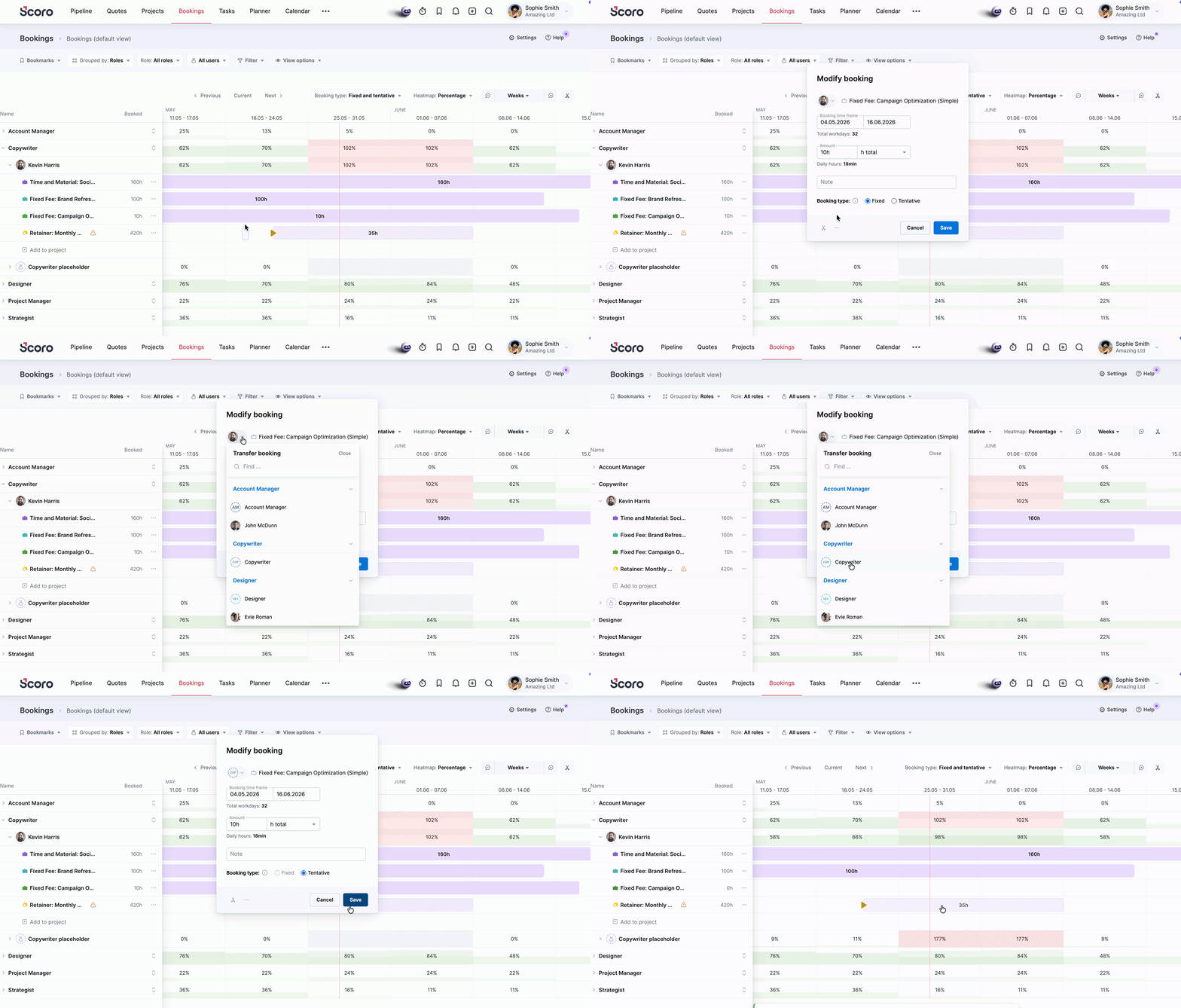
Reassigning a booking to a role
Bookings managment is becoming more flexible as well. You can now easily reassign a specific user’s booking back to a role placeholder if you need to reshuffle:
- Click on a user booking to open the booking modal.
- Click on the user avatar and reassign it to the necessary role placeholder. If the booking was originally set as fixed, it will automatically change to tentative as role placeholders only support tentative bookings.
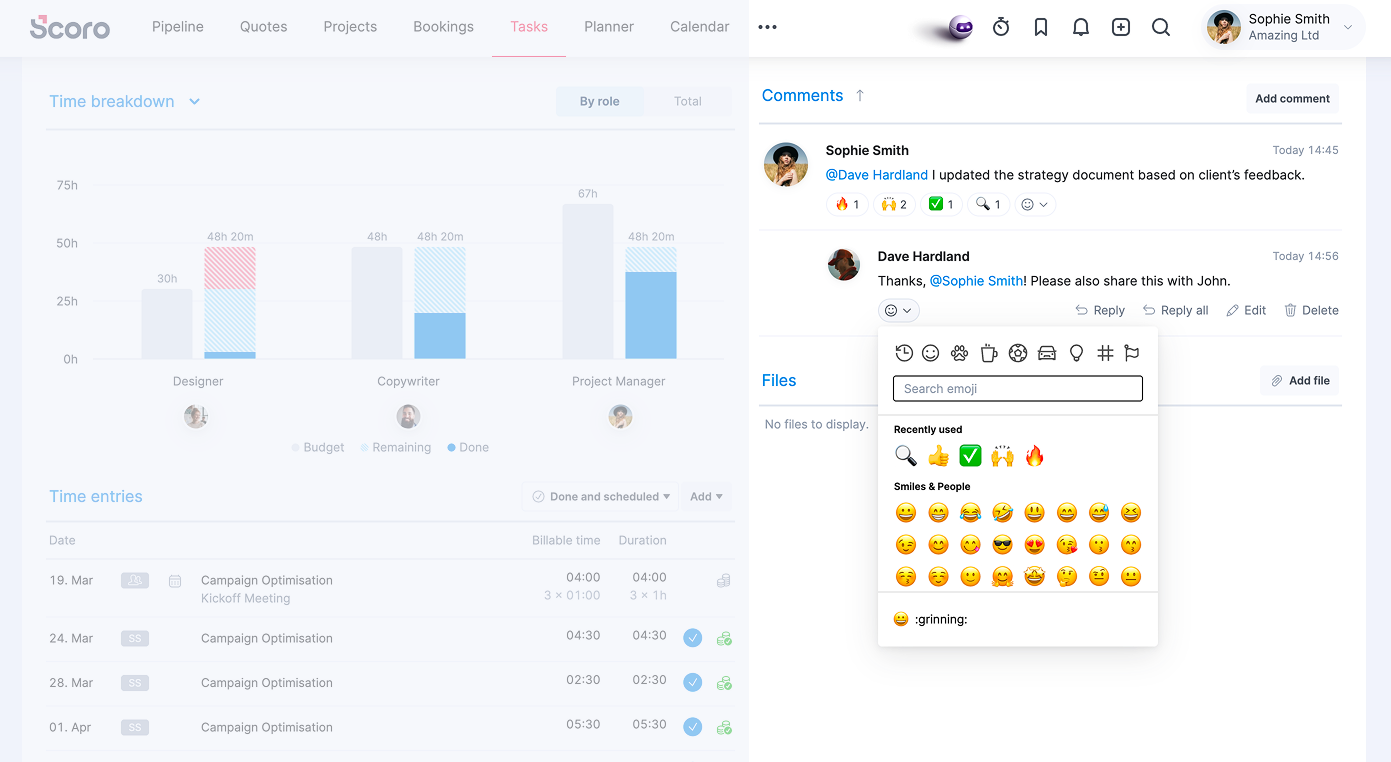
Reacting to comments with emojis
Sometimes an emoji says more than a thousand words. So we’re bringing more emojis to Scoro by introducing emoji reactions to comments! 🙌 🎉 Simply click on the Add a reaction button under a comment and select the perfect emoji. Whether it’s to show you’ve seen a message (👀), acknowledge something (✅, 👍), or simply share your emotions (🤣, 😭, ❤️, 🤯 ) – leave as many emojis as you’d like!
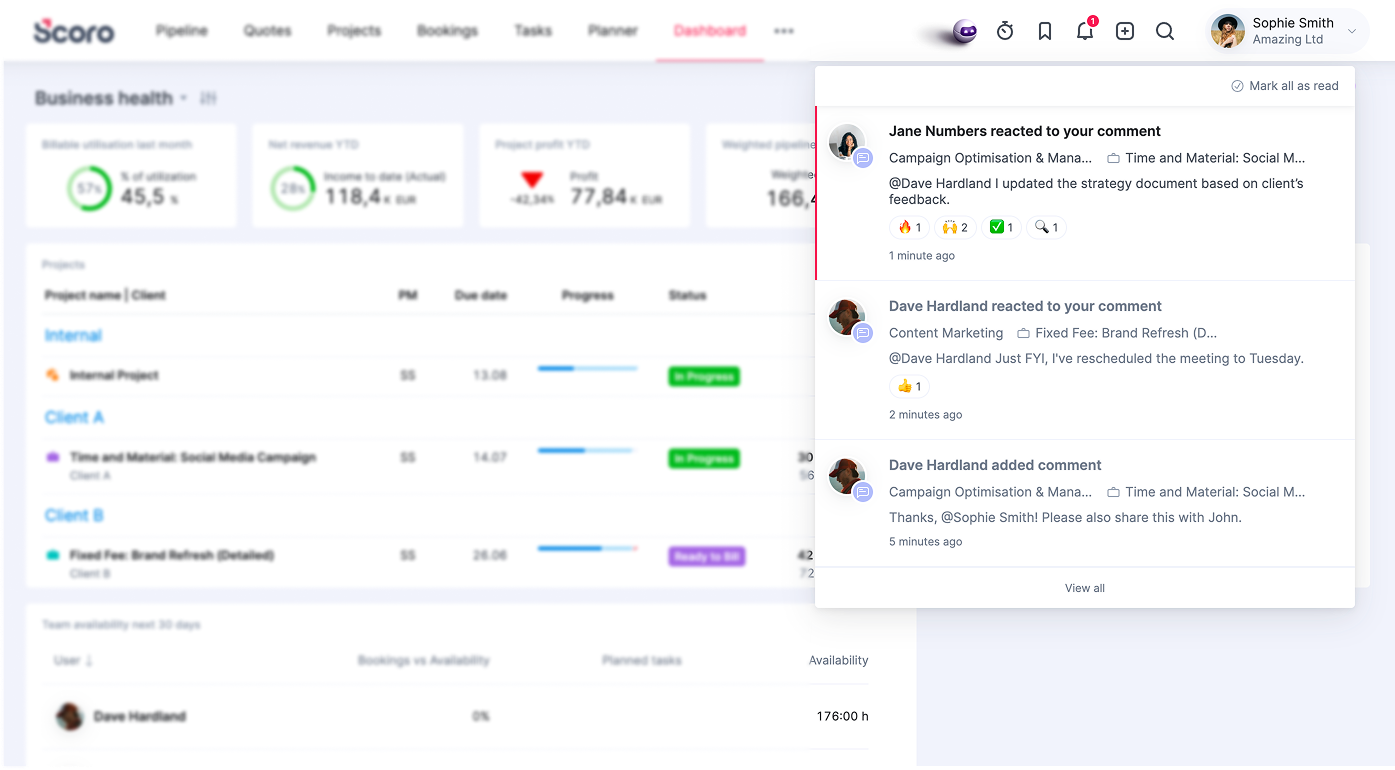
Users who left the comment are automatically notified about emoji reactions. To keep your workspace clean and prevent notification overload, all reactions to the same comment are grouped under a single notification, and you can hover over the emoji to see who reacted with it.
Sage Intacct integration improvements
We’re thrilled to bring a powerful suite of highly-requested updates to our Sage Intacct integration as well.
Expense sync
Your Scoro expenses can now flow straight into Sage Intacct. Enable the Expenses toggle in your Sage Intacct integration settings, and Scoro will sync expenses automatically.
Here’s how it works:
- Reimbursable expenses sync as Bills, payable to the claimant.
- Non-reimbursable expenses sync as Credit Card Transactions.
- Bank account changes stay flexible. Sage Intacct also lets you change the payment bank account in Scoro even after an expense has synced. This is useful when details need adjusting on the fly.
If you also use Envoice, this completes the Envoice → Scoro → Sage Intacct flow for expenses that we started building in last month.
Credit bill sync
We’ve expanded our existing bill sync to include credit bills (bills in Scoro with the payment method set to “Credit”). These are synced directly to Sage Intacct as Accounts Payable Adjustments. Once your finance team reconciles and pays the bill using the adjustment on the Sage side, Scoro’s next payment import will automatically mark both the original bill and the credit bill as paid in Scoro.
Automated inter-office billing
For multi-entity businesses where sister branches provide services to one another, manual double-entry is a thing of the past with automated inter-office billing.
First, set up your invoice – set the sister entity as the payer and select a bill-back template in the custom field.
Once the invoice is synced to Sage Intacct, Scoro routes it to the Top level in Sage Intacct, where Sage’s native billback automation generates the following documents:
- A receivable invoice under the billing entity
- A payable bill under the receiving entity
And that’s it. No more manual document creation!
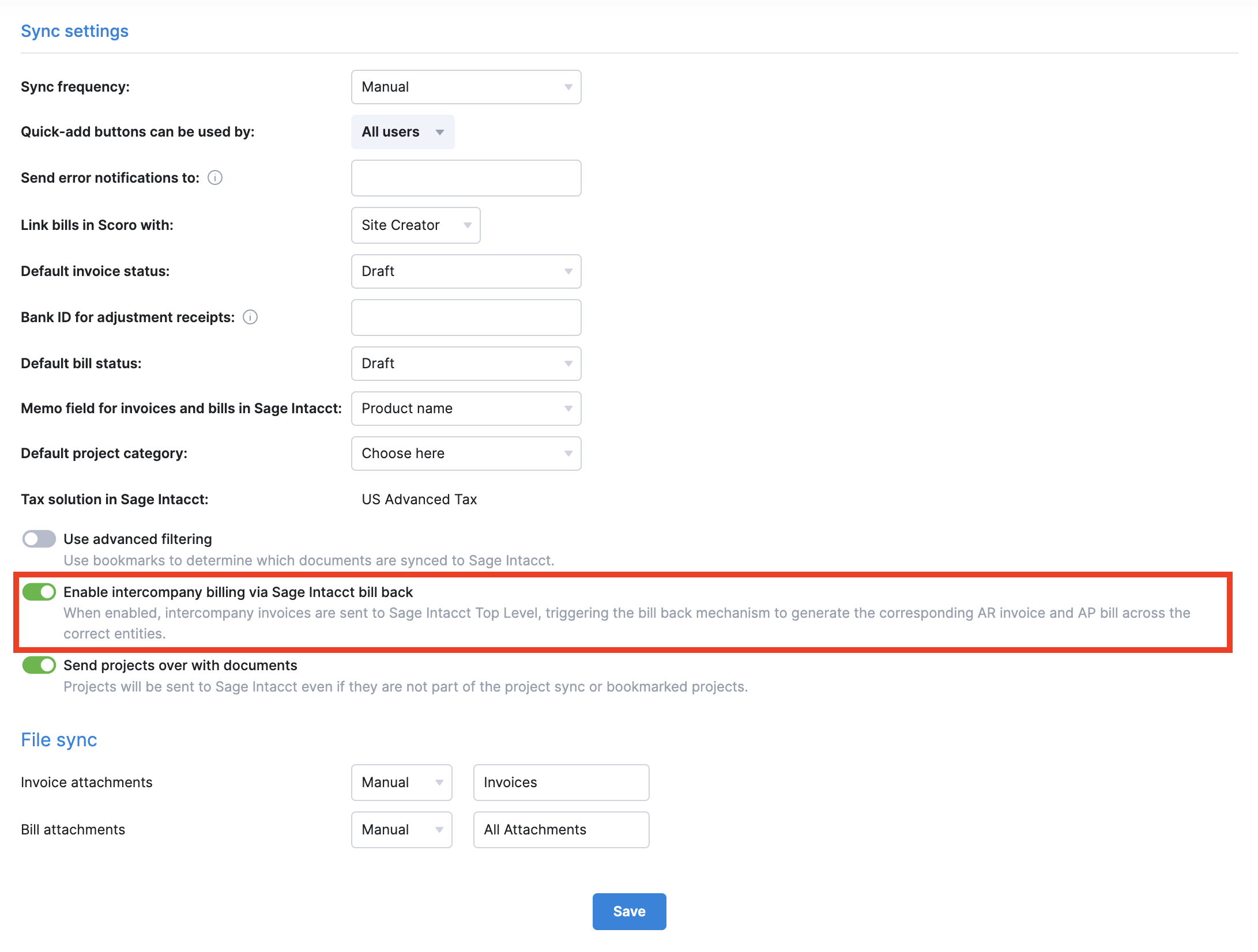
To use inter-office billing on your site, your site administrator must tick the Enable intercompany billing via Sage Intacct bill back setting under Settings > Site settings > Integrations > Sage Intacct.
Other…
Project manager as mandatory field for projects created via API
The Project manager (manager_id) field is now strictly mandatory for all projects created via company-based API v2 requests (authenticated with an API key). If you use custom integrations or automated scripts to create projects in Scoro, please review your scripts with your development team to ensure a valid user ID is included in this field. Starting with this version, any project-creation request excluding the project manager field will fail with an error.
We’re working on…
- Quote-based pipeline bookings & retainer quotes. Visualize your sales pipeline directly in the Bookings module to see how potential deals and retainers impact your team’s capacity and revenue forecast even before a project is created.
❗Don’t worry if your Scoro site hasn’t been updated yet – the update is rolling out gradually over the next few weeks.
We do our very best to make Scoro better every day, so we appreciate your feedback! Share your thoughts with us via our contact form.
Wishing for your improvement ideas to come to life on your Scoro site? Send us feedback.
What to do next?
- Join our referral program to invite others to try out Scoro and earn monetary rewards of up to 1800 USD when they become a Scoro customer!
- Visit our Help Center to find in-depth guides about all Scoro features.
- Listen to our podcast The Handbook by Harv Nagra, an Ops Consultant and Ex-Agency Leader, where he dives into engaging conversations with operations experts to discuss and explore the behind-the-scenes and latest trends and innovations in the professional services space.
- Subscribe to The Handbook newsletter to get the latest info on agency challenges and solutions delivered directly to your inbox.