











Your desktop is no longer the only place to log time – you can now do it straight from your phone with the new Scoro Time mobile app. We’ve also grown ELI’s capabilities – put ELI to work reading files, filtering list views for you, and running automations for you when certain trigger conditions are met. And that’s not it – there’s a lot more below!
See what’s new in Scoro!
Scoro Time mobile app for time tracking on the go
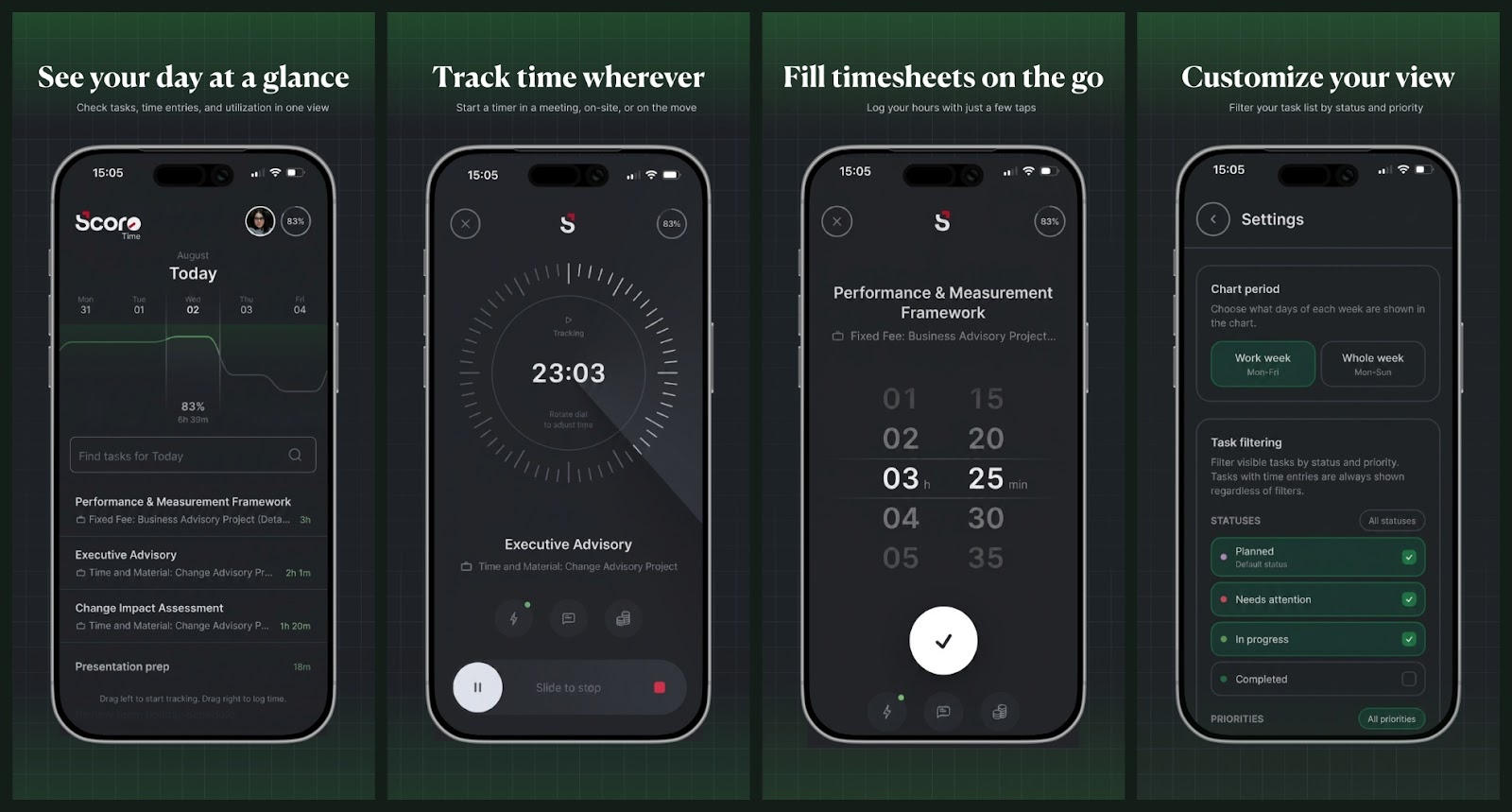
There’s no need to wait until you’re back at your desk to log your time spent working. Meet the new Scoro Time mobile app for iOS and Android – a convenient tool for:
- Logging hours on the go from wherever you are: a client site, between meetings, or on your daily commute;
- End-of-day logging if you prefer to quickly fill out your timesheet at the end of the day.
Log in to the Scoro Time app using your Scoro site’s URL and your usual login credentials. Once you’re in, you’ll see a swipeable calendar timeline for picking the date you want to log, and a task list showing what’s assigned to you for that day. Tap a task to log time against it – either add a manual time entry with the hour and minute sliders, or start a tracker and let it run while you work.
The Scoro Time mobile app is built to keep up with you wherever the day takes you:
- Works offline – time entries and running trackers are cached on your device and sync automatically once you’re back online.
- Picks up a desktop tracker – take over a time tracker already running in the Scoro desktop app right from your phone.
- Running time notifications – your mobile device will show a notification about an active timer running in the app, so you don’t forget to finish tracking once work is done.
Availability & activation
Scoro Time is free for anyone with an active Scoro account – no plan restrictions or admin setup needed. Download it from the App Store or Google Play, then log in with your site credentials or SSO. You’ll land on your task list for the day, ready to log time.
Learn more about the Scoro Time mobile app.
ELI improvements
Attach files in ELI chat
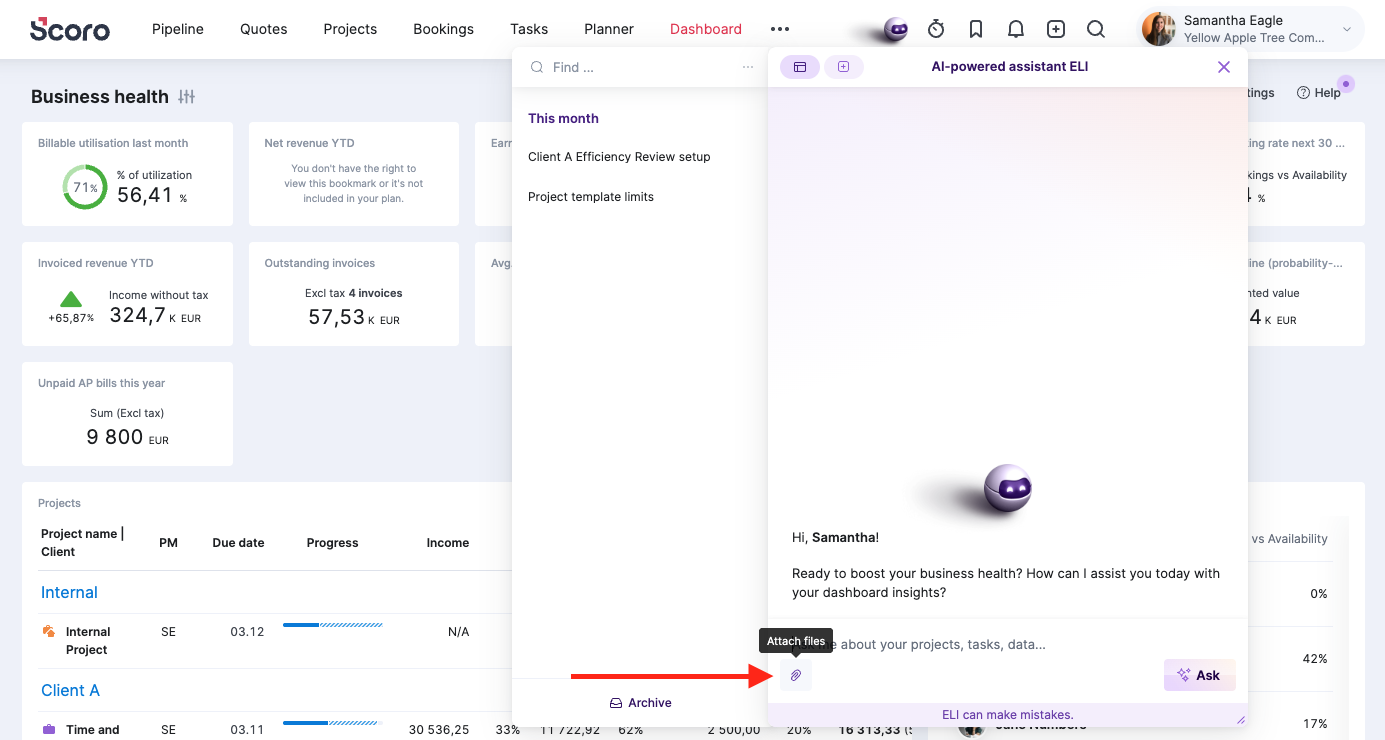
You can now upload files – such as images, documents, PDFs, spreadsheets – directly in your chat with ELI, so you don’t need to retype or paste in the details yourself. Once attached, just tell ELI what needs to be done.
Here are just a few examples of files you can upload and what ELI could do with them:
- Attach a sales call transcript or a project brief and ask ELI to draft a quote based on them
- Upload a photo of a receipt and ask ELI to log an expense
- Upload a photo of a whiteboard from a brainstorming session and ask ELI to create tasks, complete with due dates.
Key things to remember about file uploading in ELI chat:
- Supported file formats: ELI can process file types like PDF, CSV, XLSX, DOCX, TXT, PNG, and JPG.
- File size and upload limits: Each file must be up to 25 MB, and you can attach up to 10 files per single message.
- File storage: Files you upload in the ELI chat remain in the thread for easy access later, and they’re also added to your Scoro site’s file library.
Learn more about attaching files in ELI chat.
Filter with ELI in list views and reports
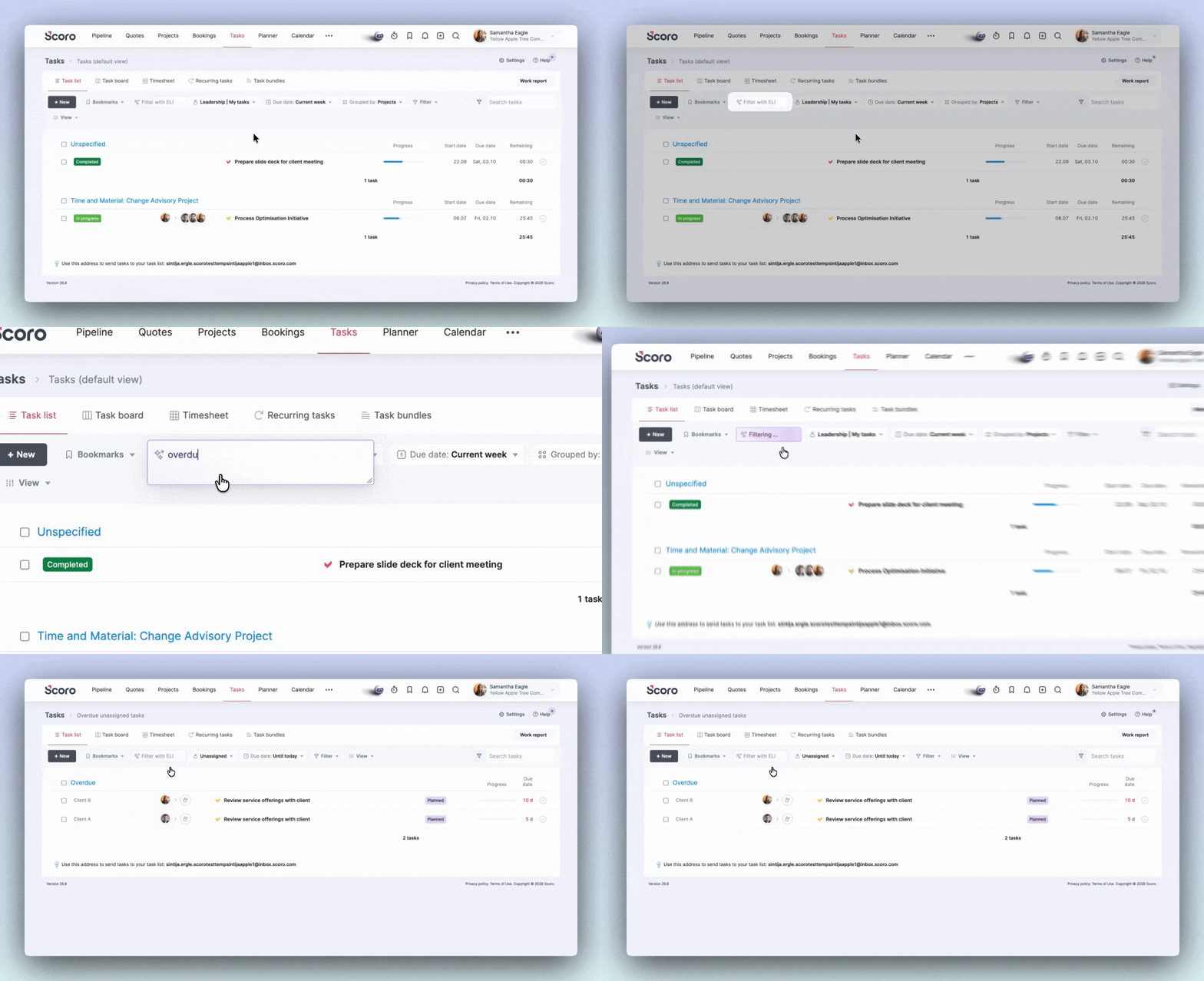
Instead of manually setting up filters in a list view, use the new ELI smart filters in list views and reports to tell ELI what you’re looking for in plain language, and it will open the matching filtered view directly.
Here are a few examples of what you can ask ELI to find in different Scoro views:
- In the project list: “active projects for Acme ending in the next 60 days, grouped by project manager, show project profit”
- In the task list: “Show my unfinished high-priority tasks due before the end of this week on active projects.”
- “unpaid and partially paid invoices with due date in the past, grouped by client”
Some things to note about ELI smart filters:
- ELI will let you know in case it won’t be able to show the filtered view you need – it won’t show filtered results that match only partially.
- Each request in ELI smart filters consumes only 3-5 ELI credits.
- You can prompt in any language, even if your site language is set to English – ELI will understand you.
- Each request in the ELI smart filter opens a new filtered view. Make sure to save the filtered views you want to revisit later as bookmarks.
Learn more about smart filtering with ELI.
Set ELI to run in your triggers and actions rules
In case you missed it – last month, we introduced automated ELI actions through triggers and actions (T&A). Instead of just alerting you via Scoro, Slack, or email, or triggering a webhook, you can now set ELI to run specific actions when a certain trigger event and conditions are met.
We’ve expanded this capability further, allowing site administrators to also create T&A rules where ELI acts on behalf of someone else. You can choose a specific user or the initiator (the person who initiated the trigger event). In this case, ELI will also notify whoever you selected in the rule, not you (the rule creator).
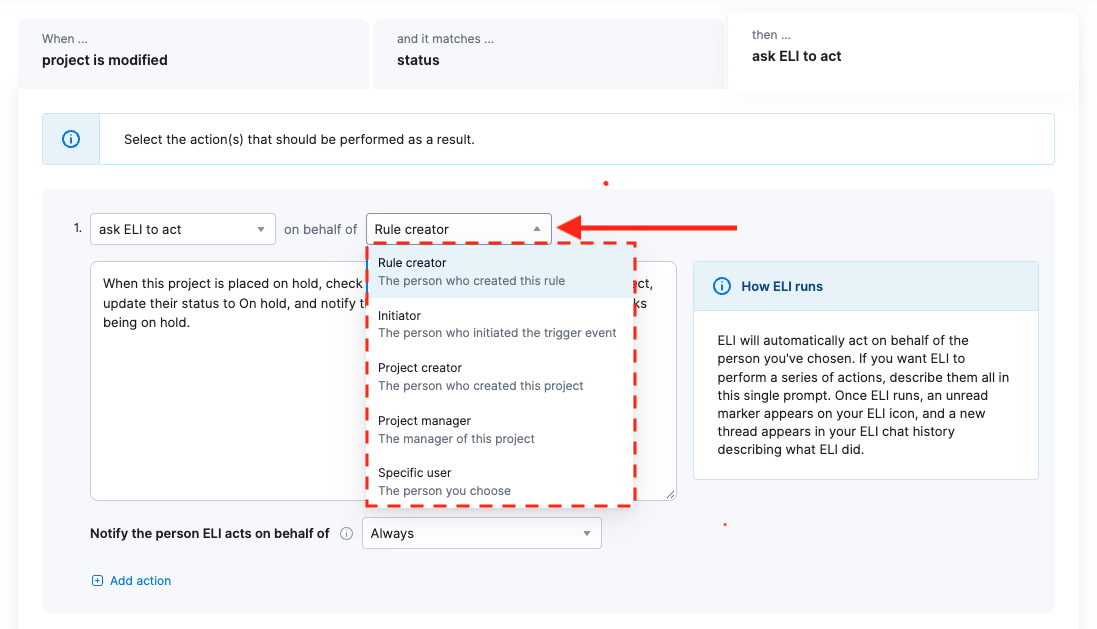
A couple of ELI actions your team could put to work:
- Chain reaction notifications. When a predecessor task is marked done, have ELI notify the assignee of the successor task automatically.
- Quote to bookings, automatically. The moment a quote reaches a certain status, have ELI create the project, link it to the quote, add the quote’s providers as project members, and set up tentative bookings based on the quote’s timeline – all before the deal is even confirmed.
- Updating projects when quote lines change. If quote lines are added or removed on a quote, update the linked project estimation duration to match the quoted hours.
Pro tip! 😎 Unsure about how to create your rule? Just ask ELI in the chat what you want your rule to do, and ELI will help you create it. No need to tinker with the rule setup and prompt construction yourself!
Learn more about how asking ELI to run in T&A rules works.
Managing and archiving conversations
Easily manage your conversation history with ELI by using the new controls in the chat’s sidebar. Click the three-dot icon on the sidebar’s search bar to access buttons for sorting, filtering, and marking all threads as read.
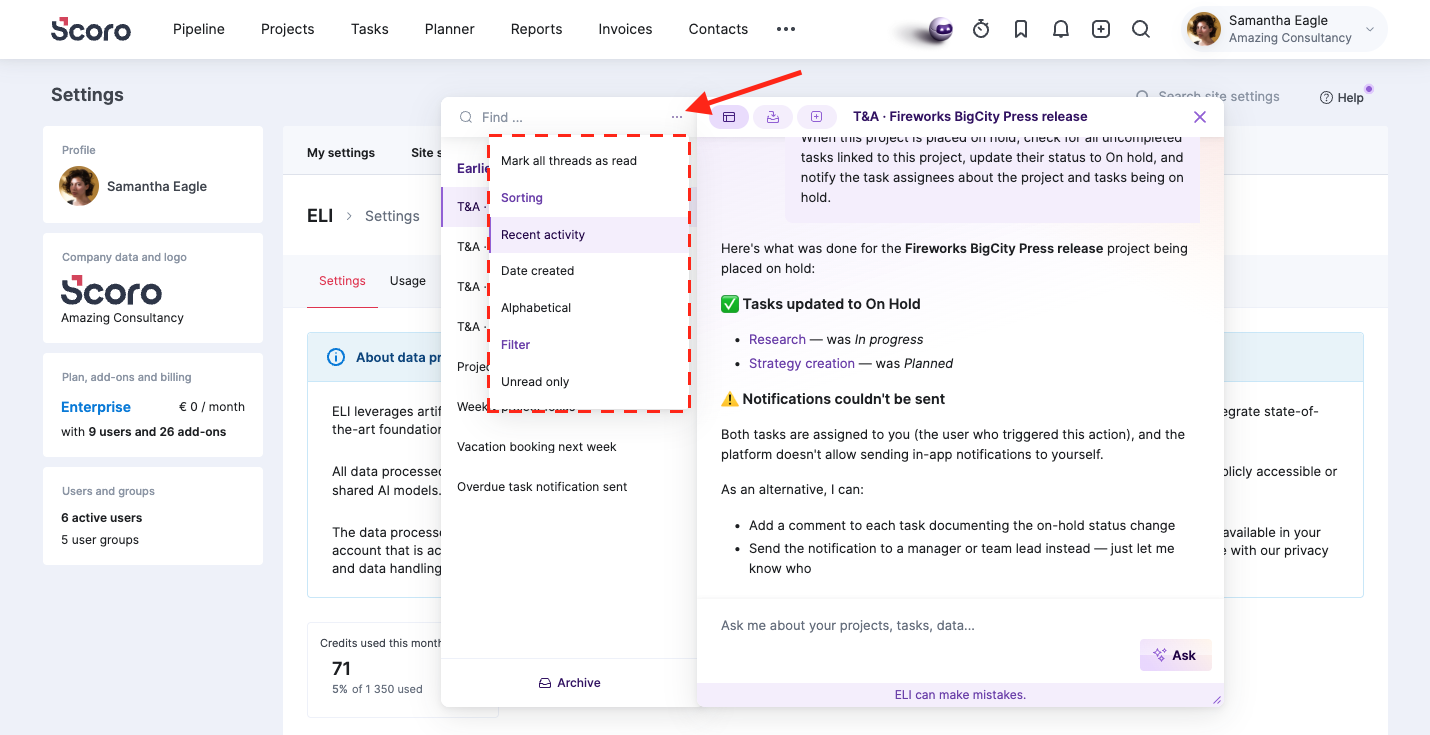
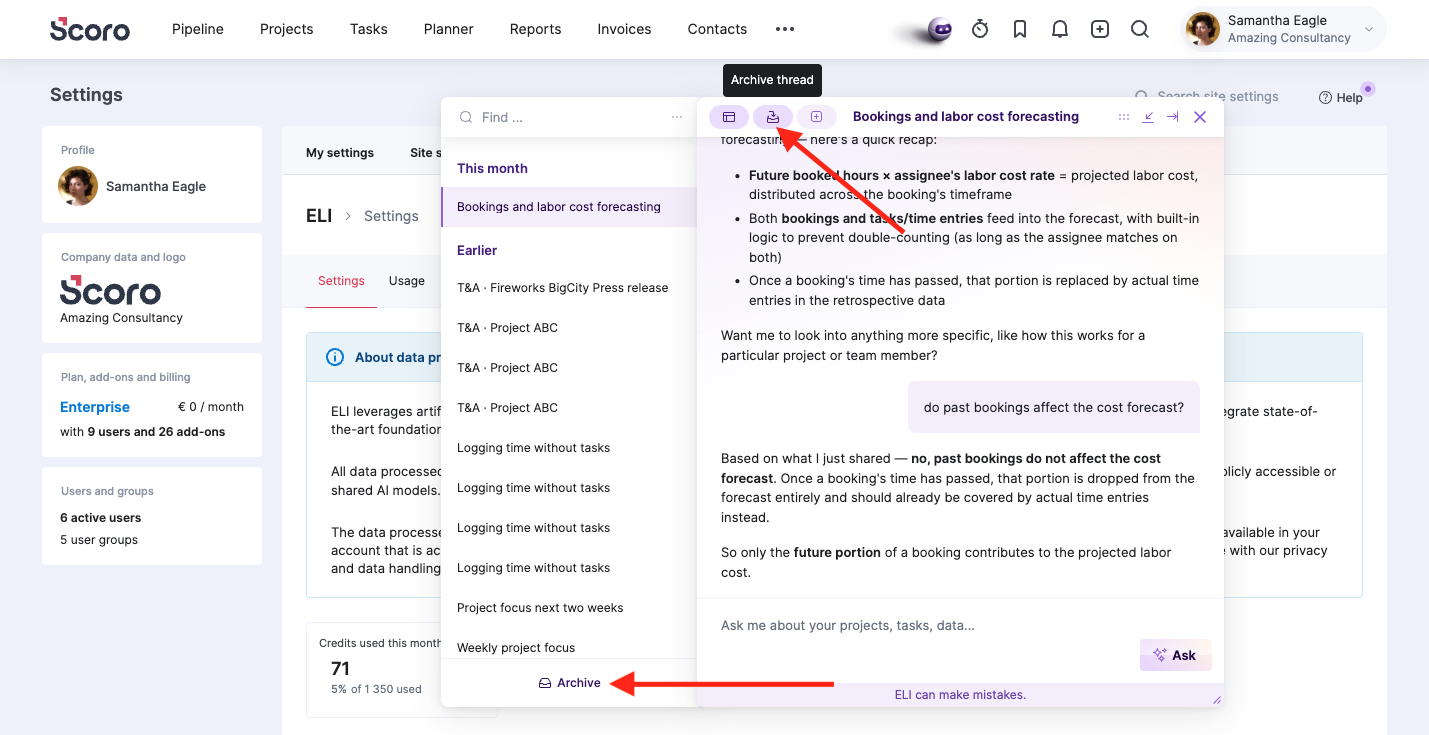
Additionally, you can now archive conversations with ELI yourself to keep your thread history tidy. Each site user can:
- Archive conversations: Open a thread in ELI chat and click the Archive thread button at the top of the chat window.
- Access your archive: Click the Archive button at the bottom of the sidebar.
- Unarchive threads: Open the archived conversation and click the Unarchive thread button at the top of the chat window.
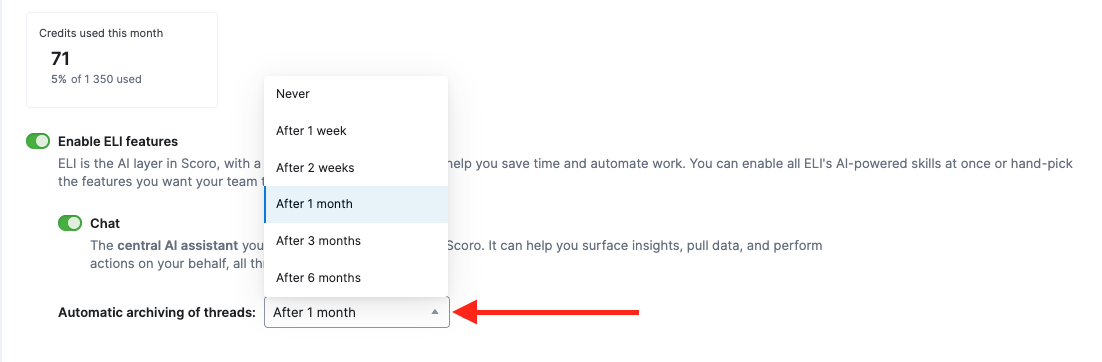
Site admins can also set up a site-wide automatic ELI thread archiving under Settings > Administration > ELI settings – archiving period options start from a week up to six months, or you can switch it off altogether.
Remember: ELI only ever acts within the permissions of you or the person on whose behalf ELI is acting. Every request – in chat or through an automation – uses ELI credits from your site’s monthly pool. Learn more about ELI assistant and credits.
Move subtasks to another parent task within a project
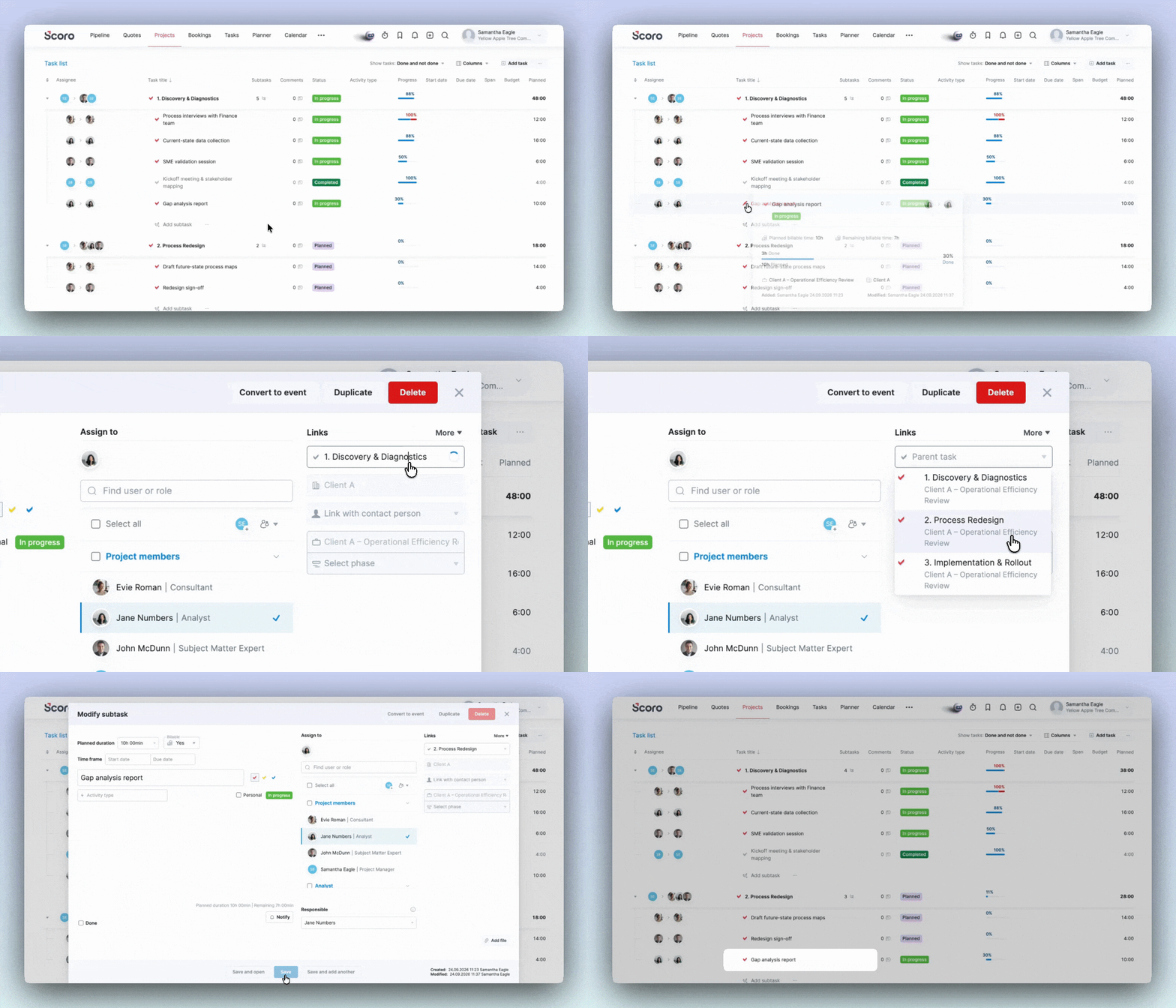
Project plans may change – so we’ve made subtasks more flexible, letting them keep up with the changes! You can now move a subtask to a different parent task within the same project:
- Modify the subtask.
- Select a different parent task from the dropdown field under the Links section and save the changes.
Once moved, the subtask inherits the new parent’s project phase, linked quote line, company, and contact info. Other details remain the same.
A few things to note:
- A non-billable subtask can move to a billable parent task, but not the other way around. This protects you from accidentally losing revenue.
- You can’t move a subtask that’s already completed. Similarly, you also can’t move a subtask to a parent task that’s already completed.
- To move subtasks between parent tasks, you need full access rights for the permission set(s) whose users’ subtasks and parent tasks you want to modify.
Learn more about moving subtasks between parent tasks and the required permissions.
User start and end dates for accurate availability and utilization
Picture this: you’re bringing on a new specialist on your team, creating their user profile on your Scoro site weeks before their actual join date. By the time next month’s utilization report rolls in, last quarter’s numbers look worse than they should – all because those unworked hours counted as available capacity that went unused, dragging utilization down.
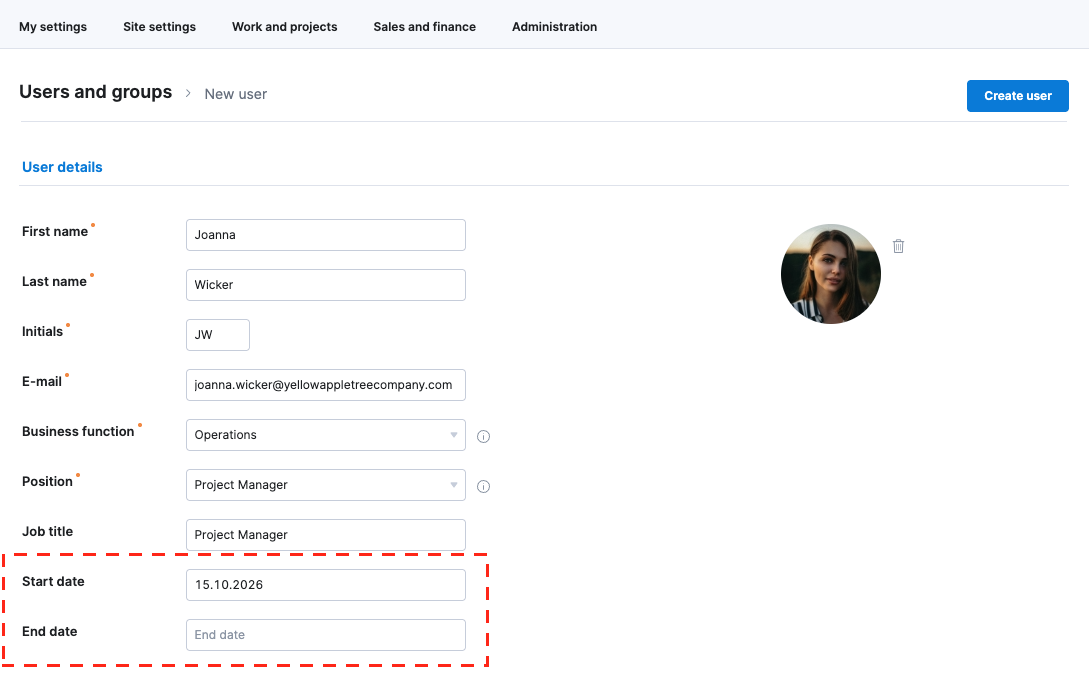
Now, you can ensure accurate availability information by adding start and end dates for your site users:
- Set a start date on a user’s profile to ensure their availability before that date is treated as zero in the utilization report, team performance report, and detailed work report. This way, new hires won’t skew utilization or capacity for periods before they actually joined.
- You can also set an end date for when someone’s leaving the team or wrapping up a fixed-term engagement, so their availability stops counting from that point too. Leave the end date blank for employees with an open-ended contract; add one whenever someone’s engagement has a known finish line, like a fixed-term contract.
Getting started
- Using the start and end dates on user profiles is optional.
- When you create a new profile, the Start date is automatically set to today’s date, and you can change it to the person’s actual employment start date.
- Your existing site user profiles remain the same – no start or end dates are added automatically along with this update.
Learn more about managing users.
Display quote line descriptions in the estimation matrix
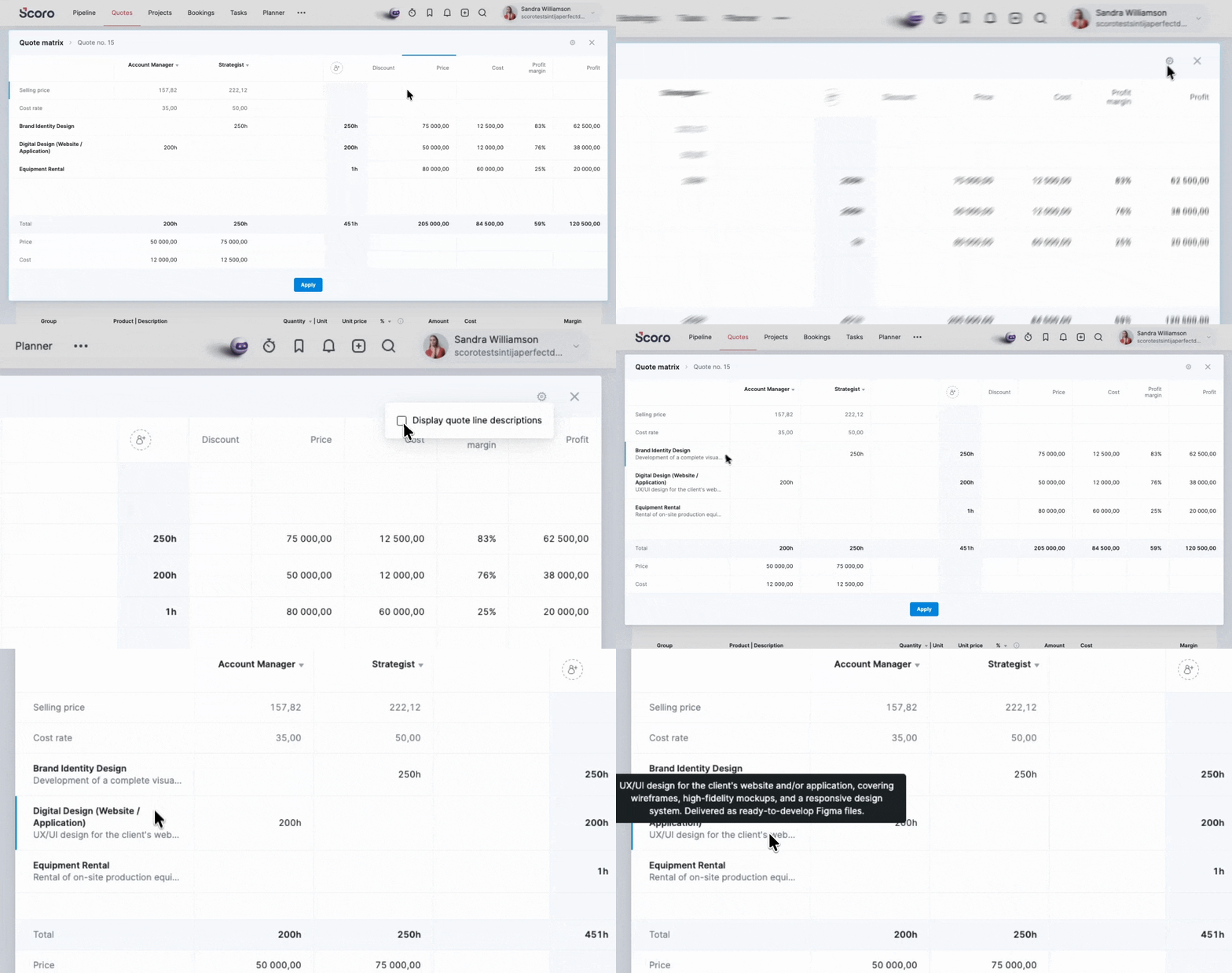
Click the settings icon in the quote estimation matrix window and enable the new Display quote line descriptions checkbox to see more context on what each deliverable actually entails. Once enabled, each deliverable with a description shows the start of it right in the matrix – hover over it to read the full details.
This checkbox is disabled by default on all Scoro sites to keep the matrix grid uncluttered – turn it on whenever you need that extra context.
Learn more about the quote estimation matrix.
Unified earned revenue terminology across Scoro
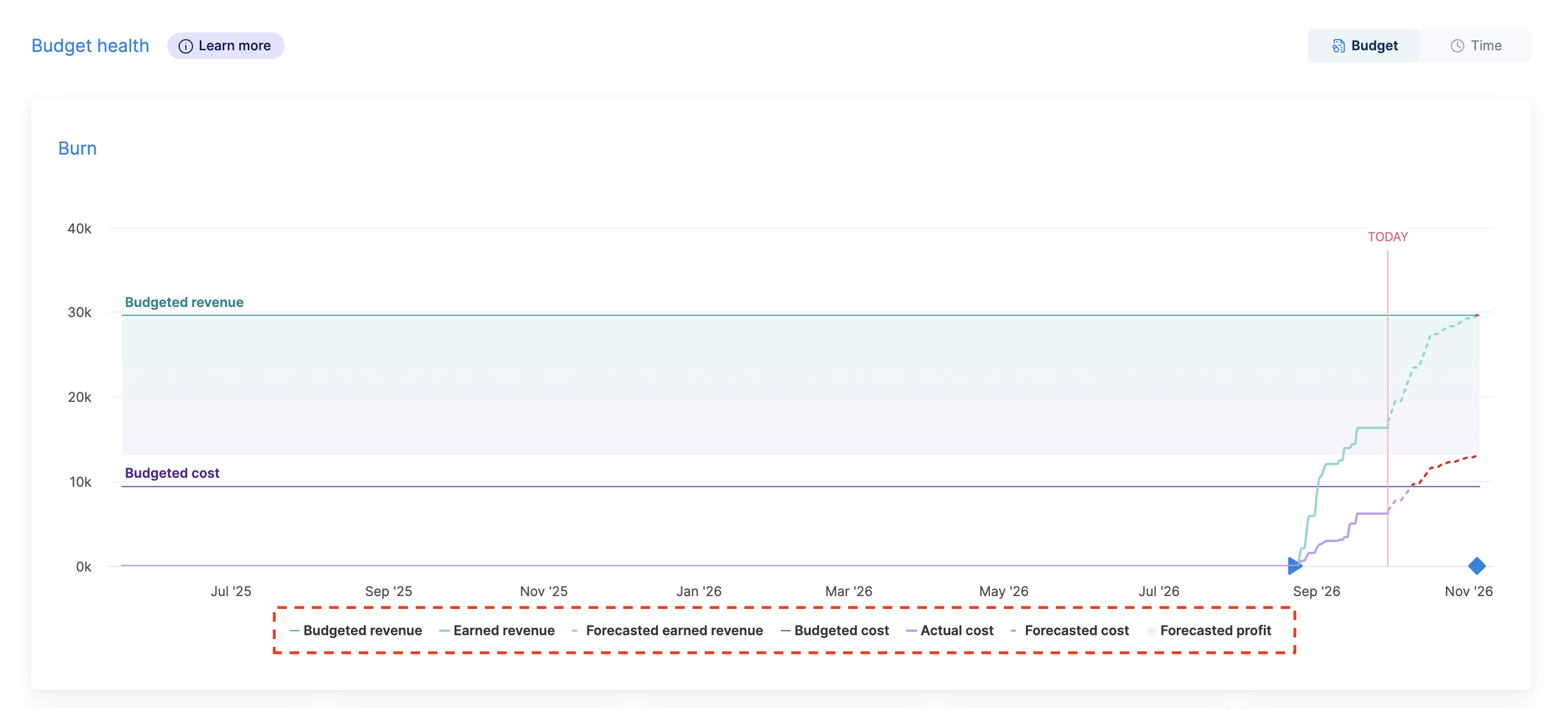
We’ve unified the earned revenue terminology across various views in Scoro, ensuring that the same metric is now labeled the same way wherever it appears. Here’s a brief overview of what changed:
- Project summary bar: Used budget metric (for retainers and one-off projects with a ‘Fixed fee’ revenue model) → Earned revenue
- Quoted vs Actual table: Income to date -> Earned revenue
- WIP report:
- Income to date (actual) -> Earned revenue
- Income to date (capped) -> Earned revenue (capped)
The terminology in the budget burn and breakdown charts in the project view has also been updated to match.
Heads-up: ‘entityID’ in webhooks is now an integer
The webhook payload’s ‘entityID’ field – the ID of the object involved (a task, an event, and so on) – used to be sent as a string. It’s now sent as an integer. Nothing has changed about how webhooks are set up or triggered in custom fields or in triggers and actions rules – only how the ‘entityID’ field is sent.
If your webhook handling code expects ‘entityID’ to be a string, it may now error or silently stop running the next time that webhook fires – some tech stacks enforce this strictly even without explicit validation. We recommend checking your webhook code now to ensure your triggers will activate as usual.
See the API release notes for full details.
Smaller updates for smooth operations
- Global site search improvements. You can now look up bookmarks using the search in your site’s header menu – just remember to enable Bookmarks in your search settings first.
- Timesheet filter improvements. Use the Task type filter in the timesheet to show tasks of a certain type – for example, only subtasks.
- Planner improvements. Hover over the task card in the planner to see the task’s start and due dates.
- Scheduled invoice improvements. Use the PDF template in use filter to find scheduled invoices using a specific template. Select the scheduled invoices to change the template for them at once.

What we’re working on…
- Quote-based pipeline bookings & retainer quotes. Visualize your sales pipeline directly in the Bookings module to see how potential deals and retainers impact your team’s capacity and revenue forecast even before a project is created.
- Task dependencies in the project task list. Set up the task dependencies directly from the project detailed view, updating the Gantt chart accordingly.
❗Some features may not be immediately available on your site due to the rollout timeline, or may require certain Scoro subscription requirements, permissions, or settings enabled by your site administrator.
Got feedback or product improvement ideas? We do our best to make Scoro better every day, so we’d love to hear from you! Share your thoughts with us via our contact form.
What to do next?
- Join our referral program to invite others to try out Scoro and earn monetary rewards of up to 1800 USD when they become a Scoro customer!
- Visit our Help Center to find in-depth guides about all Scoro features.
- Listen to our podcast The Handbook by Harv Nagra, an Ops Consultant and Ex-Agency Leader, where he dives into engaging conversations with operations experts to discuss and explore the behind-the-scenes and latest trends and innovations in the professional services space.
- Subscribe to The Handbook newsletter to get the latest info on agency challenges and solutions delivered directly to your inbox.