










Is it already the end of October? Wow. Time truly flies when our team is busy working on updates. 🐝
This month, there are tons of useful improvements for everyone! You can now see what your resource bookings are worth with the new bookings-based revenue, and set up automated rules about time off and bookings. And that’s not all – from task dependencies in the project task list to subtasks in task bundles, there’s plenty more below.
See what’s new in Scoro!
Compare booked revenue against earned and recognized revenue
Booking your team weeks or months ahead? Now you can put a revenue figure on those plans with bookings-based revenue information in the project view and the revenue report!
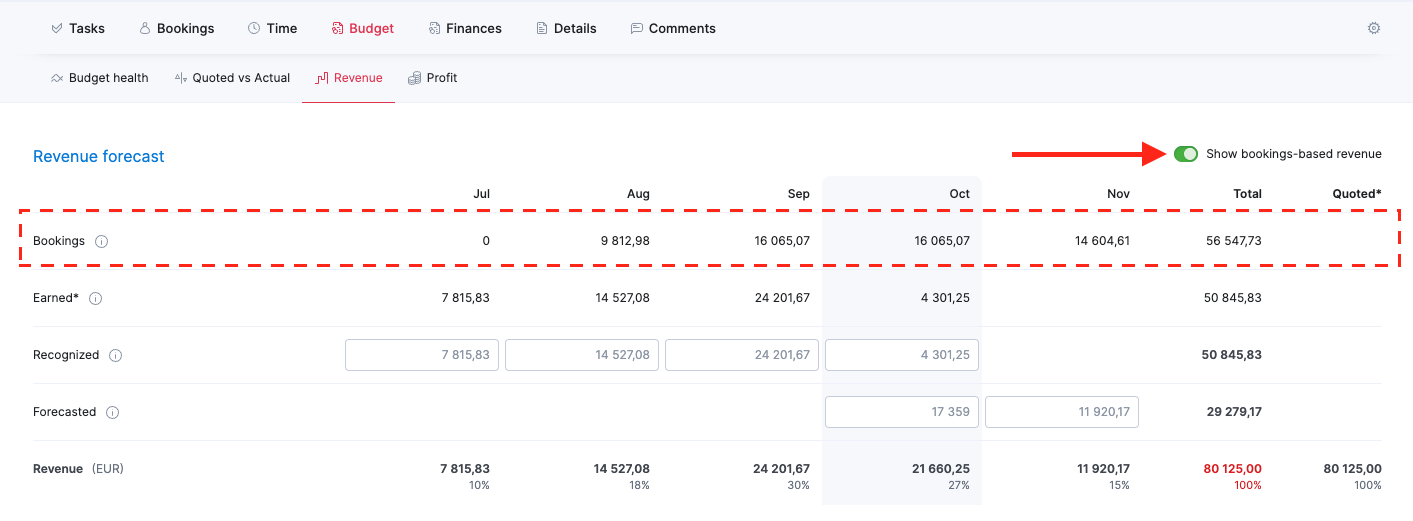
Bookings-based revenue, available in the project view’s Revenue tab, unlocks a new, high-level revenue dimension for projects with role-based pricing. Scoro calculates it from your tentative and fixed bookings using the project’s role prices, so you can see what your planned resourcing is worth long before tasks and time entries exist, and compare it with what you actually earn. If the bookings-based revenue is higher than the project budget, the Total on the Bookings row turns red. Hover over it to see the budget and how much you’re over.
Use the Show bookings based on revenue toggle to show or hide the Bookings row. This row is read-only, and changing the project’s role prices will update the values on the Bookings row accordingly.
The bookings-based revenue data also feeds into the revenue report. Select Bookings in the Source filter to view it alongside your project data. For projects with the ‘Fixed fee’ and ‘Time & material capped’ revenue models, the revenue report counts bookings-based revenue only up to the budget.
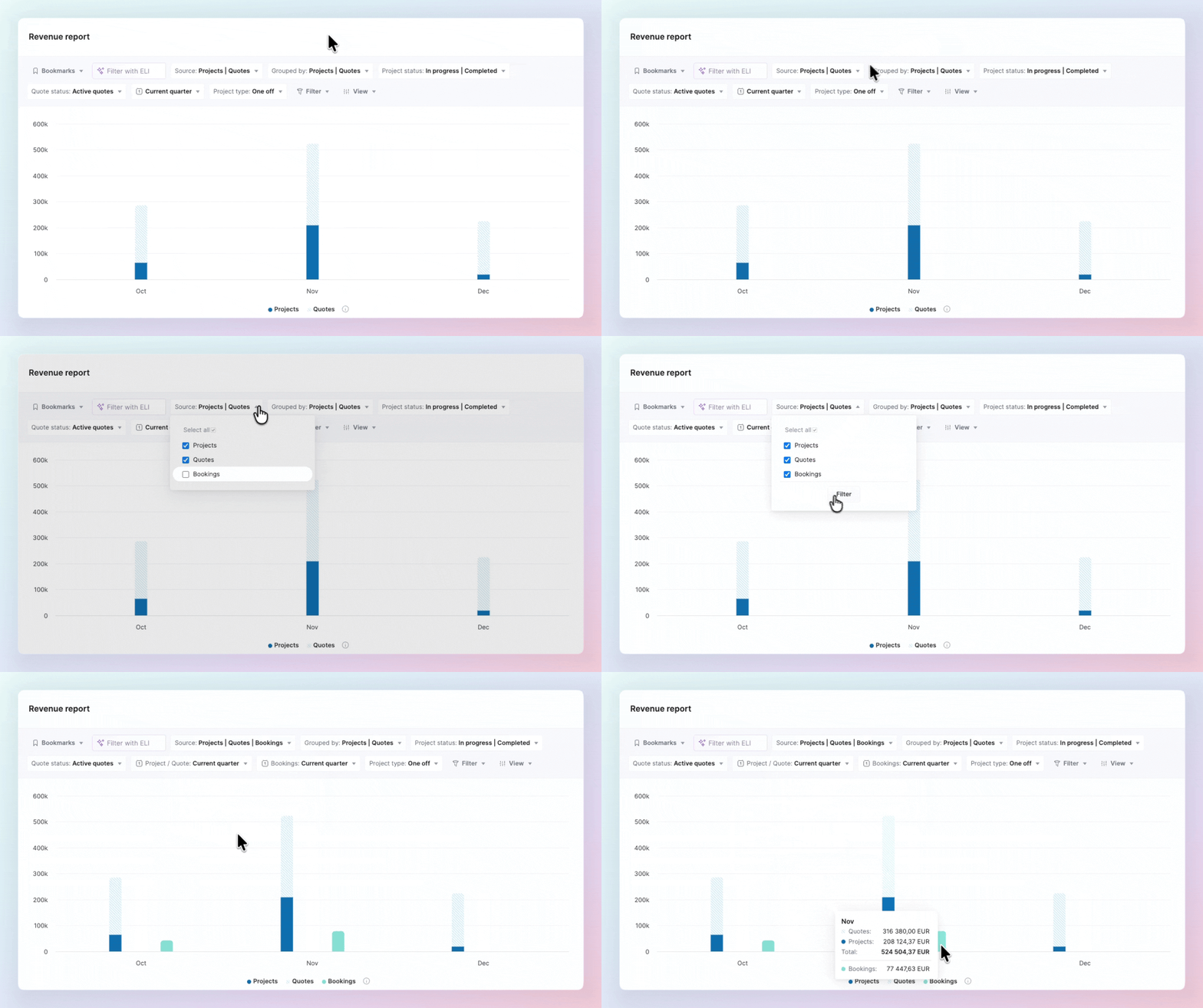
Once bookings are selected as a source, the revenue table below the chart automatically displays the bookings-based revenue values on the bottom row, letting you compare them with the actual revenue values at the top. This helps you see how much you earned against what was booked.
If you don’t need the bookings-based revenue data in the revenue table, simply disable the Show bookings-based revenue toggle to remove it, keeping the table neat and uncluttered.
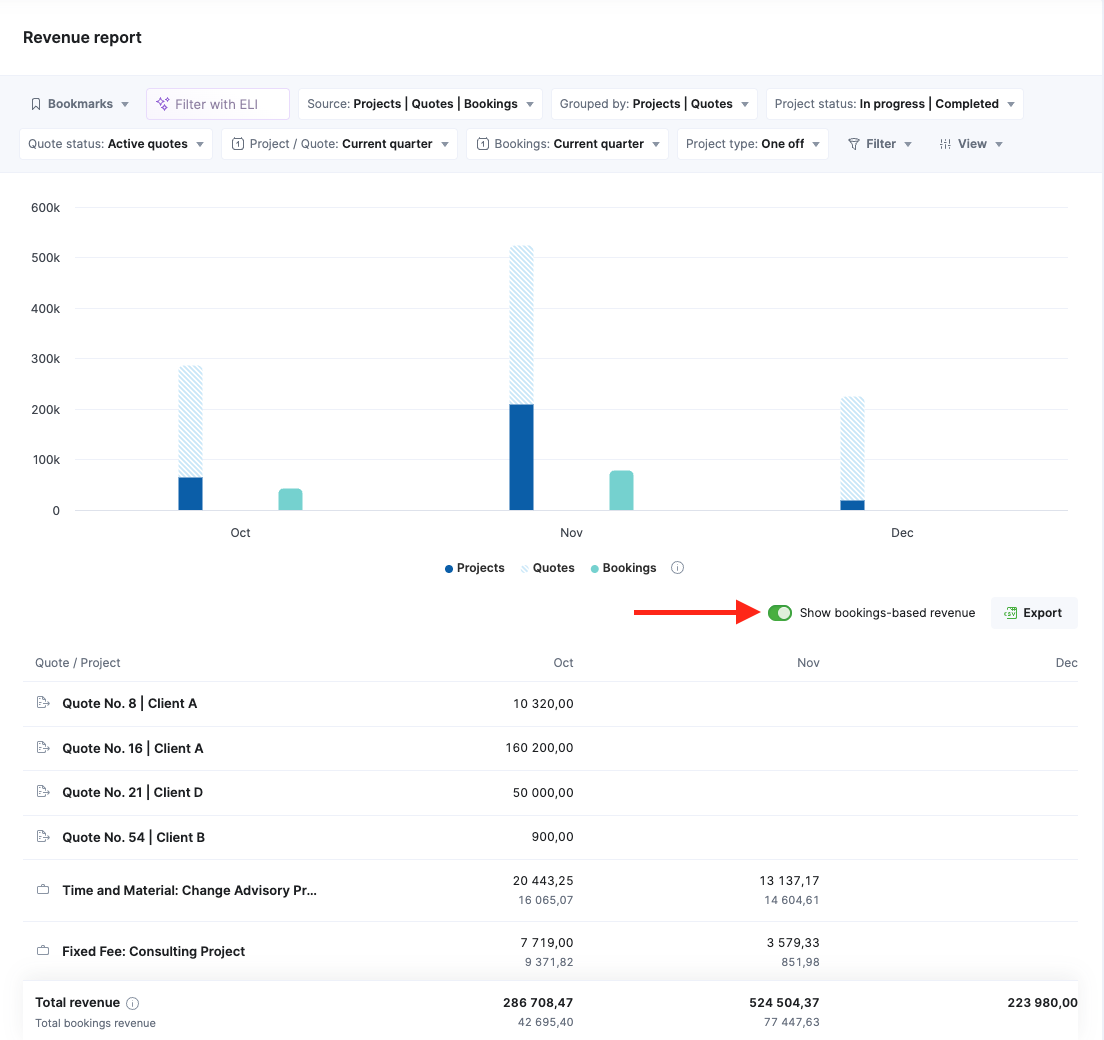
Bookings-based revenue is a separate value you can track – it doesn’t affect revenue recognition, forecasting, or other project metrics.
Triggers and actions for time off and bookings
We’ve updated the Triggers and actions (T&A) capabilities, letting you create rules with Time off and Bookings trigger events. This helps you notify the right people about absences and resourcing changes in time, rather than by chance or at the last minute when checking the calendar or the Bookings module.
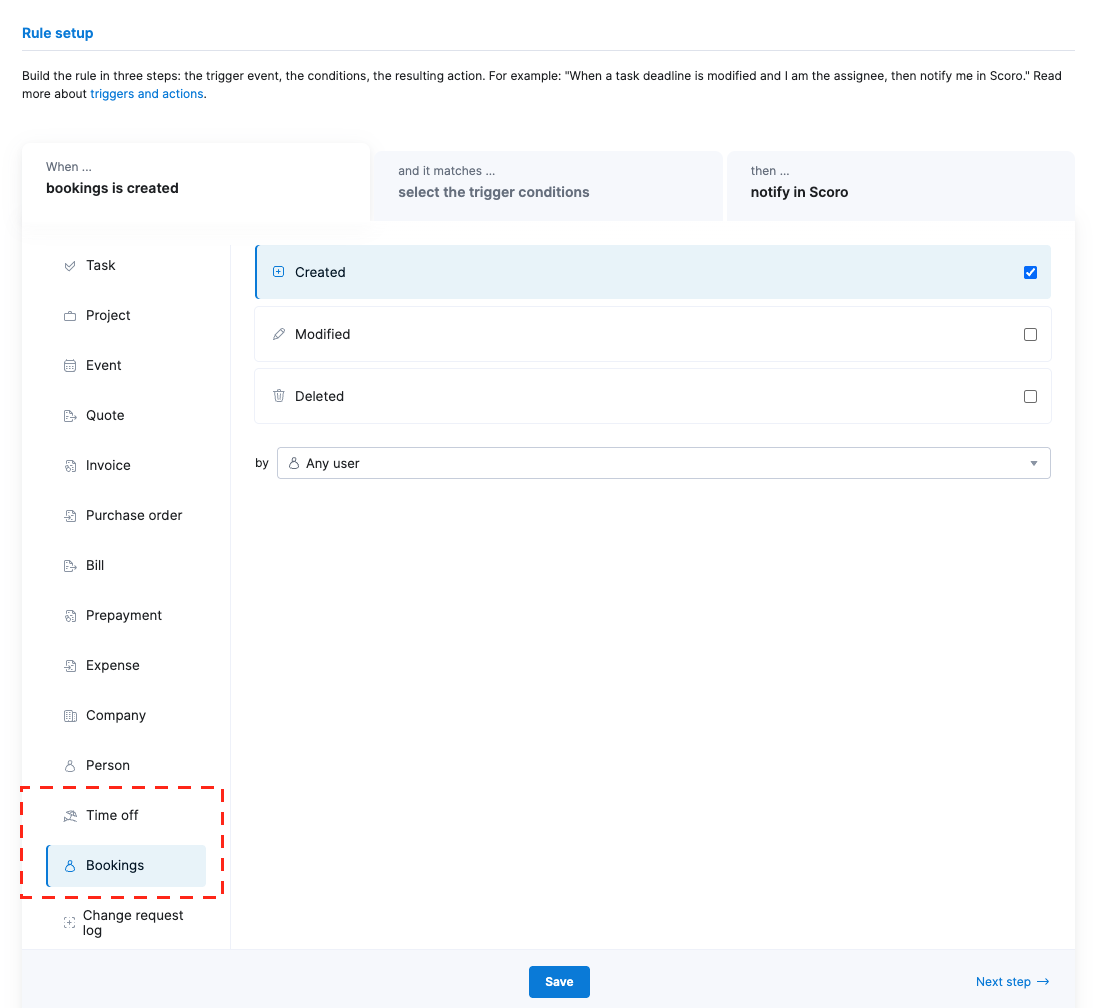
Here are a few rules you could set up for time off:
- Team coverage: When someone’s vacation is booked, changed or cancelled, notify the rest of their team.
- HR-only alerts: When medical or parental leave is booked, notify HR instead of the whole company.
- Payroll or HR system updates: When time off is created, updated or deleted, trigger a webhook to send the details to an external system.
And these rules might come in handy for staying up to date about bookings:
- New booking requests: When a tentative booking is created, notify the resource manager so they can review it.
- Booking confirmations: When a resource is assigned or confirmed, let the project manager know they can move forward.
- Time-off conflicts: When a booking conflicts with time off, alert the resource manager.
Unsure how to set up your rule? Ask ELI, Scoro’s AI-powered assistant, for help! Use the ELI chat to tell what you want to achieve, and ELI can suggest and set up the rule for you.
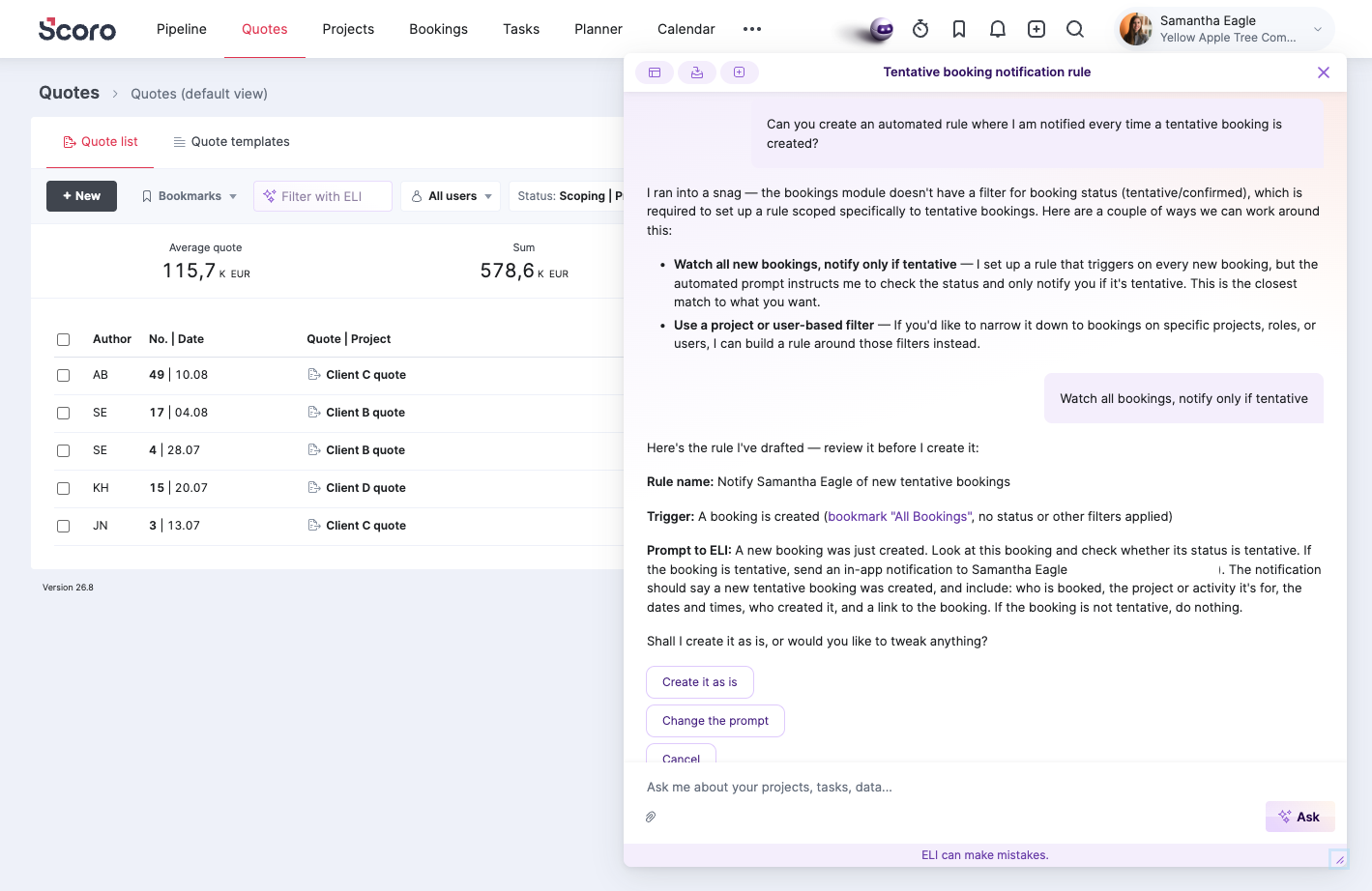
Did you know? T&A rules can be much more powerful than just a notification or a webhook trigger! Choose Ask ELI to act as the action for your rule and describe all the actions that you want ELI to complete when the trigger event and conditions are met.
Learn more about triggers and actions.
Revenue report charts and widgets in the dashboard
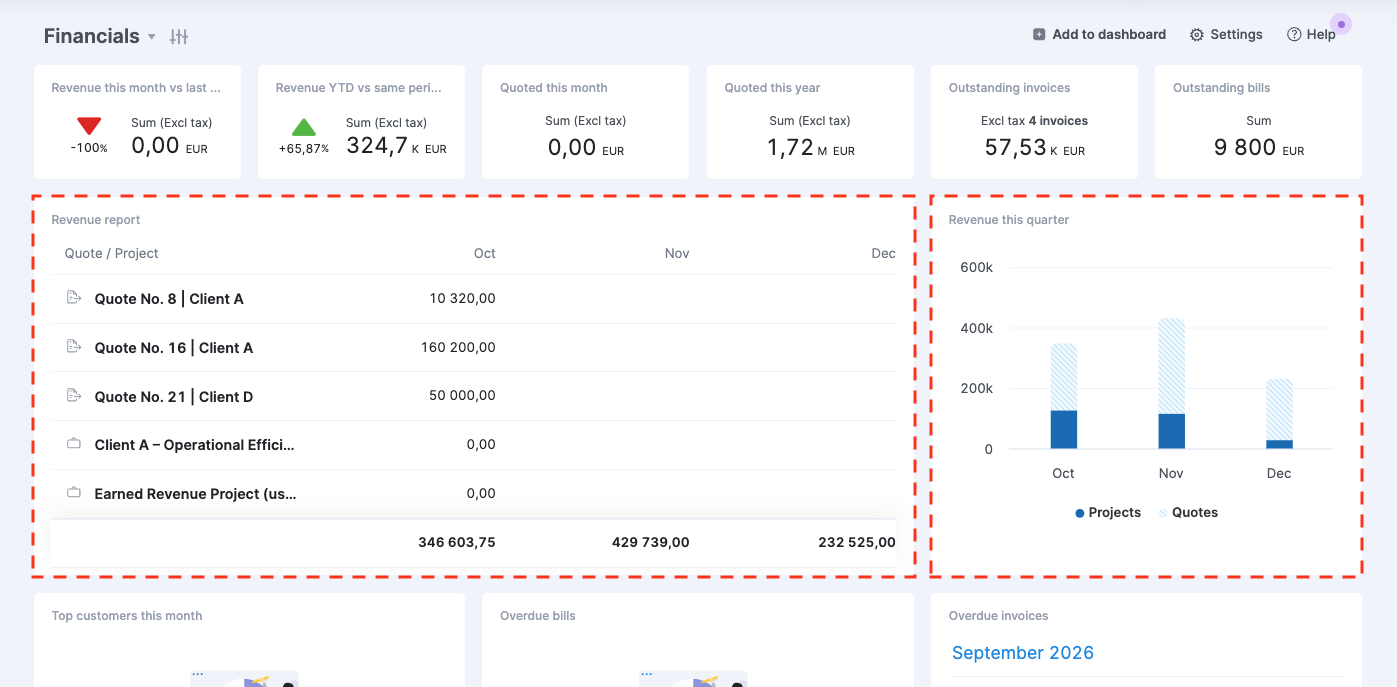
The revenue report can now be used as a source for creating dashboard charts and widgets! This makes it easier to monitor revenue alongside other KPIs in one place, giving you a full financial and operational picture without switching between the report and the dashboard.
Project task list improvements
Setting task dependencies in the project task list
You can now set task dependencies in the project task list, so you can do your task planning and dependency setting in one view. Setting dependencies in the project task list works similarly to the Gantt chart, and the dependencies you set in the project task list automatically sync to the Gantt chart.
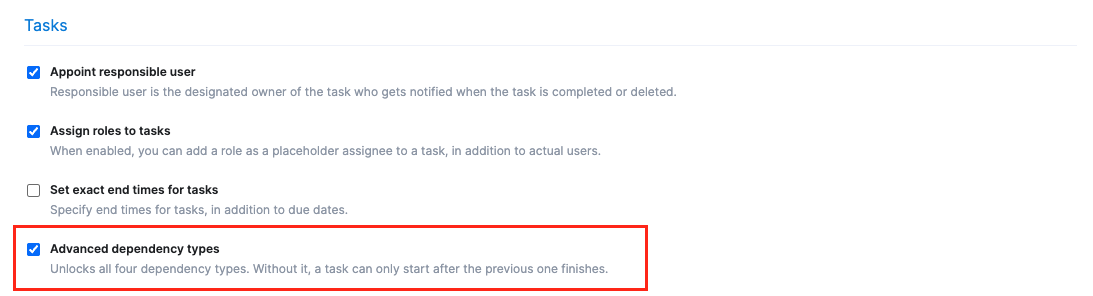
By default, the project task list supports simple finish-to-start dependencies. If your team needs more flexibility, site admins can enable the ‘Advanced dependency types’ checkbox under Settings > Work and projects > Calendar and tasks to unlock all four dependency types (FS, FF, SS and SF) in the project task list.
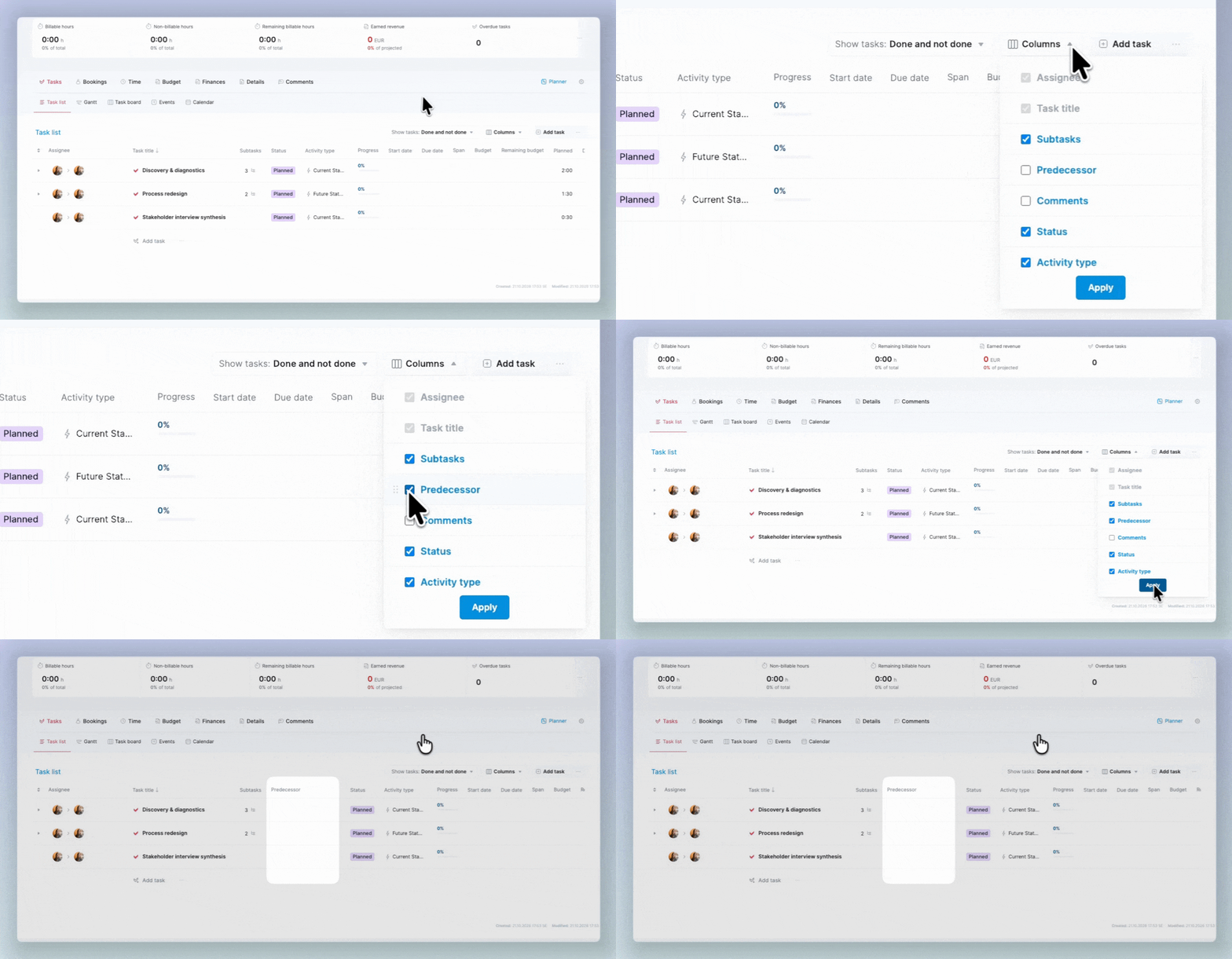
Before you can set the dependencies, enable the Predecessor data column in the project task list first – this is where you’ll manage the dependencies.
Then, set your task dependencies – it works pretty much the same as in the Gantt chart:
- By using the start and end handles – click a task’s start or end handle, then either drag it to the other task’s connector or click that connector.
- By selecting the predecessor task – click the Predecessor field on the task row and click Add predecessor. Select the task, choose the dependency type in the Type column, and enter the buffer time.
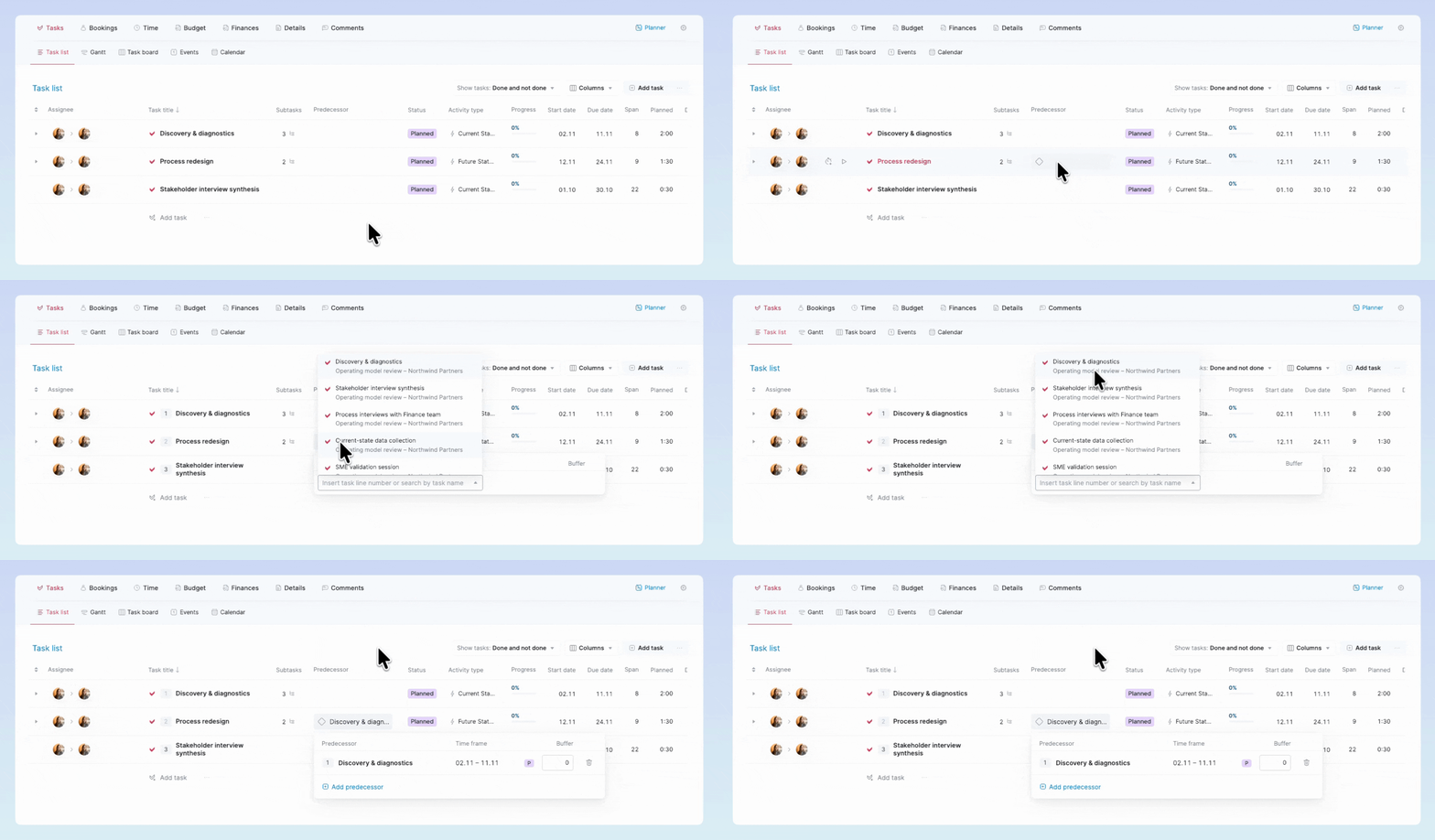
Click a task’s Predecessor field at any time to see all of its dependencies and to change the dependency type or buffer time.
Learn more about managing task dependencies in the project task list.
Set task duration with the Span column
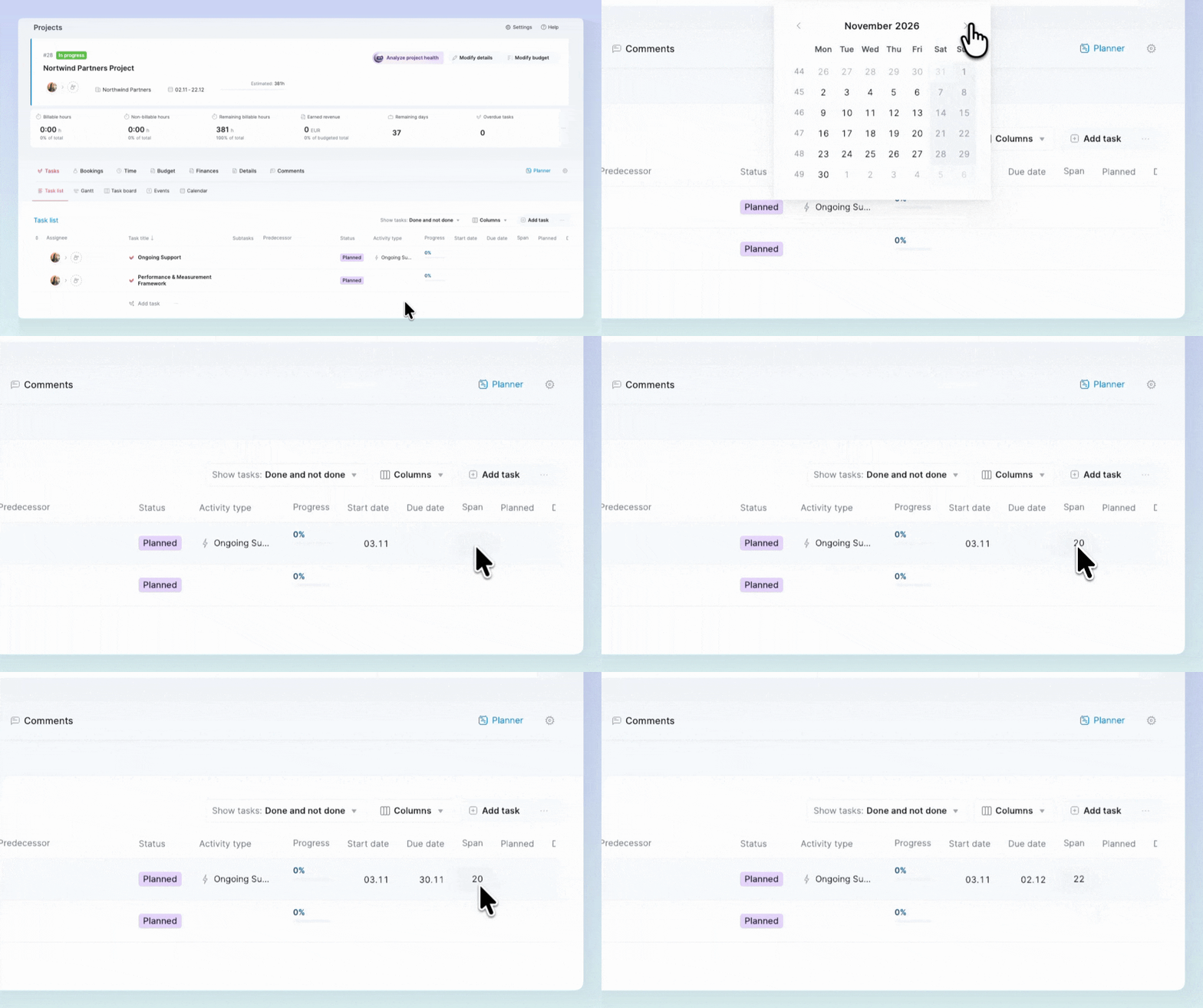
Use the new Span column in the project task list to set how many working days a task takes. Start by setting the task’s start date. Then enter the span in days, and the task’s due date will be set automatically based on the span.
A few things to note:
- The span excludes weekends and your configured company holidays.
- Change the span, and Scoro automatically updates the task’s due date; the start date always remains as is.
Subtask improvements
Converting parent tasks to subtasks (and vice versa)
Previously, you could only convert subtasks to parent tasks from the task list view. Now, you can change the task’s type in the task modify view by using the Parent task dropdown field:
- Convert a regular (standalone) task to a subtask by selecting its parent task. Only regular and parent tasks can be selected.
- Convert a subtask to a parent task by removing the selected parent task.
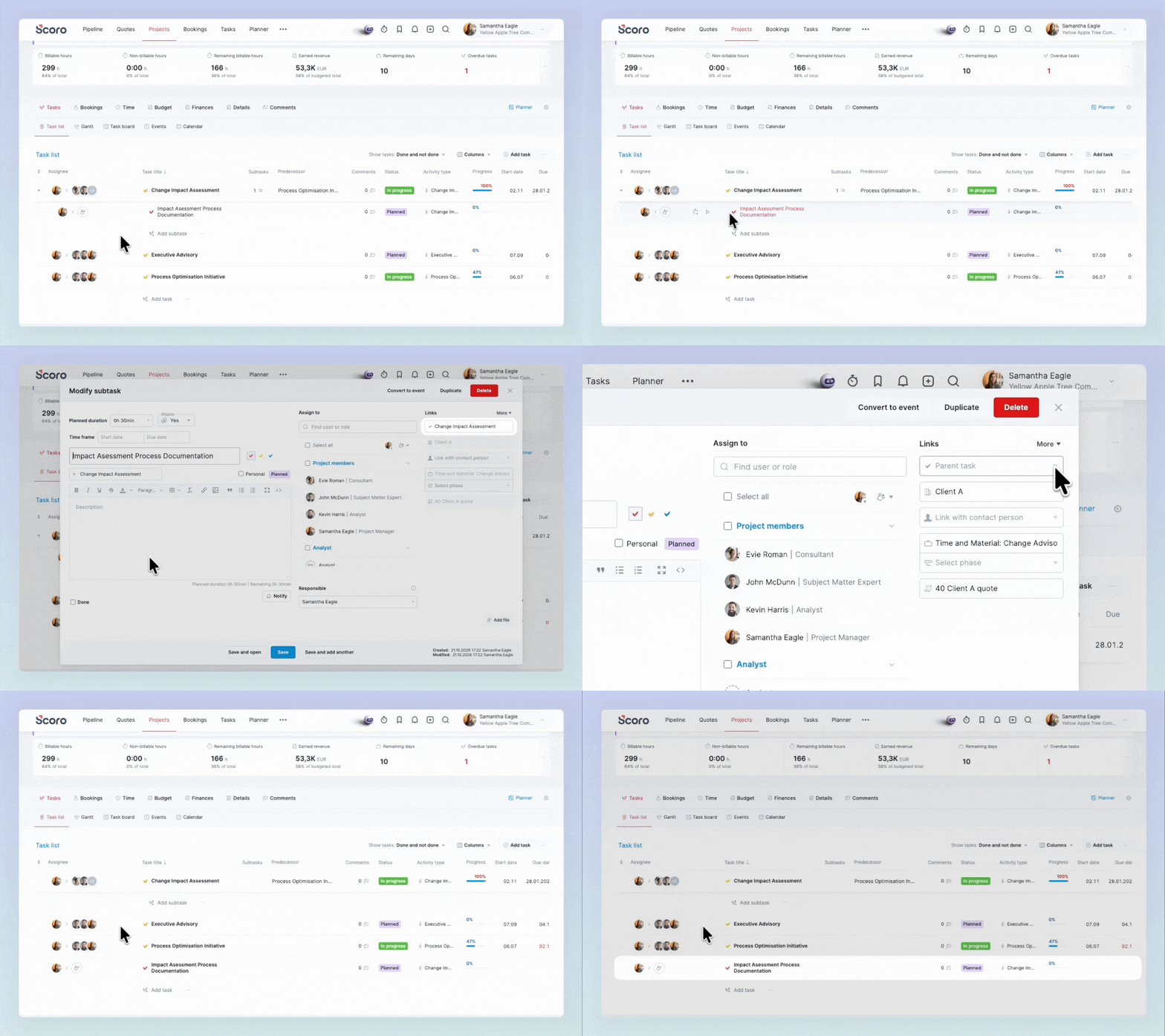
Some things to note:
- Scoro supports a two-level task hierarchy – meaning you can have parent tasks with subtasks, but you cannot move a subtask under another subtask.
- Tasks marked as done cannot be converted to a different task type.
- Billable regular tasks can only be moved under billable parent or regular tasks.
- Parent tasks cannot be converted to subtasks because they already have subtasks under them.
Learn more about changing the task type.
Subtasks in task bundles
Task bundles now support subtasks, letting you build out the full project plan with parent tasks and subtasks.
To add a subtask to a task bundle, click the New task button and select its parent from the Parent task dropdown field. You can also change the regular tasks in your task bundle to subtasks by selecting their parents from the dropdown.
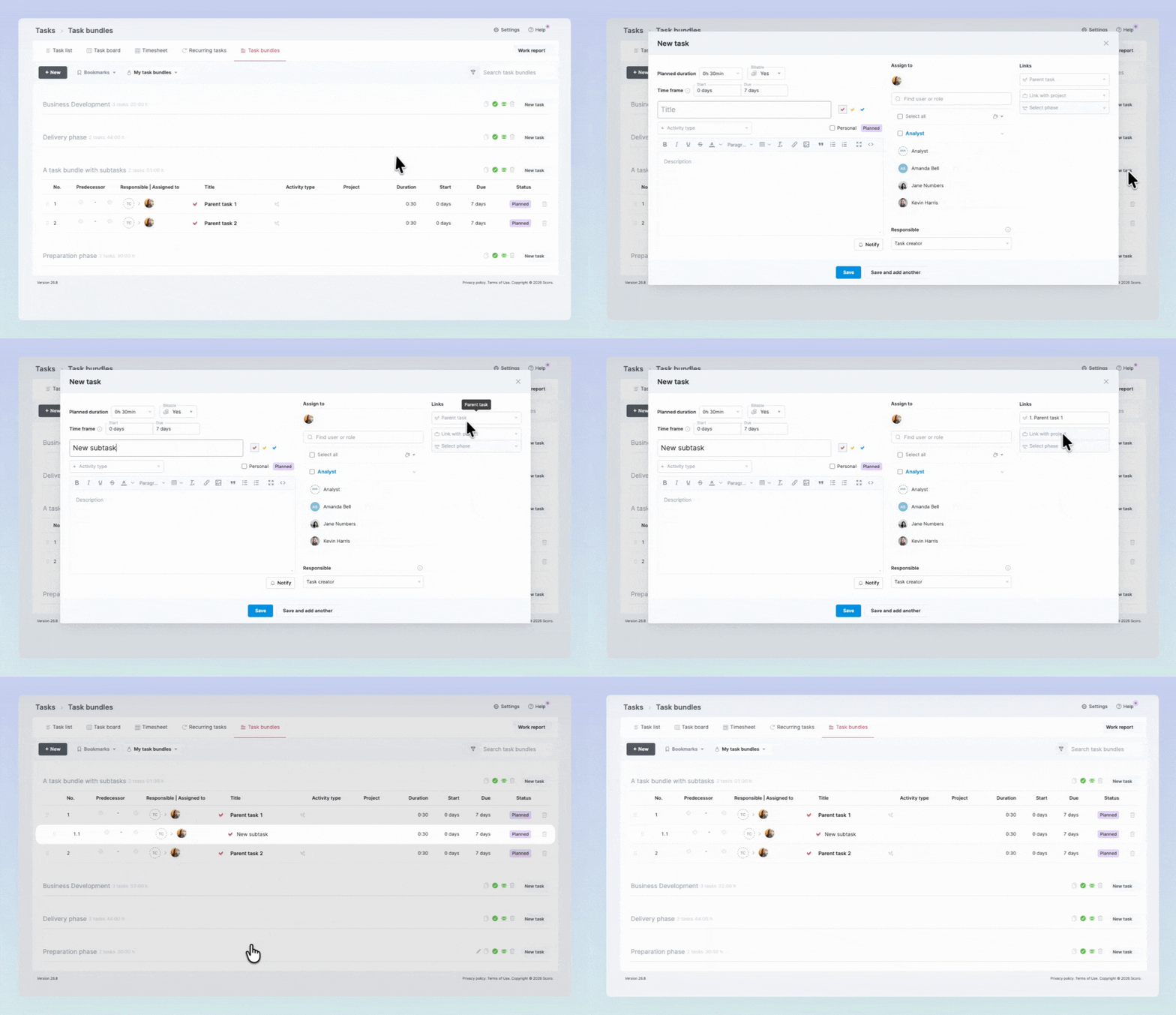
Key things to remember:
- Scoro supports a two-level hierarchy – meaning you can add subtasks under parent tasks, but you can’t add subtasks under subtasks.
- Bundles with subtasks can’t be added under subtasks because you can’t have two levels of subtasks.
Learn more about task bundles.
ELI improvements
We’ve got big plans for ELI, Scoro’s AI-powered assistant! 🤩 Here are the capabilities we’re bringing to ELI this quarter:
- Picking up skills, yours or ours. Define a repeatable workflow once, like a weekly status update or quote format, and ELI applies it automatically whenever it’s relevant.
- Plugging ELI into Slack: Mention ELI in a channel or DM to create tasks, log time, check what’s due, or get a daily digest, without opening Scoro.
- Managing invoices, purchase orders, and bills. Ask ELI to draft, check, or update these on your behalf.
While we’re working on these new ELI superpowers, check out what we released last month:
- ELI as an action in triggers and actions rules – create T&A rules asking ELI to run specific actions when a trigger event and its conditions are met. Site admins can also create rules where ELI acts on behalf of a specific user or the person who initiated the trigger event.
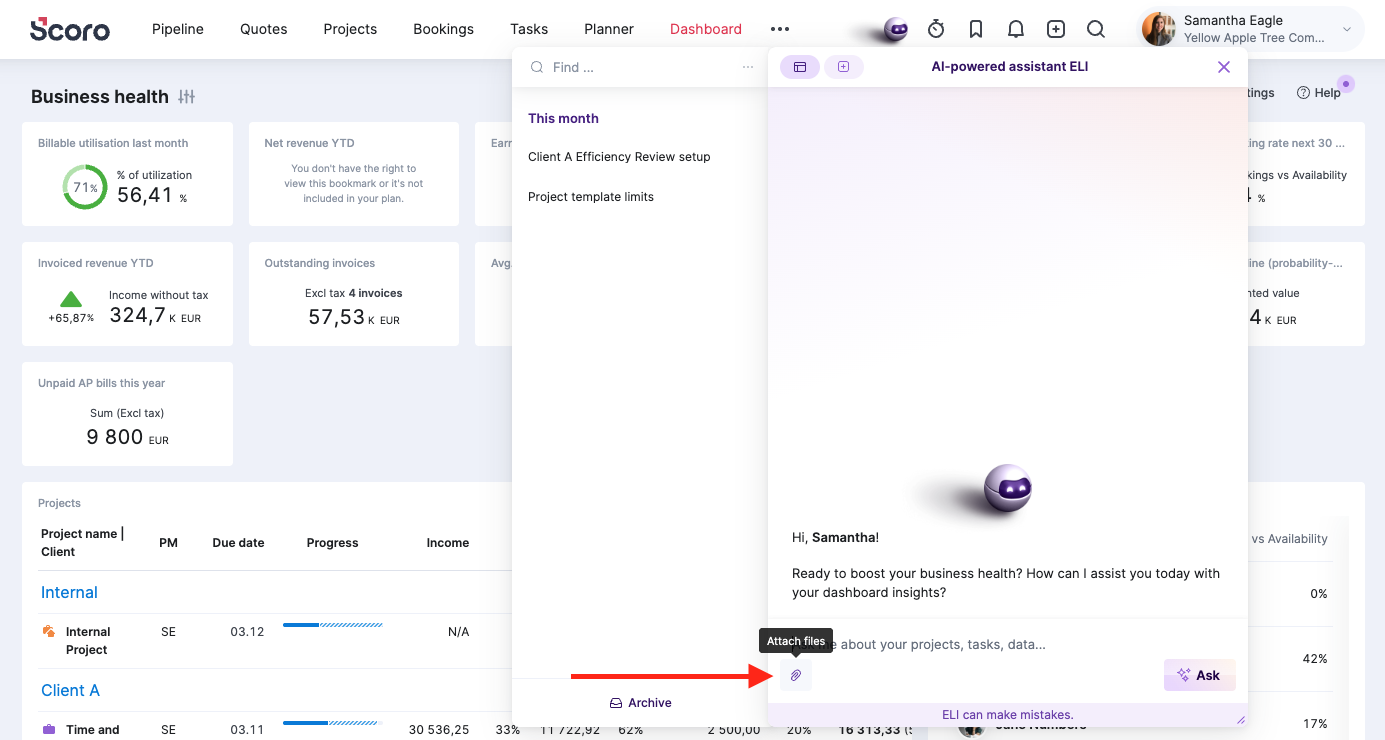
- Attaching files in ELI chat – upload files such as images, documents, PDFs, or spreadsheets directly in your chat with ELI, so you don’t need to retype or paste in the details yourself.
New Scoro MCP tools for task bundle management
Scoro’s MCP server now includes tools for task bundle management:
- get_task_bundles: retrieve task bundles from your site to quickly structure project work.
- update_task_bundle: updates a task bundle’s details, such as its name, status (active or inactive), and sharing settings (whether it’s shared with other users).
- create_task_bundle_task: adds a task to a task bundle.
- update_task_bundle_task: updates a task inside a task bundle.
Learn more about all the available Scoro MCP tools.
New to Scoro MCP server? See our overview and setup guide.
Reordering and converting tasks in the Gantt chart
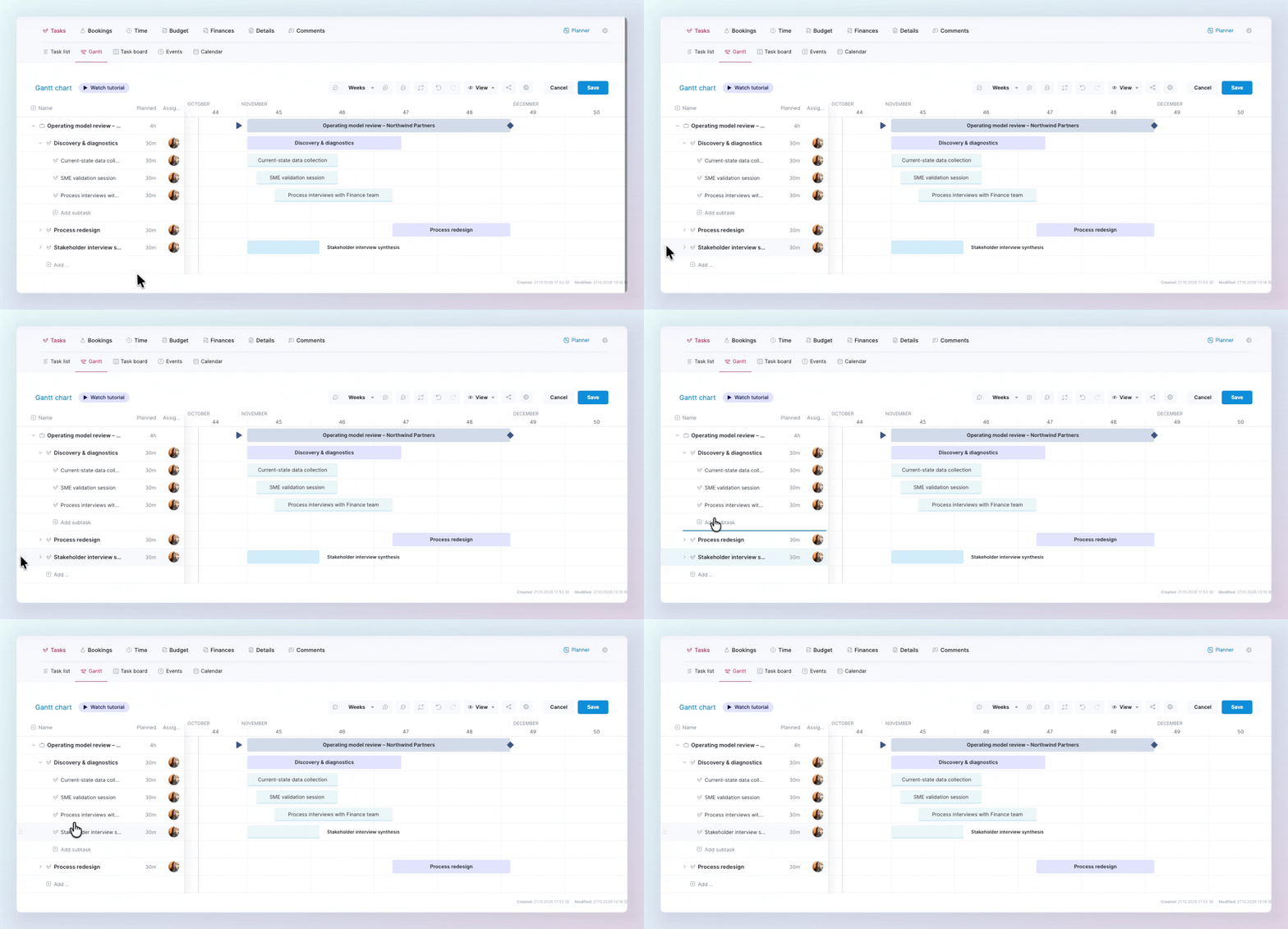
We’ve made rearranging your project plan in the Gantt chart easier: besides phases, now you can also reorder your tasks by dragging them to the necessary place. Once you save the changes, the new task order also applies to the project task list, so that your project plan stays organized in the order the work should happen.
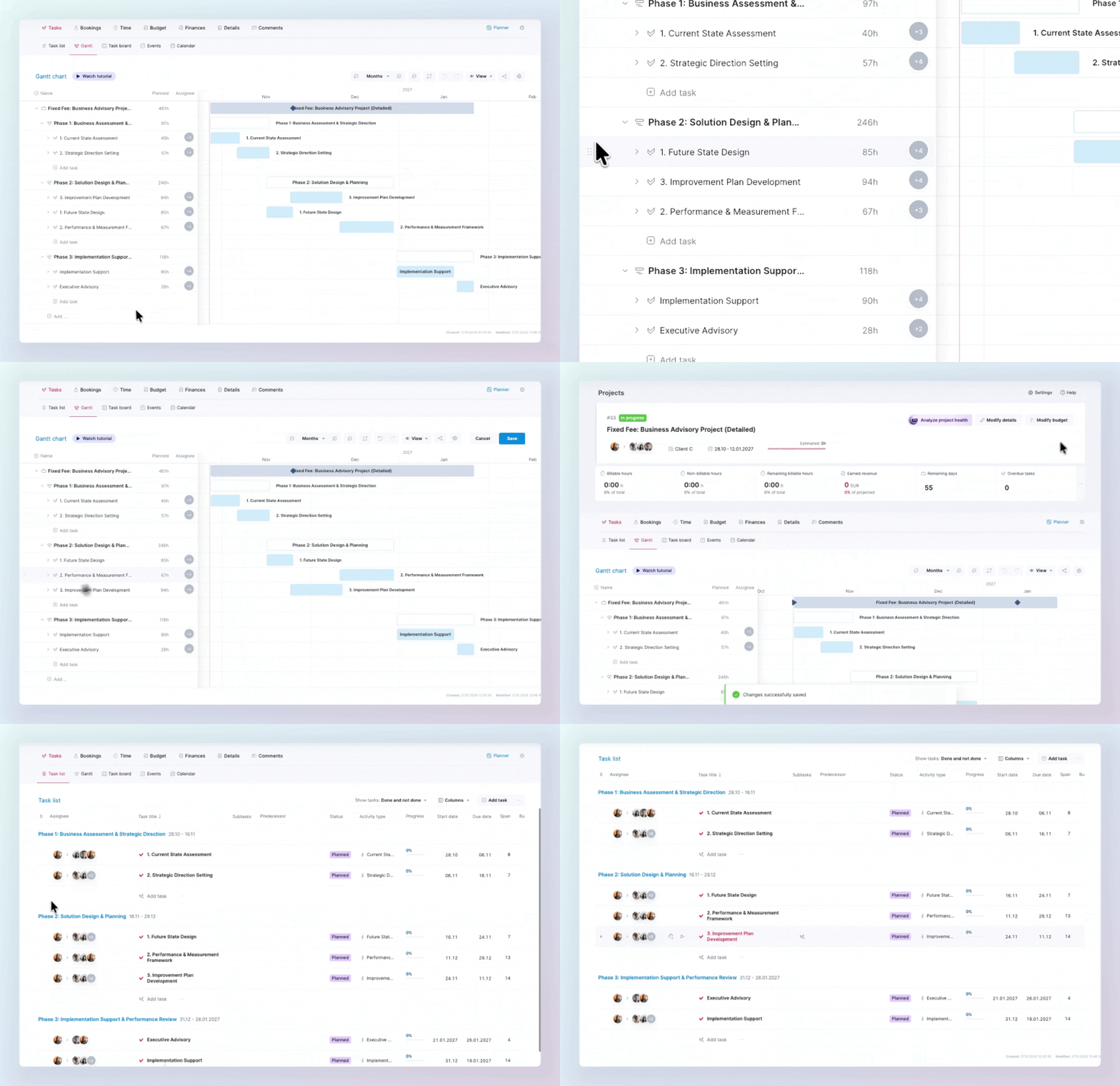
Additionally, you can quickly change the task type in the Gantt chart by dragging it to the level you need – for example, a regular task under an existing parent task to turn it into a subtask.
Setting the current time as an event’s end time
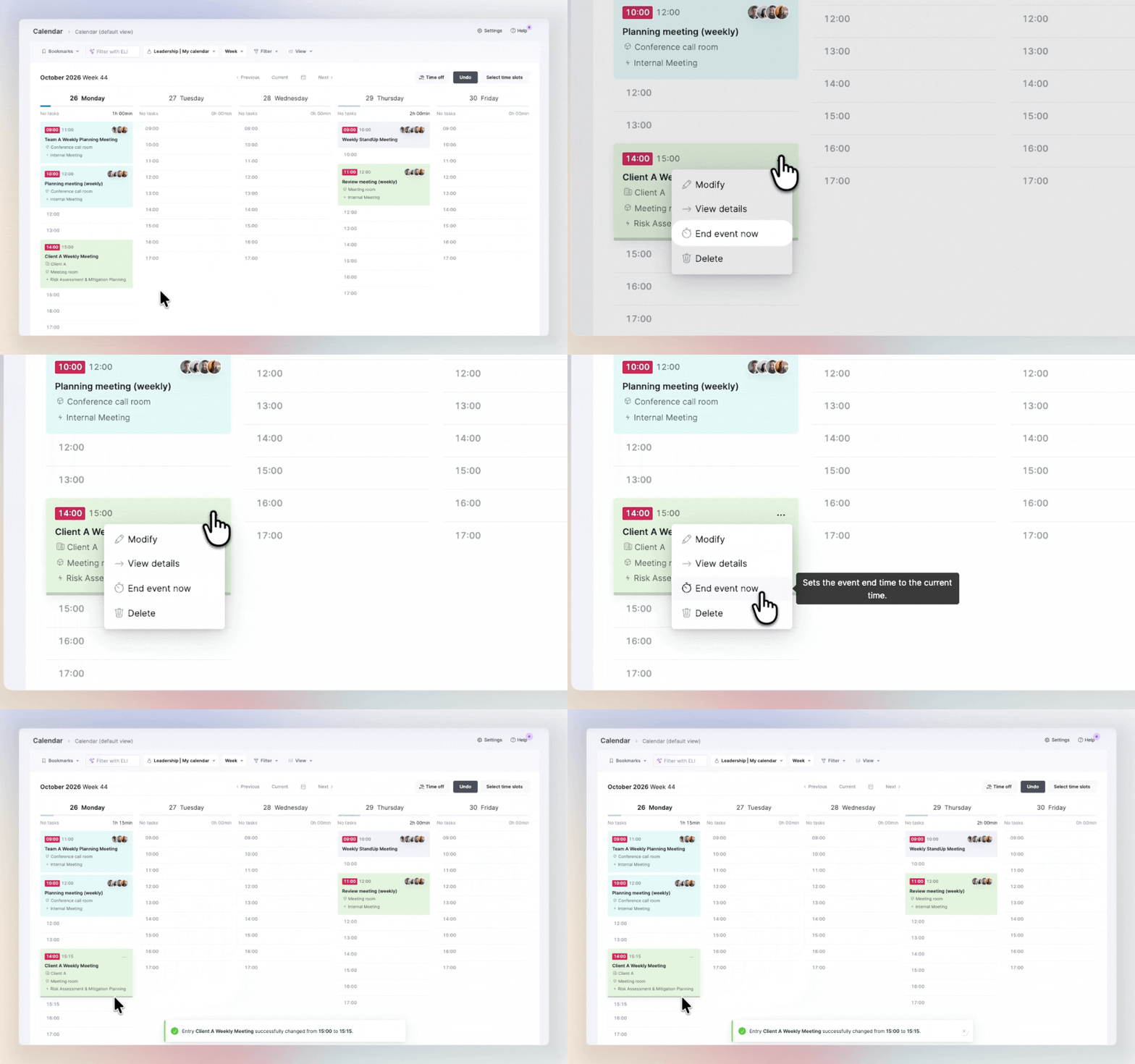
If your calendar event ended sooner than planned or the meeting ran longer, you can now quickly modify the event end time from the event card without having to open the event modify view. Click the three-dot icon on the event card and select End event now, and the current time becomes the event’s end time.
The button is available for up to an hour after the event ends – after that, modify the event as usual to update its end time.
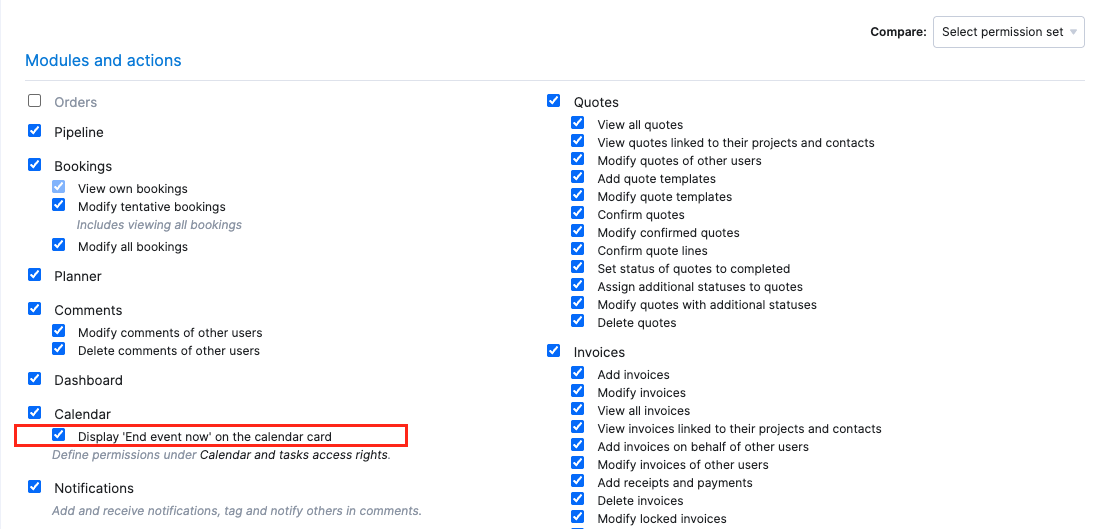
The availability of this button is controlled by the ‘Display ‘End event now’ on the calendar card’ permission, which is enabled by default on all sites. Site admins can disable it for the necessary permission sets.
More granular Bookings module permissions
Site admins now have finer control over who can view and modify bookings in the Bookings module. Select the relevant permissions for each permission set on your site:
- ‘View own bookings’ – lets the permission set users view only their own bookings, not those of other users.
- ‘Modify tentative bookings’ – lets the permission set users view all users’ bookings and modify the tentative ones.
- ‘Modify all bookings’ – lets the permission set users view and modify all users’ bookings, both tentative and fixed.
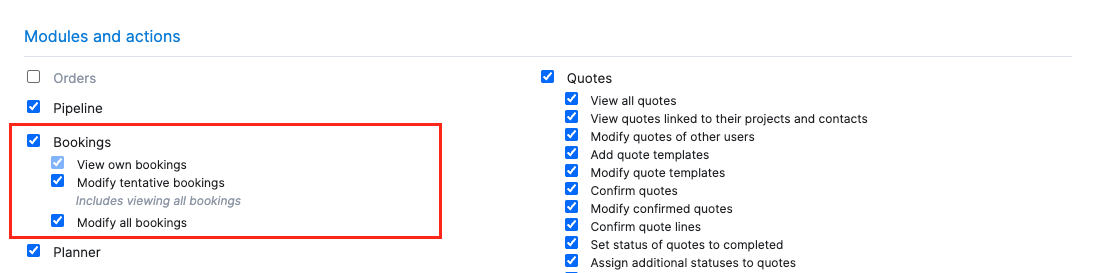
Heads-up: Site users who already had the ‘Bookings’ permission now have all the above Bookings module permissions enabled. Review each permission set and disable the unnecessary permissions.
Learn more about permission sets.
Exact Online integration improvements
Scoro invoices and credit notes can now be synced to Exact Online as sales entries. Site admins can enable this under Settings > Site settings > Integrations > Exact Online, using these new dropdown fields:
- Document type – select ‘Sales entry’ to sync invoices as sales entries. By default, they’re synced as sales invoices.
- Your ref – choose whether the ‘Your ref’ field in Exact Online is filled with Scoro’s reference number (default) or invoice number.
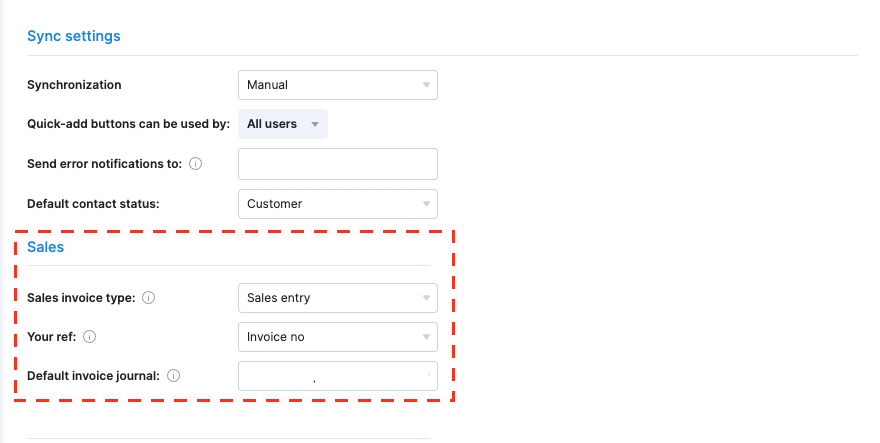
When syncing invoices to Exact Online as Sales entries, each invoice line needs a finance account that is already linked to an Exact Online GL account. Otherwise, the sync is blocked. You can also select the default invoice journal Scoro applies to an invoice that doesn’t already have a journal assigned.
Learn more about setting up the Exact Online integration and how the sync works.
Mandatory fields for custom modules
Custom modules and apps now support mandatory fields, the same way Scoro’s built-in modules do, so you can make sure records always include the details your team needs. Site admins can manage them under Settings > Site settings > Mandatory and unique fields, where your custom modules are listed alongside Scoro’s default modules.
Mandatory fields for custom modules also work via API and the Scoro MCP server. Creating a record without the mandatory fields filled out will return an error.
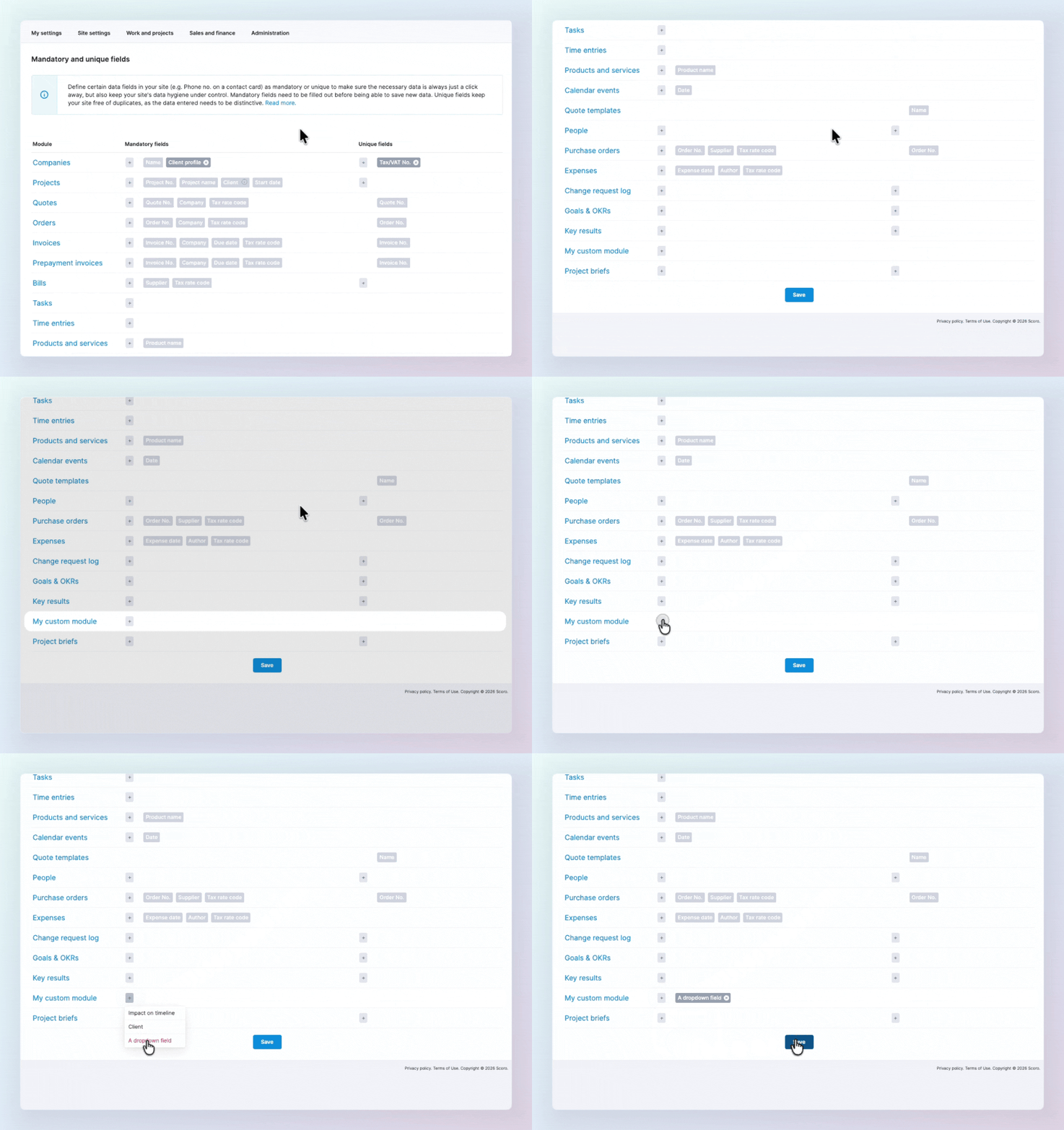
Heads-up to site admins about mandatory fields in apps by Scoro:
- New app installs automatically come with certain mandatory fields already set up.
- Already installed apps remain as they are – site admins need to make the necessary fields mandatory themselves.
Smaller updates for smooth operations
- Inactive user data in the utilization report. Inactive users are now displayed in the utilization report, so you can review their historical availability, scheduled work, and worked hours even after they’ve left the company. Their availability after their end date is treated as zero, so it won’t inflate your future team capacity.
- Global site search improvements. You can now look up calendar events using the search in your site’s header menu – just remember to enable the Calendar module in your search settings first.

Soon in beta: Scoro API v4 ✨
We’re preparing for the release of the new Scoro API v4, which will be available in beta starting November 1st! 🥳 Here’s what you can look forward to:
- Standard OAuth 2.0 authentication. Access scopes let each integration ask only for the access it needs.
- A REST API that works with standard tools. Standard HTTP methods and status codes, plain JSON and a full OpenAPI spec make connecting tools like Power BI and Tableau much simpler.
- Built for AI and agents. Readable field names, easy-to-follow resources and actions, and a dedicated scoro-api skill help AI assistants build correct calls.
- Easier querying. Typed filters and search endpoints turn “tasks in project X, due this week” into a single call.
More details are coming soon, so stay tuned!
What we’re working on…
- Quote-based pipeline bookings & retainer quotes. Visualize your sales pipeline directly in the Bookings module to see how potential deals and retainers impact your team’s capacity and revenue forecast even before a project is created.
- Billable utilization targets. Set default and role-specific billable utilization targets, so you can see in the team performance and utilization reports how logged and planned work stacks up against the expected billable hours based on each person’s real availability.
- Envoice integration improvements. Match bills to purchase orders automatically with the Envoice integration.
❗Some features may not be immediately available on your site due to the rollout timeline, or may require certain Scoro subscription requirements, permissions, or settings enabled by your site administrator.
Got feedback or product improvement ideas? We do our best to make Scoro better every day, so we’d love to hear from you! Share your thoughts with us via our contact form.
What to do next?
- Join our referral program to invite others to try out Scoro and earn monetary rewards of up to 1800 USD when they become a Scoro customer!
- Visit our Help Center to find in-depth guides about all Scoro features.
- Listen to our podcast The Handbook by Harv Nagra, an Ops Consultant and Ex-Agency Leader, where he dives into engaging conversations with operations experts to discuss and explore the behind-the-scenes and latest trends and innovations in the professional services space.
- Subscribe to The Handbook newsletter to get the latest info on agency challenges and solutions delivered directly to your inbox.