












Ask three people how they build a quote, staff a project, or report to a client, and you’ll get three different answers. Each way lives in someone’s head, so results vary from person to person. And when someone is out sick, on vacation, or leaves, no one else can pick up their work the same way.
Documenting how the work should be done is what turns this around. In our business maturity model, it’s what marks the stage where work starts to feel solid and predictable.
Yet only 21% of businesses in our Maturity Gap research have documented their best practices, and even documented processes often sit in a folder no one opens.
ELI skills help change that. With skills, you save your team’s way of doing a job once, in Scoro. From then on, whenever someone asks ELI for that kind of work, ELI recognizes the skill fits and follows your process, the same way every time.
In this guide, you’ll learn:
- What ELI skills are, and how they differ from Claude and ChatGPT skills
- Three ways to create one, with prompts you can copy
- Which skill to build first
- How to roll skills out to your team and fix the common mistakes
What is ELI?
ELI is the AI assistant built into Scoro. It’s included in every Scoro plan and switched on by default. You ask it for things in plain language, and it works on your own Scoro data, like your projects, budgets, bookings, and time.
It can answer questions, and it can do things for you, like creating tasks, logging time, or scheduling meetings. It only does what you have permission to do, and it always asks before it acts.
Top Tip
If you’re new to ELI, start with Getting started with ELI in the Help Center, which walks you through the basics.
What is an ELI skill?
An ELI skill is a set of saved instructions that tells ELI exactly how your team handles a type of request. ELI then gives you the same format, rules, and level of detail every time, without you explaining it again.
That matters because a request without a skill starts from scratch, and two people asking for the same thing may get two different results.
Take checking your timesheet before you submit it. With Timesheet check, a ready-made skill from Scoro’s library, you type /timesheet-check and get this:
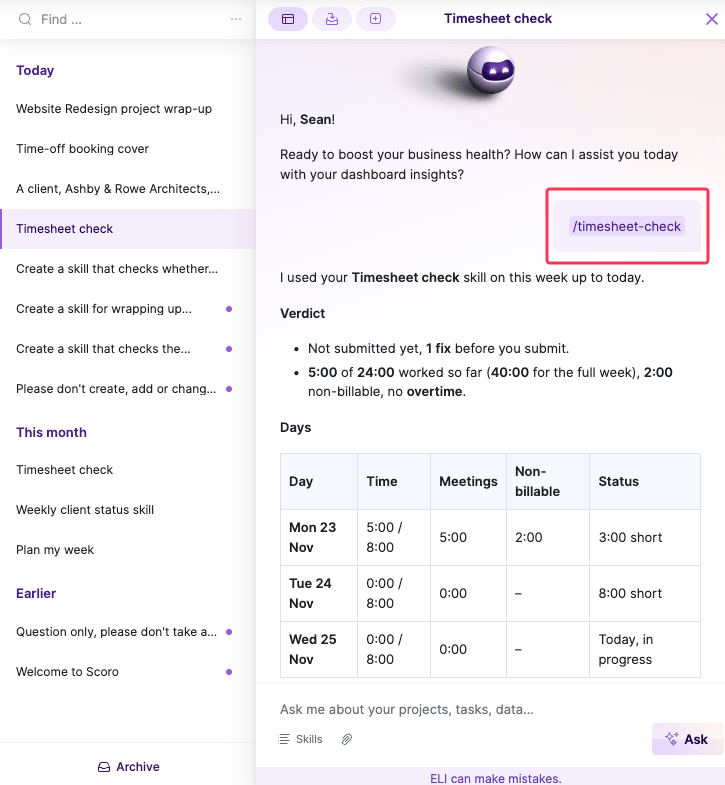
Ask ELI to log the missing hours it flags, then submit.
Now, if you’ve used Claude or ChatGPT skills, you might wonder how ELI skills compare, and when to use which.
How ELI skills differ from Claude and ChatGPT skills
ELI skills are for work that happens in Scoro. Skills in Claude or ChatGPT are for work that spans several tools. And you can use the two together.
| ELI skill | Claude or ChatGPT skill | |
|---|---|---|
| Where it lives | In Scoro | In your AI tool |
| Who can use it | Anyone on your Scoro site who uses ELI | Whoever has that tool, connected to Scoro |
| Best for | Jobs that happen in Scoro | Work that spans several tools |
An ELI skill is the better choice when:
- Your team already works in Scoro, so the skill sits next to your projects, budgets, and bookings
- You don’t want another tool to set up, because ELI comes with your plan and needs no extra AI license or connection
- You want it in your automations, so when something changes in Scoro, a triggers and actions rule asks ELI to do the job, and ELI follows your skill
Using both together
Claude can hand the Scoro part of a job to ELI, and ELI uses your skills to do it. ChatGPT works the same way, through the Scoro MCP server. Here’s how it looks in Claude:
- In Claude, pull in what lives outside Scoro, like a client’s email asking for extra work
- Ask Claude to check with ELI whether the team can take it on
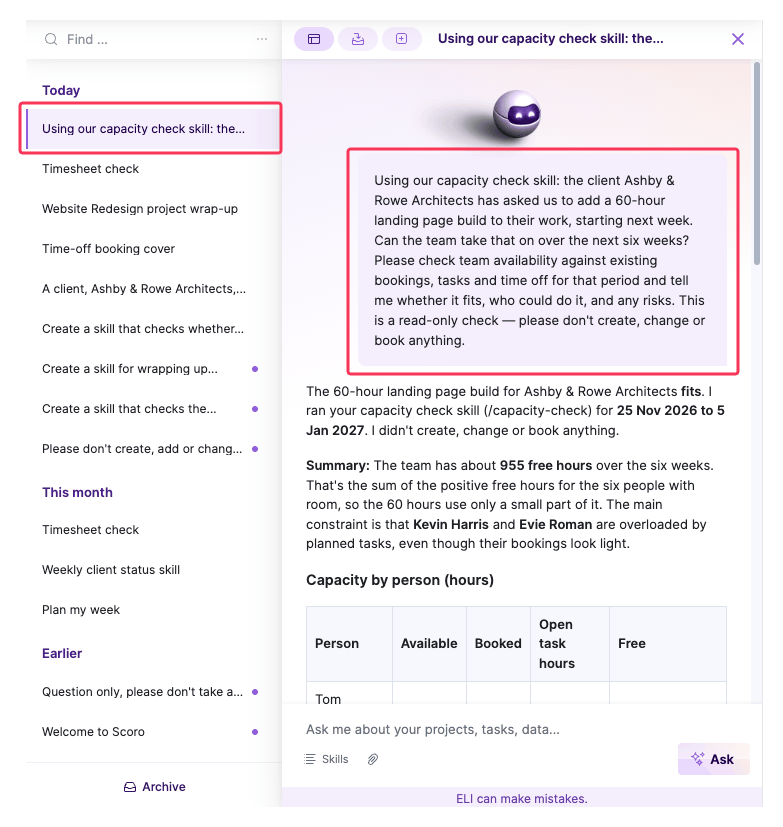
- ELI runs your capacity check skill and tells you who has room. It changes nothing. (You’ll find the prompt to create that skill in “Prompts to copy” below.)
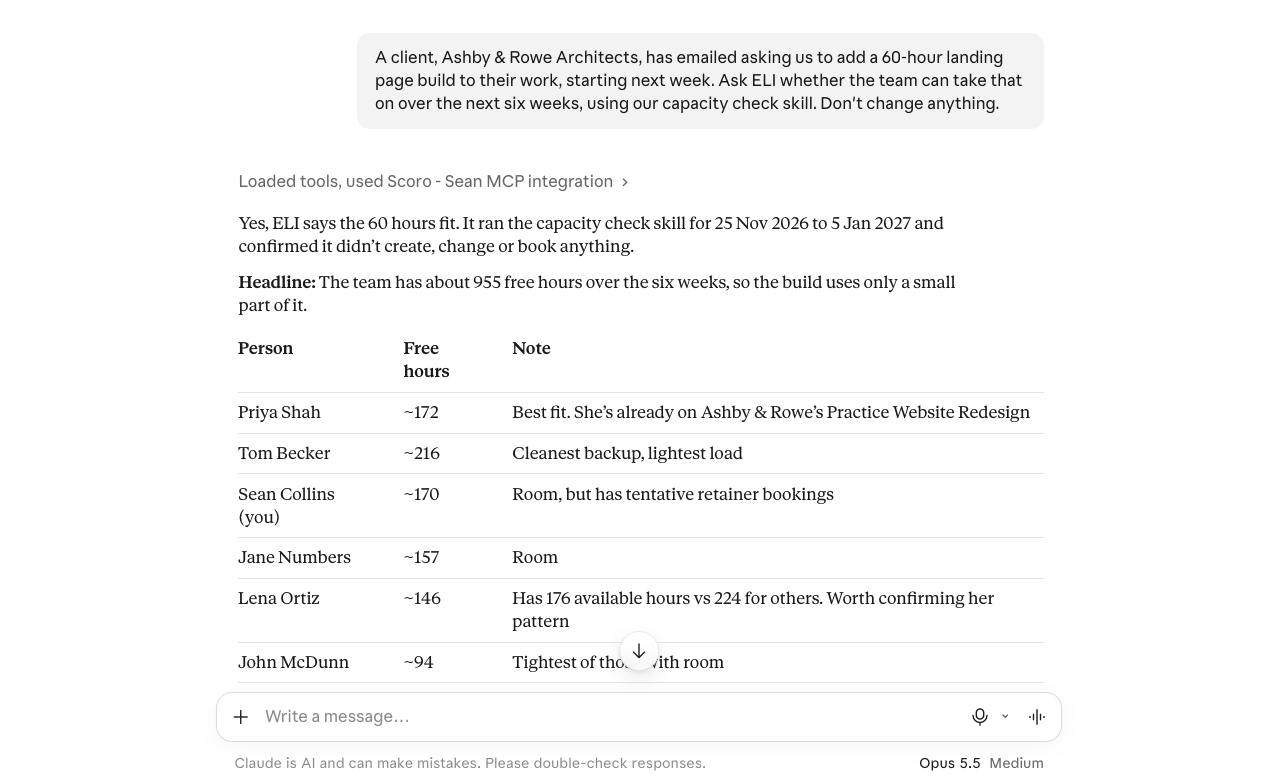
The full answer, with ELI’s links into Scoro, stays in the ELI chat, so you can follow up there:
Top Tip
A site admin needs to switch on the Scoro MCP server, and you connect it to your Claude or ChatGPT account. The MCP server setup guide covers both. Each hand-off uses your site’s ELI credits, the same as asking ELI directly.
How to create an ELI skill
There are three ways to create an ELI skill, and the first two are the ones I’d use. Once you know how, the last part of this section helps you pick which job to start with.
Option 1: Add one from the skills library
If you’re not sure where to start, try the skills library, a set of ready-made ELI skills from Scoro. Each one is an example of a job ELI handles well, so use them for ideas as much as to add.
Open the ELI chat and click Skills > Explore library. Add a skill for yourself or the whole company, then run it by its command, like /timesheet-check, or let ELI use it whenever your request fits. ELI still asks before it changes anything.
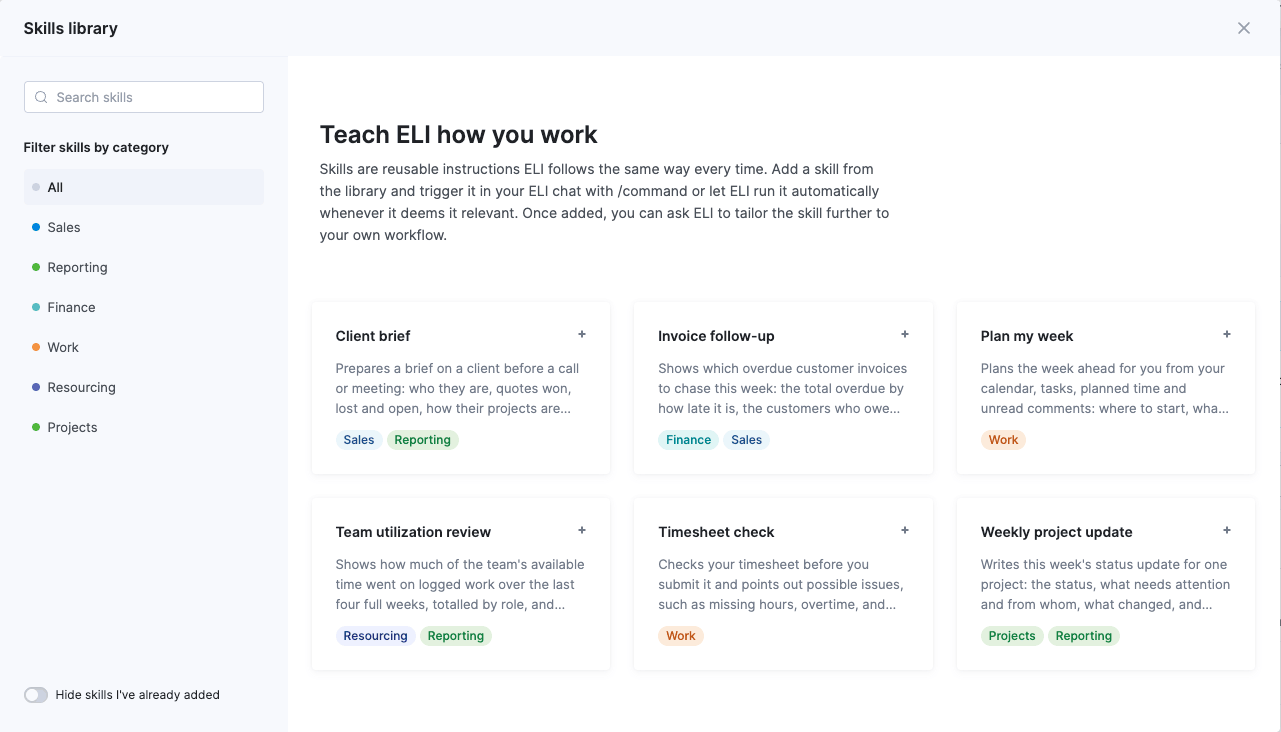
Read a skill’s instructions before you rely on it. Then ask ELI to adjust it to how your team works. For example, Weekly project update writes this week’s status for one project. You might ask ELI to always add a short note for the client.
Your copy is yours. It won’t change when Scoro updates the library, and you can add the same skill twice if you want two versions.
Option 2: Ask ELI to create it
This is the way I’d recommend. You describe the job in your own words in the ELI chat, and ELI writes the skill. There are no files to upload and nothing technical to write.
ELI does the careful part for you. It checks whether you already have a similar skill, then either creates the skill and asks if you want changes, or shows you a draft first.
A new skill starts out personal and already switched on, so ELI uses it automatically whenever a request calls for it.
Here’s one I built from start to finish.
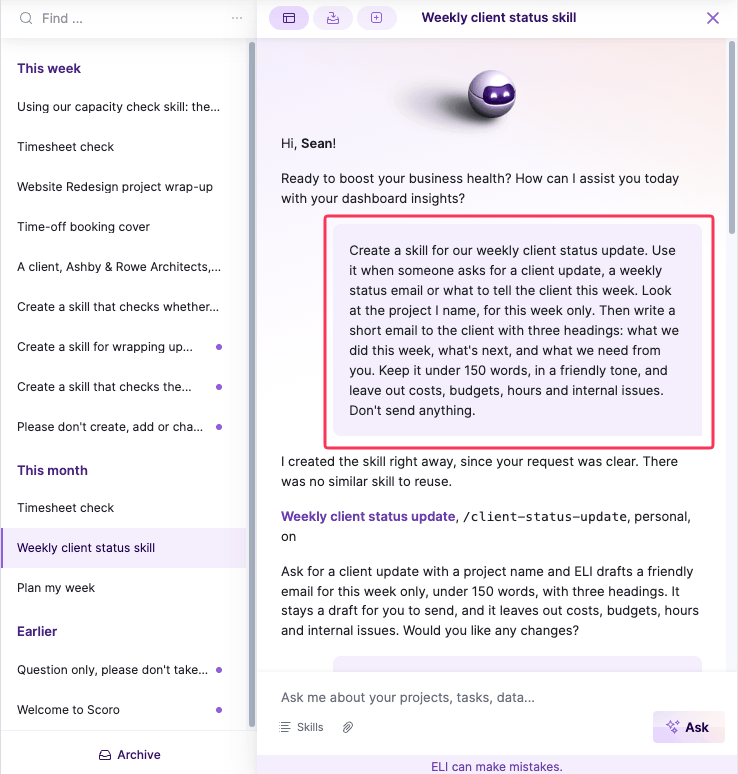
I wanted our weekly client update to come out the same way every time, so I typed this into the ELI chat in our demo account:
Create a skill for our weekly client status update. Use it when someone asks for a client update, a weekly status email or what to tell the client this week. Look at the project I name, for this week only. Then write a short email to the client with three headings: what we did this week, what's next, and what we need from you. Keep it under 150 words, in a friendly tone, and leave out costs, budgets, hours and internal issues. Don't send anything.ELI created Weekly client status update (/client-status-update). I asked it to also list decisions the client needs to make and to sign off with my name, and it updated the skill:
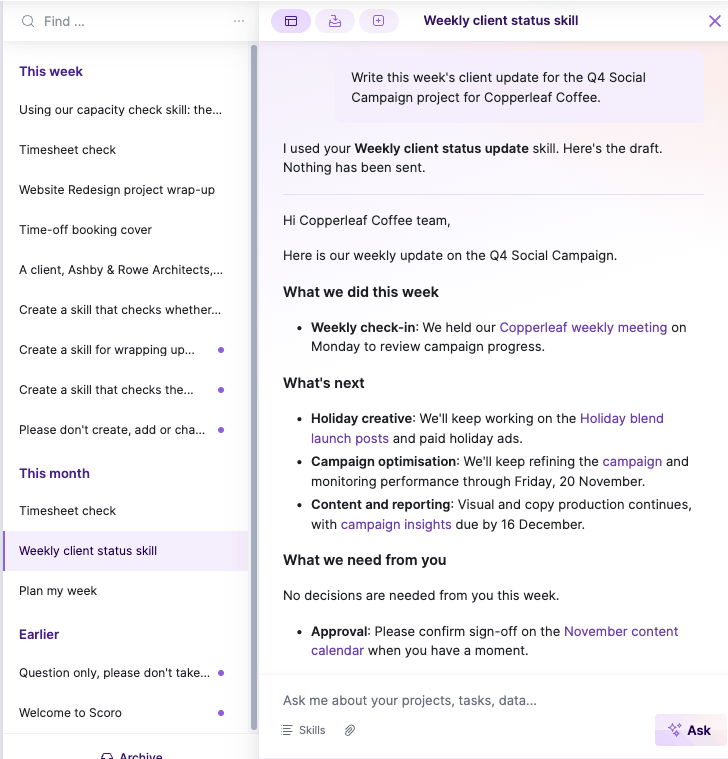
Then I asked ELI for this week’s client update on a sample campaign, without naming the skill. ELI picked up the skill on its own, wrote the email under my three headings, and sent nothing:
Top Tip
After a good conversation with ELI, ask it to turn that conversation into a skill. And when you want to change a skill later, ask ELI to change it.
Option 3: Write it yourself
You can also write a skill yourself. In the Skills tab (in the ELI chat, Skills > Manage skills), click New skill, then give it a name, a description, and instructions.
Scoro recommends letting ELI write your skills. It fills in the details that make a skill work well, like a description that tells ELI when to use it and instructions that are clear and complete. Write one by hand only when you want full control.
If you do:
- Spend most of your time on the description. ELI uses it to decide when to run the skill, so say what it does and add a “Use when…” sentence in the words your team uses.
- Tell ELI what it wouldn’t do by default, like the steps, what to check, and how the result should look
- Keep it short and limited, such as “the last month” or “at most 20”. Long instructions use more ELI credits, from the monthly allowance your site shares.
For every field and more tips, see Creating, using, and managing ELI skills in the Help Center.
Prompts to copy
Here are three prompts for common jobs. Copy one into the ELI chat and change the details to fit your team:
- Cover bookings during time off: “Create a skill that checks the next four weeks for bookings that clash with someone’s time off. For each clash, suggest cover from someone with the same role first, then anyone with free time. Show me the plan as a table, and change nothing until I approve it.”
- Project closeout: “Create a skill for wrapping up a finished project. Mark completed tasks as done, flag unfinished ones for review, and compare quoted and actual hours, costs and margin. Draft a short margin summary as a project comment, and post it only once I approve.”
- Capacity check for new work: “Create a skill that checks whether we can take on new work. Over the next six weeks, compare booked work, open tasks and open quotes against each person’s capacity after time off. Tell me how many hours we can take on, the main constraint, who has room and who’s overbooked. Make no changes.”
For any other job, use this template. A good prompt tells ELI the job, when to use it, what to look at, the steps, what to check, and what the result should look like. Replace every bracket with your own details:
Create a skill that [does this job]. Use it when [the situations and the words your team uses to ask for it]. Look at [which records, and what period or how many, e.g. the last month or at most 20]. Then [the steps, in order]. Check for [what to flag or watch out for]. Show the result as [the format and length, e.g. a table under 200 words]. Don't change or send anything until I confirm.ELI turns this into a skill and tells you what it does, so you can ask for changes straight away.
Which ELI skill should you create first?
Start with a job your team repeats every week and does in different ways. Don’t start with your hardest problem. A skill pays off most on the jobs you’d otherwise explain again and again.
A job is ready to become an ELI skill when:
- You keep explaining the same steps, to ELI or to a colleague
- Two people do it and get different results, when the result should look the same every time
- It waits when one person is out sick or on vacation, or someone has to dig around for how they did it
Skip jobs that are only a request, like “draft a quote from this brief”. ELI already does those well, so a skill adds nothing.
If you’re not sure where to start, pick one for your role from the skills library below. Add one as it is, or use it as the model for your own.
| Skill | Who it’s for | The pain | What you get |
|---|---|---|---|
| Weekly project update | Project managers | You rebuild the same status update every week | This week’s status for one project, what needs attention and from whom, what’s coming next week, and a button to draft a short message for the client |
| Invoice follow-up | Finance | Chasing overdue invoices from memory | Which overdue invoices to chase this week, one next step for each, and a reminder drafted for the customer you pick. It never sends anything |
| Team utilization review | Resource managers | You don’t know where the team’s time went until month-end | How much of the team’s available time went on logged work over the last four weeks, totaled by role |
| Client brief | Account managers | Digging through records before a client call | Quotes won, lost, and open, how their projects are doing against budget, unpaid invoices, and talking points |
| Plan my week | Everyone | Monday starts with digging through your calendar and tasks | Your week ahead from your calendar, tasks, planned time, and unread comments, and where to start |
Once you’ve picked a job and built your skill, the next step is getting your team to use it.
Make your ELI skills work for the whole team
A skill only gets your team doing a job one way once they trust it and use it.
Test it before anyone else relies on it
Keep a new skill to yourself until it’s ready. You can switch Published off to keep it as a draft. Then run it on a real case and check the format, the numbers, and anything it changed. For a skill that changes records, have it show you what it plans to change and wait for your OK. For example, a skill that updates task statuses should list the changes first.
Share it the right way
Every skill has one of three access levels:
- Personal: only you can use it. New skills start here, and that’s where they should stay while you test.
- Shared: anyone with access to the parts of Scoro it uses sees it under Shared skills created by others and switches on Enable for me to use it
- Enforced: it’s on for everyone who uses the same parts of Scoro, and no one can turn it off. People with the Manage skills of others permission can set it, so save it for true house rules, like how quotes are structured.
A few things to know:
- Sharing a skill isn’t enough on its own, so tell your team it’s there and ask them to switch on Enable for me
- You can’t share a skill with only part of your team, because sharing is for the whole site
- When someone edits a shared skill, the change applies to everyone, and the owner isn’t told
- A skill works within the permissions of whoever runs it, so sharing one never shares access
Keep your skills library small and owned
My recommendation is to make one person in each team responsible for its ELI skills. Each skill still has its own owner, so this is a way of working, not a setting.
Give one or two people across the company the Manage skills of others permission, which admins need too, so they can edit, deactivate, or delete shared skills and reassign ownership when someone leaves. Keep it to a few, since it covers every shared skill on the site, not just one team’s.
Then keep the list tidy:
- Give every skill a clear name and its own description, so people and ELI can tell them apart
- Check the Skills tab now and then and switch Published off on what nobody uses. Deactivate rather than delete, because deleting a shared skill removes it and its history for everyone.
A small, owned library means your team does the job one way, even when someone’s off.
Fix the common ELI skill mistakes
Most problems come from a vague description, instructions that add nothing, or a change nobody checked. These are the ones to watch for:
- ELI runs the skill on the wrong requests, or skips it when it should run. The description is too vague. Say what the skill does, add a “Use when…” sentence in your team’s words, and say what it’s not for. To run it only on command, switch on Run only when I call it with /command.
- You shared a skill and nobody uses it. Colleagues have to switch on Enable for me before ELI uses it for them. Tell them it’s there.
- The skill only repeats the request. Add the steps, checks, and format ELI wouldn’t use on its own.
- Two skills overlap. Give them clearly different descriptions, or run the one you want by its /command.
- A triggers and actions rule suddenly fails. A skill the rule names was deactivated or deleted, and Scoro doesn’t warn you. Check your rules before you switch a skill off.
Your team’s best way of working, on repeat
Your team’s best way of doing a job doesn’t have to depend on who’s doing it. With an ELI skill, you set it up once in Scoro, and ELI does it the same way for anyone who asks.
So pick the job your team repeats most, the one you’ve explained one time too many, and ask ELI to turn it into a skill this week. Test it, share it, and let your team run it. If you’d rather start smaller, open the skills library and add one that’s close to how you work.
You’ve explained this job enough times. Let ELI remember it. Not on Scoro yet? Book a demo to see ELI skills on your own kind of work.
Frequently asked questions
Do ELI skills use credits?
Yes. Running a skill uses about the same ELI credits as typing the same request yourself, plus a few for ELI to work out which skill fits. Credits come from a monthly allowance shared across your site. If your whole team runs skills every week, plan for that against your allowance. Admins can track usage in ELI settings and buy extra credits if they need them.
Can an ELI skill run on a schedule?
No. A skill runs when someone calls it up, or when ELI picks it for a matching request, so it can’t run every Monday on its own. To run one without anyone asking, use it in a triggers and actions rule. Rules react to changes in Scoro, like a project being put on hold, rather than to the time of day.
Can I use an ELI skill in triggers and actions?
Yes. Your skills also work in your automations. Say you’ve created a skill for building quotes, and you set up a triggers and actions rule where the action asks ELI to create a quote. ELI looks at the skills you have switched on, picks the one that fits best, and creates the quote your way.
If you have several quote skills and want ELI to use one in particular, add it to the rule by typing its slash command in the action or picking it with the Skills button.
ELI runs with the permissions of the person it acts for, usually whoever made the rule. If a rule names a skill and that skill is later deactivated or deleted, the rule fails the next time it runs, with no warning, so check your rules before you switch a skill off.
Can I undo what ELI did?
No. ELI’s actions can’t be undone, which is why it always asks you to confirm before it changes anything. Its changes show in the activity log under the name of the person who asked. For a skill that changes records, test it on a real case first and keep a preview step in its instructions.
Can I use my Claude or ChatGPT skills in ELI?
Not at the moment. Skills in Claude or ChatGPT and ELI skills are kept separate. What does work is the hand-off. Through the Scoro MCP server, Claude or ChatGPT can pass a Scoro job to ELI, and ELI can then use your ELI skills to do it.
Who can create ELI skills?
Anyone with the ELI permission can create skills, add skills from the library, and change, deactivate, or delete their own. Changing or deleting a skill someone else created needs the Manage skills of others permission, and admins need it too. People with the Manage skills of others permission can also enforce a skill, so it’s on for everyone.