












August brings something valuable for every Scoro user – whether you manage sales pipelines, project schedules, financial accounting, or optimize your team’s operations. You can now build complete delivery schedules directly on quotes, delegate operational background tasks to ELI through triggers and actions, and bill exact target sums with partial invoicing. Plus, we’ve expanded our QuickBooks and Exact Online integrations and added daily usability tweaks to keep your operations running smoothly.
See what’s new in Scoro!
What we already released earlier this August
Quick reminder – we’ve started gradually moving away from monthly version updates to a versionless release model. New features and improvements will now reach your site as soon as they’re ready, rather than all at once each month, so you can benefit from the improvements much sooner!
Since the last Scoro version was also an August release, here’s a quick summary of the cool things we released in that version in case you missed it:
- Use ELI to draft quotes and estimates
- Ask ELI to send notifications on your behalf
- Stop ELI prompt execution
- Group custom modules under a module group to clean up your site menu
- Display tags in project and contact lists
For the full details on the above improvements, please see the previous release notes.
Build the project timeline on the quote
You can now add start and end dates to each quote line item to build out the project timeline before a deal is even closed. As your deal progresses, updating the quote’s estimated closing date automatically shifts the timelines for your quoted deliverables.
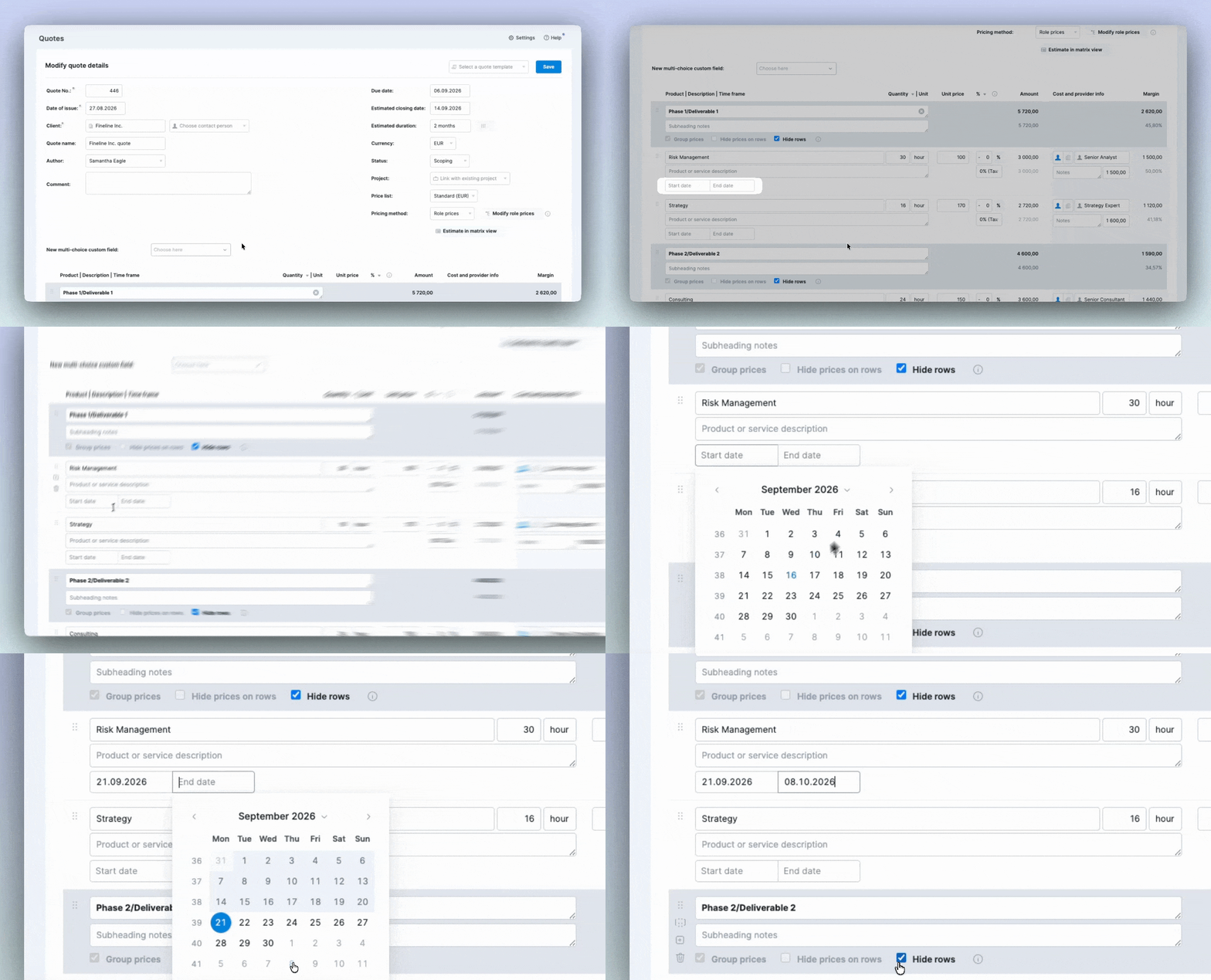
Instead of splitting a quote’s value evenly across the whole project, Scoro distributes each item’s revenue over the specified time range in your revenue report.
When the client confirms your quote, the tasks you create from the quote automatically get the timelines from the quoted deliverables, instantly populating your Gantt chart with the project timeline. The deliverable timelines also remain in the quote for reference, so you can compare them with the actual project execution.
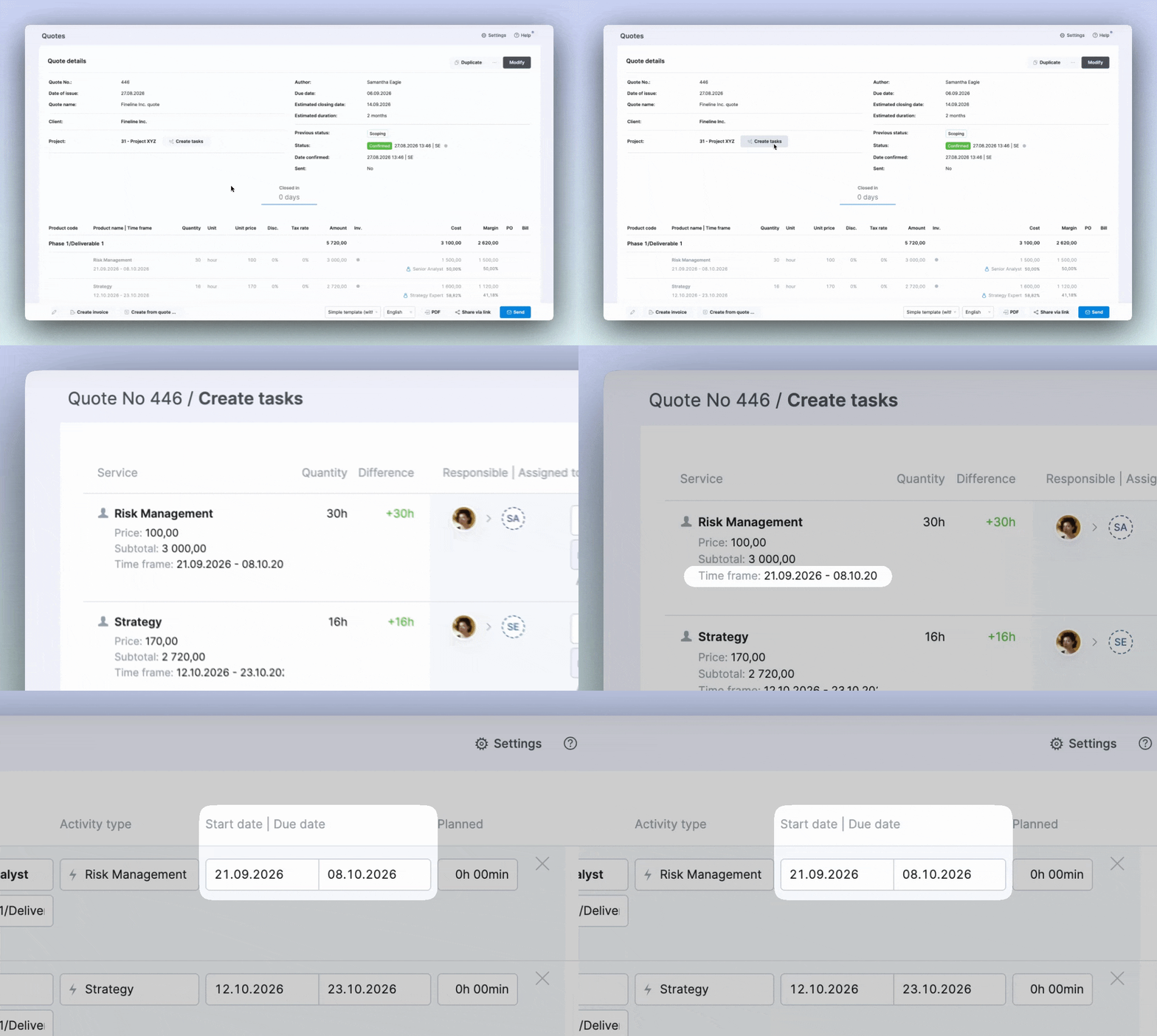
You can also add the quote line dates to your quote PDF templates to keep the client in the loop on project delivery timelines.
Availability & activation
- The quote timelines are coming soon and will be released to all Scoro sites in the first 1-2 weeks of September.
- Quote timelines are available in the Estimate core app and all legacy plans (Essential, Pro, Standard, Ultimate, Core, Growth, Performance, Enterprise).
- Site administrators can enable this feature by going to Settings > Sales and finance > Quotes and enabling the Build quote timeline by adding start and end date for each quote line checkbox.
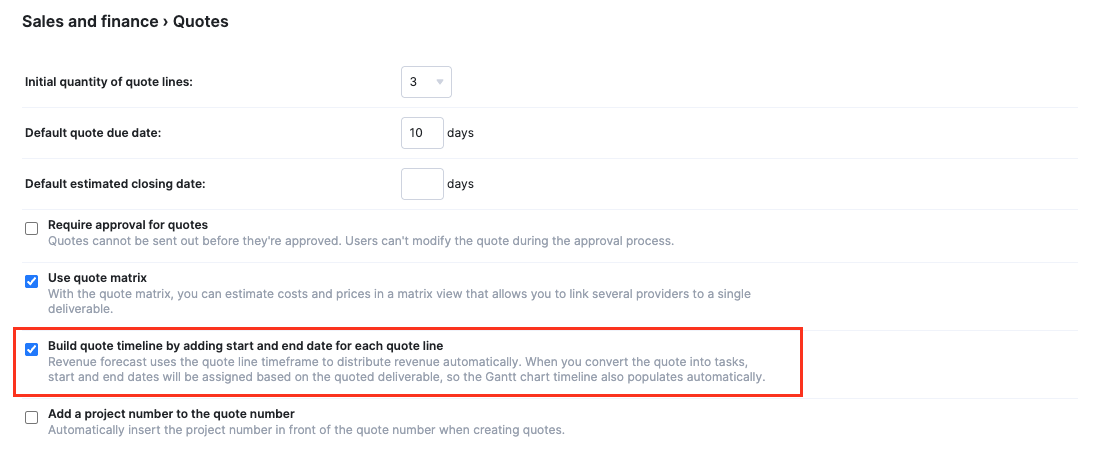
Learn more about building project timelines on quotes.
ELI improvements
We’ve got a few cool new things ELI can do for you coming soon in the next few weeks to your site!
Set ELI as an action for your trigger and action rules
Previously, rules configured via triggers and actions could send a notification in Scoro, Slack, or email, or trigger a webhook when conditions were met. Now, you can also set ELI to run specific actions instead of just alerting you.
For example, you could create a rule that when a project is put on hold, ELI should automatically change the status of all uncompleted tasks under that project to ‘On hold’ and notify the task assignees about it.
To set up an ELI action for your rule:
- Go to Settings > My settings > Triggers and actions and create a new rule.
- Define your trigger event in the first tab, conditions in the second, and select Ask ELI to act in the action dropdown in the third tab.
- Describe what ELI should do when this event occurs (just like you would in the ELI chat window).
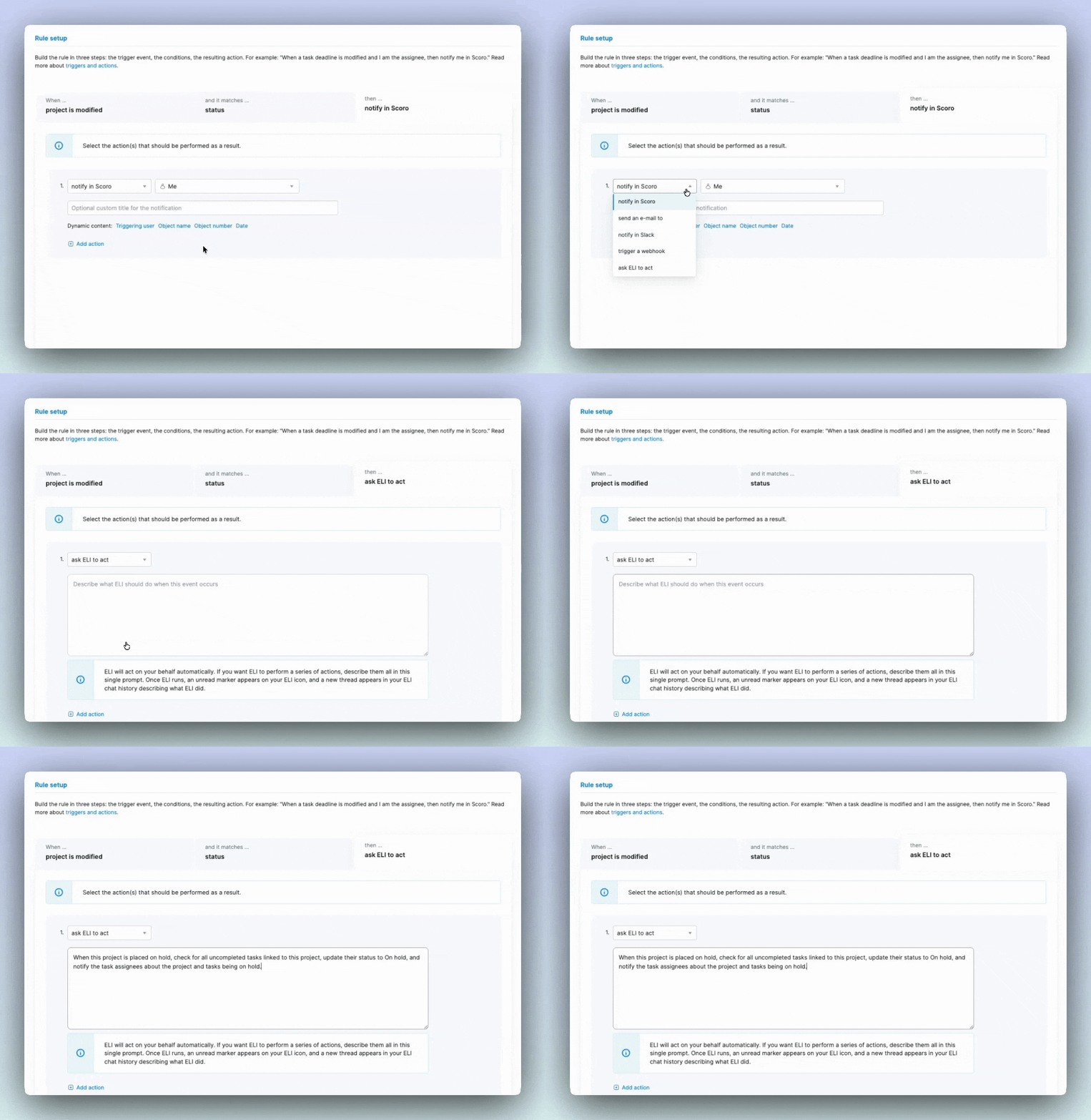
Once ELI finishes running, you’ll see a visual indicator of unread messages on the ELI icon, and a new thread will appear in your ELI chat history describing what ELI did.
ELI will let you know if it couldn’t perform the action you requested because of missing access rights or permissions, ELI credits running out, or other reasons.

The triggers and actions list will show the number of times each ELI action rule has fired. Click the number under the ELI runs column to open a more detailed log with the date the rule was actioned, the trigger object, the affected module, and more.
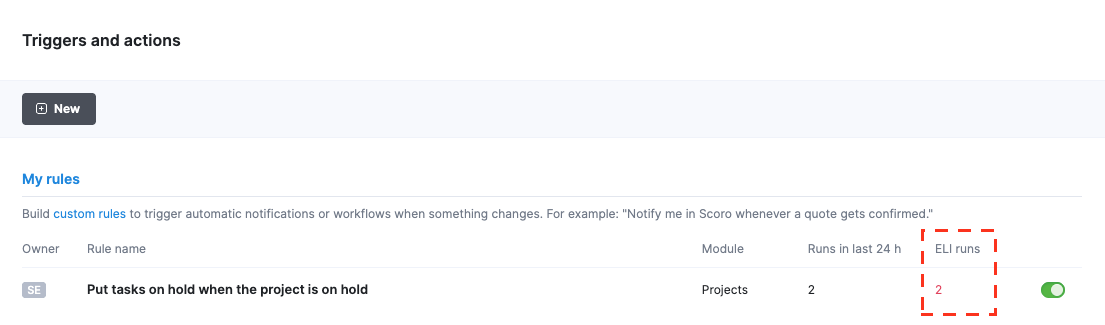
Key things to know before you dive right into creating your new rules with ELI actions:
- Permissions: ELI runs the actions on your behalf using your permissions. ELI will inform you when it cannot complete a certain action due to missing access rights.
- Individual rules only: Currently, triggers and actions let you set up rules only for yourself; you cannot create rules for other users.
- One ELI prompt per rule: You can add only once ELI action per each rule. If you want ELI to perform a series of actions, describe them all in your prompt.
- Credit consumption: ELI actions set via triggers and actions consume ELI credits from your site’s monthly quota just like any other ELI request.
Learn more about triggers and actions.
Easier navigation of past ELI conversations
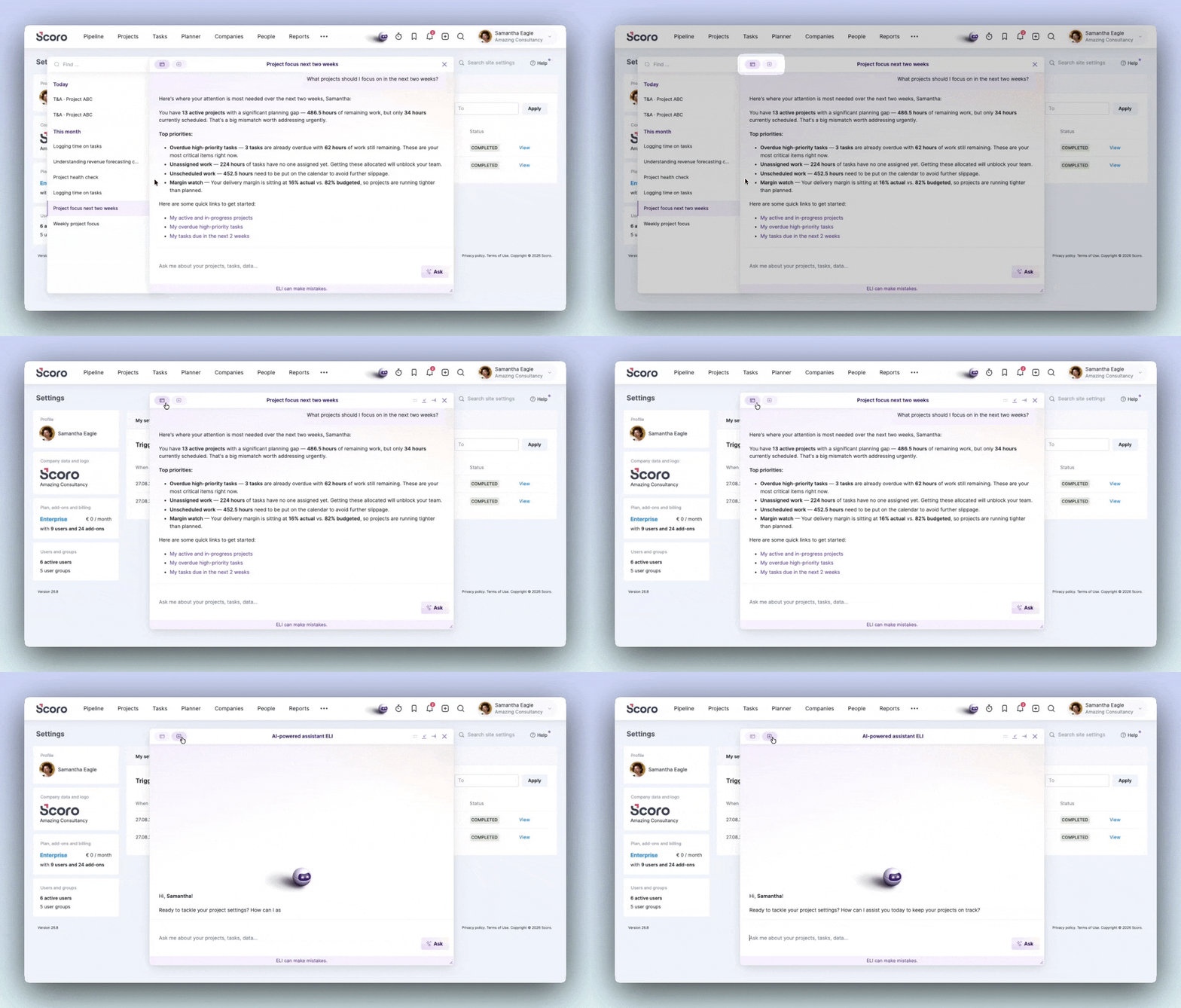
We’ve also improved ELI’s interface. You will find all your past conversations in the left-hand sidebar, which you can also hide if you want to focus only on the current conversation. Click the plus icon to start a new conversation from an existing thread.
Partial invoicing by amount
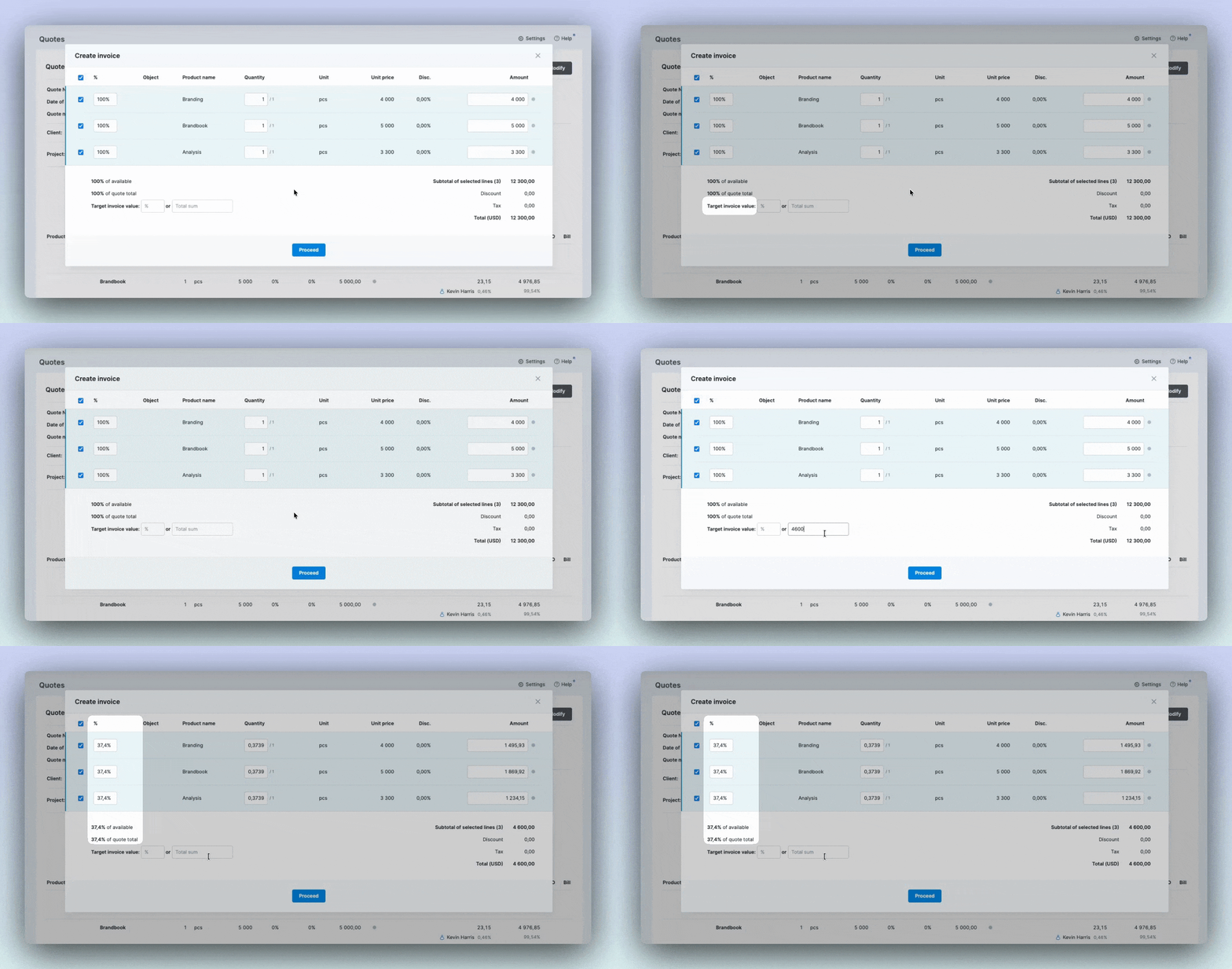
We’ve made partial invoicing more flexible – you can now specify the target invoice value by entering the total sum for the entire invoice or for each invoice item individually.
When entering the total sum for the entire invoice, Scoro calculates what percentage of the total quoted sum that is and then applies it to each line item. For example, your quote’s total sum is $12,300, and you enter $4,600 as the target invoice value, Scoro will calculate 37,4% of the quote and will apply that percentage to each selected line item.
Sync your expenses from Scoro to QuickBooks
We’ve expanded our QuickBooks integration to support expense syncing, completing an end-to-end expense management workflow across Envoice, Scoro, and QuickBooks.
How the expense sync works
- Submit expenses in Envoice: Your team can capture receipts and submit expense reports in Envoice.
- Sync expenses to Scoro: Envoice digitizes and syncs the submitted expenses directly into Scoro for project linking and cost tracking.
- Sync the expenses to QuickBooks: Scoro automatically or manually pushes expenses to QuickBooks based on your sync settings, eliminating manual double-entry and ensuring your accounting ledger stays synchronized with real-time project costs.
- Reimbursable expenses sync to QuickBooks as bills; once the expense is reimbursed, the bill is marked as paid in QuickBooks, and the expense in Scoro is also updated as paid.
- Non-reimbursable expenses sync to QuickBooks as expenses under your designated QuickBooks bank account.
- You can also decide whether to sync the receipt attachments with the expenses.
If you don’t use Envoice, expenses can still be synced from Scoro to QuickBooks as described above. Note that expenses cannot be synced from QuickBooks to Scoro.
Activation
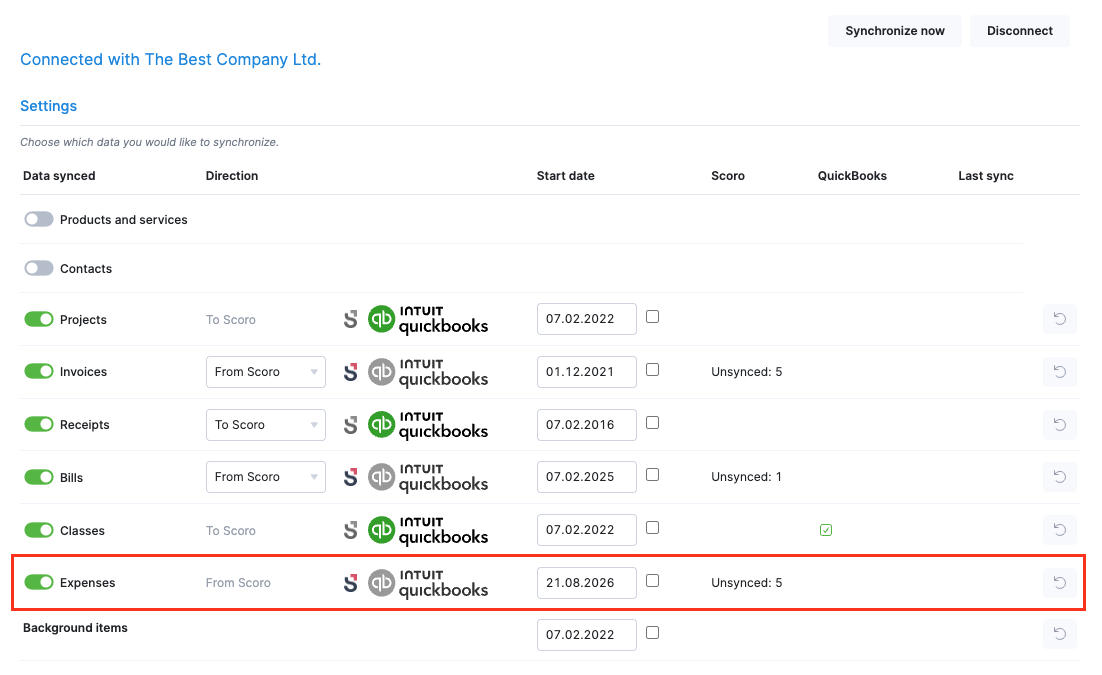
Site administrators can configure expense sync in the following steps:
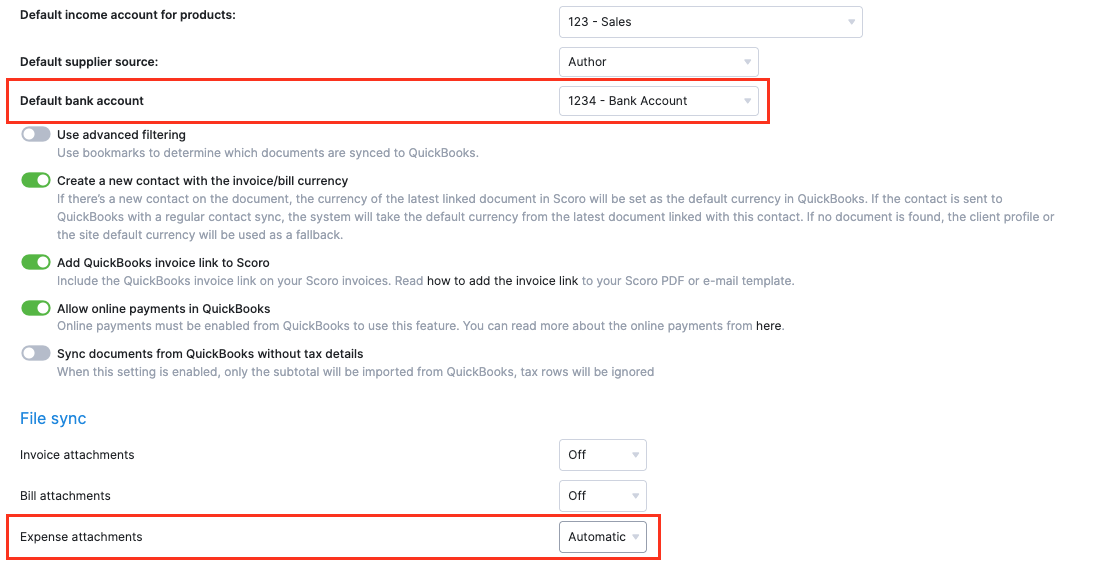
- Go to Settings > Site settings > Integrations > QuickBooks and enable the Expenses toggle.
- If you want to sync the receipt attachments to QuickBooks along with the expenses, scroll down to the File sync section and set the Expense attachment dropdown to ‘Automatic’ or ‘Manual’ as you prefer.
- Make sure to select the correct default bank account for your non-reimbursable expenses to ensure they land in the correct account in QuickBooks.
Direct purchase invoice support for Exact Online integration
The Exact Online integration now gives you more flexibility over how purchase documents enter your financial ledger. Instead of forcing simple overhead expenses into complex inventory workflows, site administrators can now use the Purchase invoice type dropdown field in the Exact Online integration settings to choose the sync method that best matches your accounting setup:
- Regular purchase invoice (default choice): Syncs detailed line items and requires an assigned product for every line.
- Direct purchase invoice: Pushes bills straight to Exact Online’s direct purchase module. This bypasses complex inventory and purchase order steps while keeping document records intact.
- Purchase entry: Routes bills directly to general ledger accounts without requiring product line items. This is ideal for simple vendor bills and overhead expenses.
To prevent sync errors, make sure to define the Default product for purchases and Default bill journal in your integration settings. Scoro automatically applies these fallbacks whenever a bill line lacks an explicit product or journal folder.
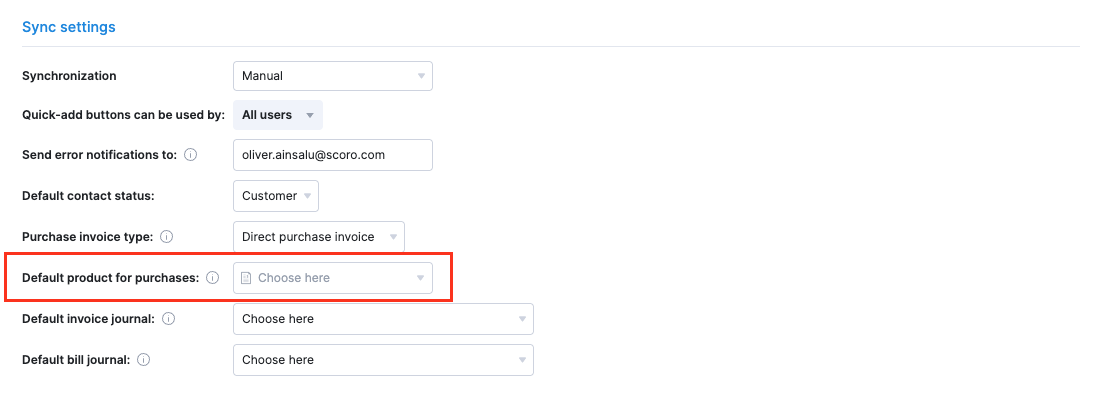
Important: Changing your purchase invoice target in Scoro won’t affect previously synced bills. They retain their original document type in Exact Online to protect historical ledger data.
See the budget usage in the project list
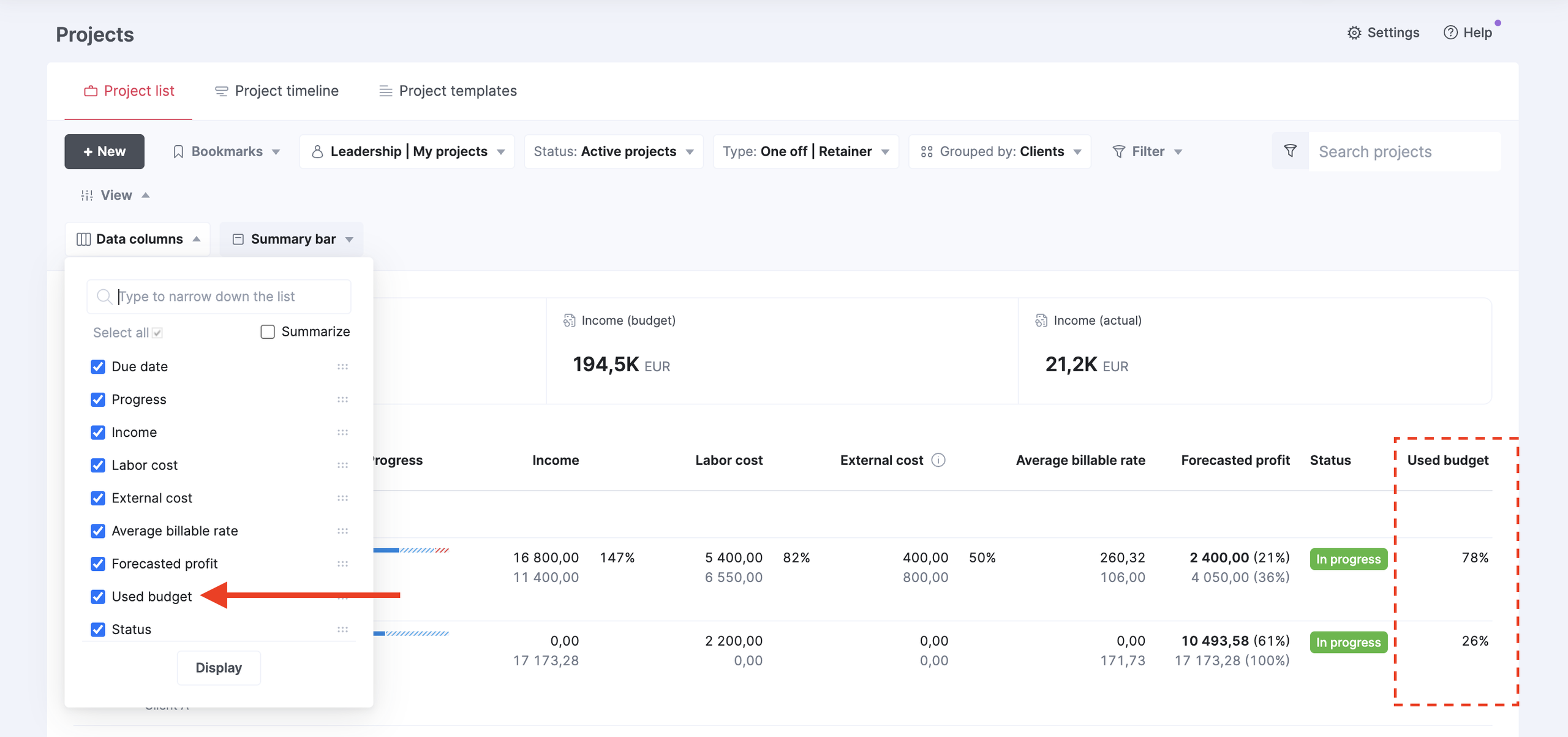
We released this a while ago, but in case you missed it – you can now add the Used budget data column to your project list view to instantly see what percent of the budget each project has already used. Projects without a monetary budget will show N/A.
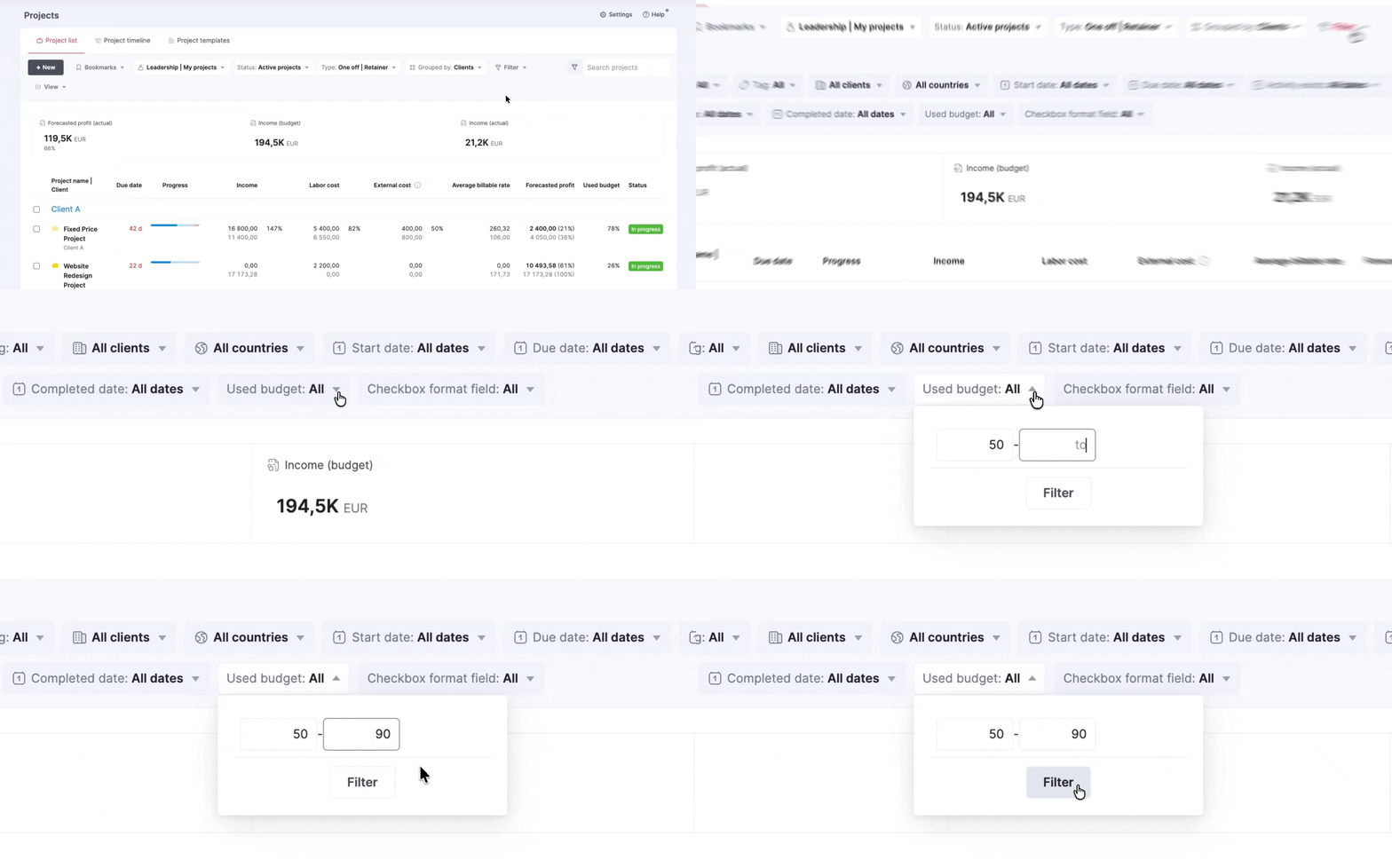
Used budget is also available as a filter, letting you filter out projects within a specific budget usage range and save that view as a bookmark for quick, convenient monitoring later.
Syncing BambooHR employees to Scoro as users
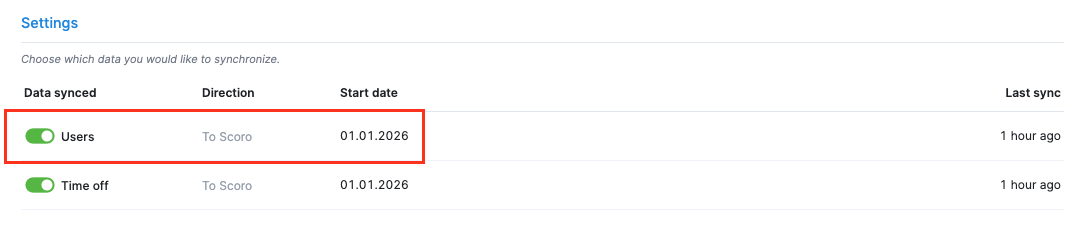
If you’re managing all your employee data in BambooHR, this update is for you! You can now sync your employees from BambooHR to Scoro as users. During the sync, users are matched by email addresses:
- If no matching user exists, Scoro creates a new user in Scoro if the user is active in BambooHR and the Scoro site has available user seats.
- If there are no available user seats in Scoro, users from BambooHR are still synced to Scoro with their user accounts set to Inactive, letting you purchase additional user seats and switch those synced users as Active whenever you’re ready.
Activation
User sync is disabled by default. Site admins can enable it under Settings > Site settings > Integrations > BambooHR by switching on the Users toggle. The integration settings include additional fields for customising further how the user are synced.
Learn more about the user sync in the BambooHR integration.
Smaller updates for smooth operations
- Detailed work report improvements: You can now sort the report data by the Date column when setting the primary or secondary grouping to List.
- Search improvements: You can now use the global search in your site menu to quickly find the task you need. You may need to enable this first – click the search icon in the menu, click Search settings, and enable the Tasks checkbox.
- Billable time improvements: Linking a billable task to a calendar event now automatically makes the event billable.
What we’re working on…
- Quote-based pipeline bookings & retainer quotes. Visualize your sales pipeline directly in the Bookings module to see how potential deals and retainers impact your team’s capacity and revenue forecast even before a project is created.
- Scoro Time mobile app. Use the Scoro Time mobile app for iOS or Android to log hours against your daily work tasks to easily hit your utilization goals while working away from your desk.
❗Some features may not be immediately available on your site due to the rollout timeline, or may require certain Scoro subscription requirements, permissions, or settings enabled by your site administrator.
Got feedback or product improvement ideas? We do our best to make Scoro better every day, so we’d love to hear from you! Share your thoughts with us via our contact form.
What to do next?
- Join our referral program to invite others to try out Scoro and earn monetary rewards of up to 1800 USD when they become a Scoro customer!
- Visit our Help Center to find in-depth guides about all Scoro features.
- Listen to our podcast The Handbook by Harv Nagra, an Ops Consultant and Ex-Agency Leader, where he dives into engaging conversations with operations experts to discuss and explore the behind-the-scenes and latest trends and innovations in the professional services space.
- Subscribe to The Handbook newsletter to get the latest info on agency challenges and solutions delivered directly to your inbox.